Set up a new customer organisation
At the end of this tutorial your customer Noordwind has an organisation of its own under yours, with its own administrator, a first key for its application and a monthly cap. You also know what you keep seeing as the organisation above, and how you suspend or delete the organisation.
| Building blocks | Organisations and customers, Keys, capabilities and policy, Insight |
| You need | an account with which you administer your own organisation in the console (Use the console), and the email address of the administrator at your customer |
| Builds on | nothing. The example connects to the support assistant from the earlier tutorials |
This tutorial uses the console, because inviting an administrator and handing over a secret is work for a person. Every step can also be done with a key; the routes are under The same with a key.
1. Create the organisation
- Open Organisations.
- In the row menu of your own organisation choose Create a child organisation. The parent organisation is then filled in already.
- Enter
Noordwindunder Name. - Leave Isolation on Shared.
- Open Permitted capabilities and switch off what this customer should not have. In any case switch off Administer this organisation, its keys and the organisations below it, unless the customer wants to administer through the API itself.
- Choose Create.
The organisation appears indented under yours, with the status Being provisioned. Shortly after that it is Active.
Two choices in this form:
- Isolation decides how the customer's data is kept apart in the database, and is fixed after creation. Shared separates per organisation at row level and is the default. Choose Schema only when the customer demands that its data is in tables of its own. For the API and the console the choice makes no difference. When the customer demands a database of its own, ask your operator before you create the organisation.
- Permitted capabilities is the ceiling: no key of Noordwind can switch on a function that is off here. A new organisation starts with everything your organisation may have. So you take away instead of adding, and you can change it later.
2. Invite the customer's administrator
- Open Noordwind by clicking its name. The sidebar now shows Noordwind's sections.
- Open Admins. The Invite admin card is beside the list; on a phone, select the Invite admin icon in the page's top bar.
- Enter a name to recognise the person by, and the email address.
- Choose Invite.
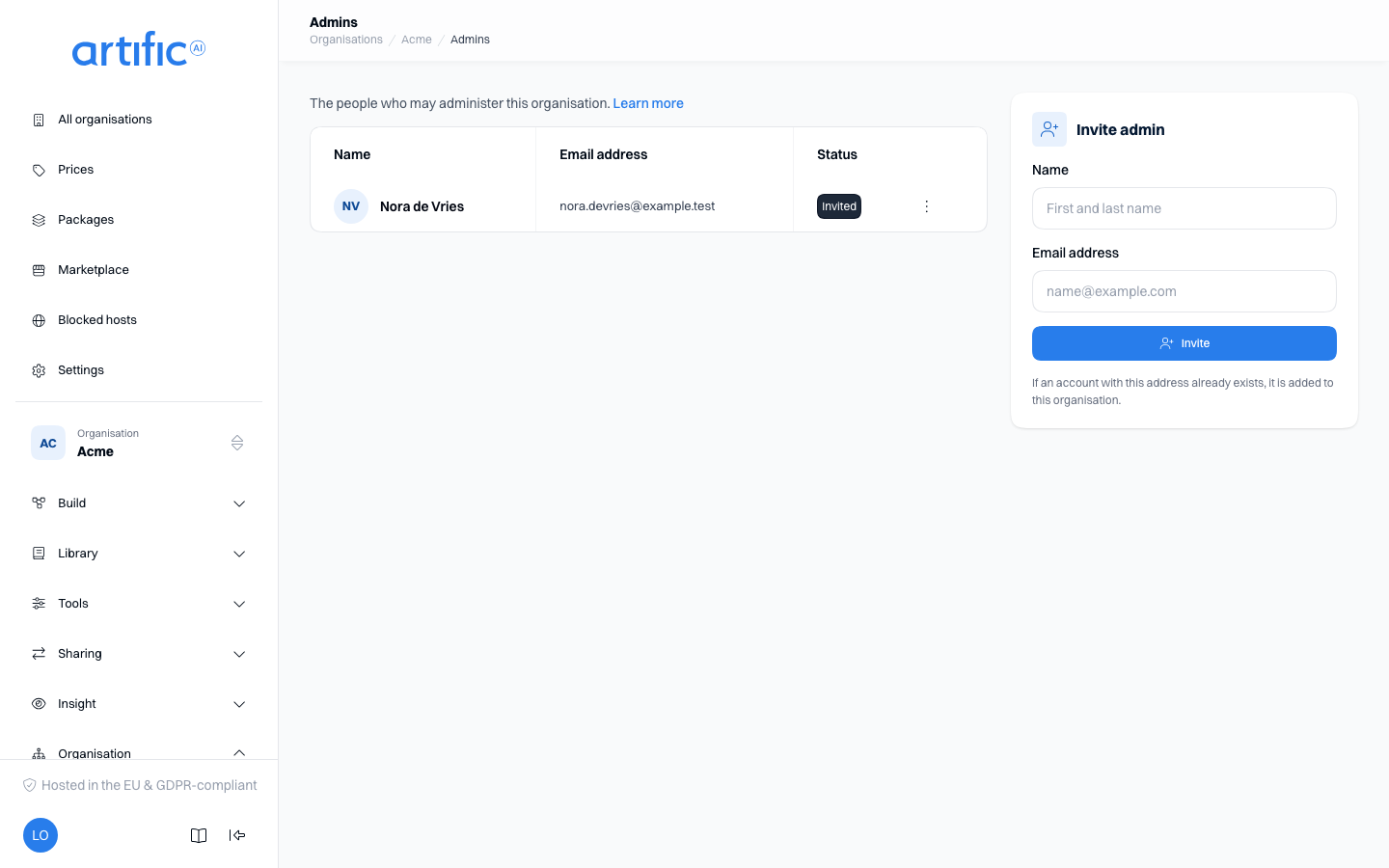
The message Invitation sent confirms the email went out. The person gets a link to set a password; you never see or choose that password. In the list they are Invited until they have set up the account, and Active after that.
You invite, because the organisation above decides who administers an organisation. Noordwind's administrator can then manage keys and read usage, but cannot invite a colleague: that stays with you.
3. Register the first key
Noordwind's application is a support portal where customers ask questions. That application gets a key of its own.
- Open Keys and choose Register key.
- Enter
Support portalas the name. - Switch on the capabilities the application uses:
agents,knowledge,toolingandthreads. - Enter
50.00under Monthly cost cap (euro). - In the card Rules, open the default rule over Agents and enter the pattern
supportunder Names. Choose Apply. - In the card Settings, switch on Require an agent.
- Choose Register, copy the secret and keep it with your other credentials.
The secret appears only in this window. If you lose it, you rotate the key.
Why these choices:
- One key per application. Usage, caps and the audit trail are kept per key. A script that
updates the handbook later gets a key of its own with only
knowledge. - Capabilities switch on only what the portal uses. A function that is off cannot be called by accident.
- The rule over Agents and Require an agent belong to a key that serves visitors of a website.
Every turn must then name the agent
supportand runs it as it is stored; a request cannot add instructions or tools of its own. The default rules otherwise allow everything the organisation holds. - The cost cap limits what this one application spends in a calendar month.
When the support portal is your product, running for several customers, your backend keeps this
secret for Noordwind and picks the key of the customer each request is for. When several people
work in the portal, your backend names the person on each request in X-Core-Subject
(Who the user is).
4. Set a monthly cap on the organisation
- Open Settings and choose the tab Limits & notifications.
- Enter
250.00on the card Monthly cap. - Choose Save in the bar at the bottom.
The cap holds for all of Noordwind's keys together, in euro per calendar month (UTC). Once it is
reached, Core answers a new turn 429 until the month turns. The organisation's cap and a key's
cap hold side by side: a wider cap on a key does not widen the organisation's.
You set this cap, and not the customer. Noordwind's administrator sees the amount on the card Details, but has no field for it. On the card Notifications, on the same tab, you record who gets an email when the cap comes near (Notifications).
Check that it works
Ask with the new secret what the key is:
curl -s "$CORE_URL/key" -H "Authorization: Bearer <the secret of Support portal>"
{
  "id": "key_2Wd5...",
  "tenant_id": "ten_9Fb2...",
  "name": "Support portal",
  "capabilities": { "agents": {}, "knowledge": {}, "tooling": {}, "threads": {} },
  "policy": { "settings": { "agents_required": true } }
}
The answer is abridged. tenant_id is Noordwind's id, which is also at the top of its
Settings. Two calls then prove the separation:
- A turn without an agent,
{"model": "<a model id>", "input": "Hello"}onPOST /responses, answers403withagentinerror.param. The setting Require an agent works. {"agent": {"id": "support"}, "input": "Hello"}answers404as long as Noordwind has no agentsupport. The agent from your own organisation does not exist for this key. In the next tutorial you install it.
What you see and can do as the organisation above
You administer Noordwind as long as it sits under your organisation. That means:
- you open Noordwind from Organisations and work in its sections as its own administrators do;
- you register, rotate and delete its keys, and invite its administrators;
- you read its Usage and Audit, and add up the usage of a whole branch (Count the organisations below too);
- you change its capability ceiling and its monthly cap.
In the console you also see the customer's content. Everyone who administers your organisation can open the knowledge, files, datastores and traces in Noordwind. Traces hold the full input and output of model calls. Record in your agreements with the customer who has access on your side, and keep the number of administrators of your own organisation small.
An API key with management does not read a customer's content through the ordinary routes: no
knowledge, prompts, files or conversations. Such a key can request and download an archive of the
whole customer organisation (POST /organisations/{id}/exports), and that archive holds that
content. So treat a key with management as access to your customers' data
(Take your data with you).
When you want the customer's administrators not to be able to do something themselves, use the card Reserved by the organisation above on the tab Access & policy of Noordwind. Reserving Key management fits when you manage the customer's keys and nobody else may change them; Usage figures and Audit trail when you are the only one who reads usage and calls (What the organisation above reserves).
Suspend and delete
Suspend stops a customer without throwing anything away. Open Noordwind's Settings, the
tab General, and choose Suspend in the danger zone. Every key of Noordwind gets 403 from
that moment, and so does every key of an organisation below Noordwind. The data stays, and
Reactivate restores access. Use this for a payment in arrears
or a suspicion of abuse.
Delete is in the same danger zone. The confirmation asks you to type the tenant id. Core revokes the keys and erases the data in the background; the management audit history is kept. Deleting is final. When organisations still sit under Noordwind, you delete those first. When the customer wants to take its data along, request an archive beforehand (Take your data with you).
The same with a key
A key of your own organisation with the capability management does the same steps:
| Step | Call |
|---|---|
| create the organisation | POST /organisations with name, parent_id, isolation and permitted_capabilities |
| invite an administrator | POST /organisations/{id}/admins with email and name |
| register a key | POST /organisations/{id}/keys with name, capabilities, policy and monthly_cost_cap_eur |
| set the monthly cap | PATCH /organisations/{id} with monthly_cost_cap_eur |
| suspend and reactivate | PATCH /organisations/{id} with status set to suspended or active |
| delete | DELETE /organisations/{id} |
The fields and answers are in Manage organisations through the API.
If it does not work
| You see | Cause | Fix |
|---|---|---|
409 with The tenant is not ready. |
the organisation is still being provisioned | wait until the status is Active and try again |
| a capability cannot be switched on for the key | it is off in Noordwind's Permitted capabilities, or a capability it depends on is off | switch it on on the tab Capabilities of Settings |
| Admin created, but the invitation email could not be sent; send it again | the access exists, the email was not delivered | choose Resend invitation in the row menu |
| no Invite admin card | you are in your own organisation; there the organisation above invites | open Noordwind first |
403 on every call with the key |
the organisation is suspended, or an organisation above it is | Reactivate in the danger zone of the suspended organisation |
404 on a route such as /agents |
the capability is off on the key or in the ceiling | Troubleshoot a 404 |
Read on
- Organisations and customers: isolation, the ceiling and what works from the top down.
- Building a platform on Core: the choices for a product of your own with Core underneath, from customer organisations to people and publications.
- Manage organisations in the console and An organisation's settings.
- An organisation's administrators and Keys: statuses, policy, rotating.
- Usage in the console: following usage and caps.
- Markups on the price: the price a customer sees for usage.
Next tutorial: Build one solution as a partner that you can use at several customer organisations.