Pipelines in the console
The concept behind knowledge is explained in Knowledge.
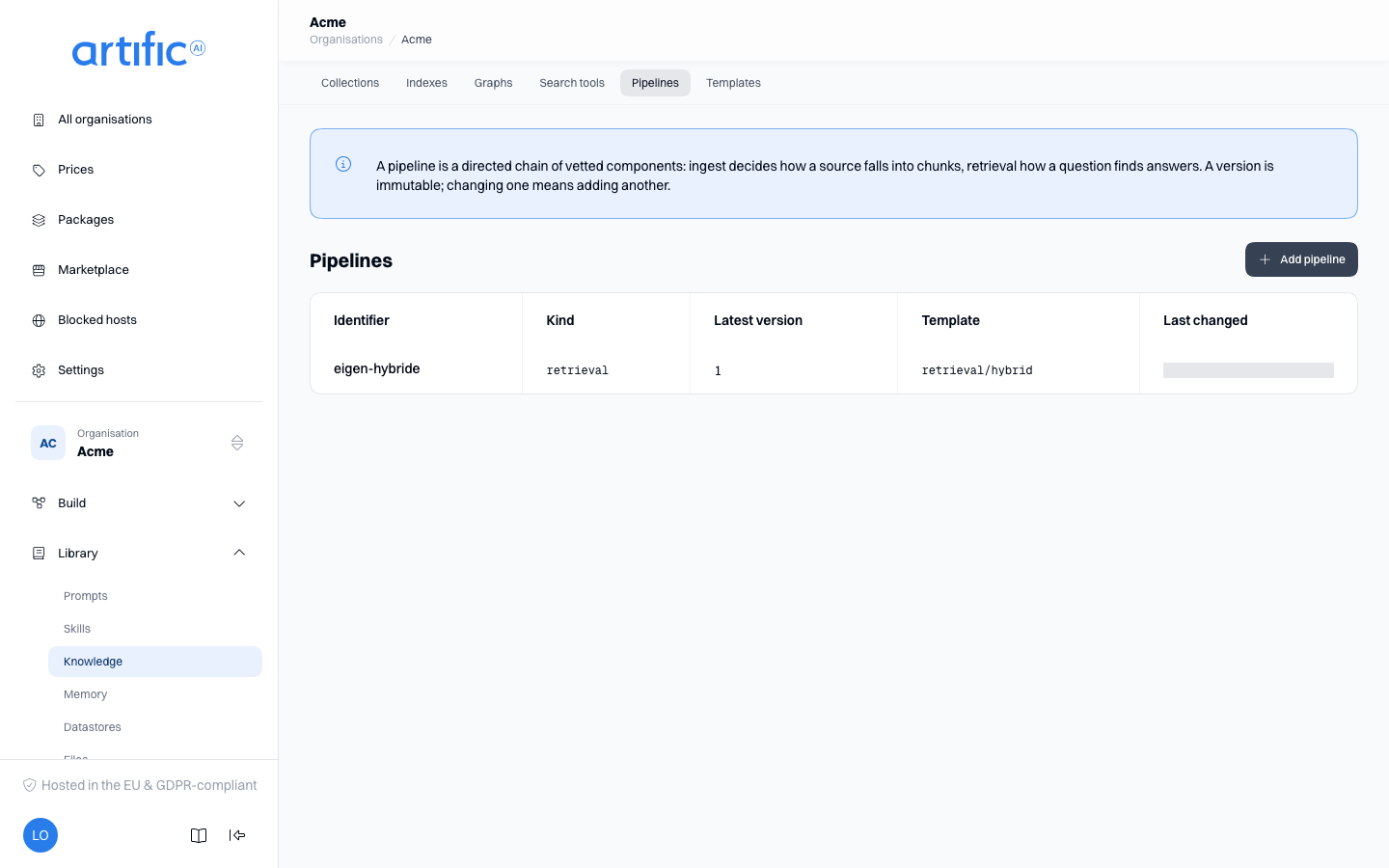
In the Pipelines and Templates segments of Knowledge you view the built-in pipelines and create, edit and test pipelines of your own. Pipelines define how sources are processed or how search results are retrieved. Indexes use ingest pipelines; search tools use retrieval pipelines. Start with a built-in template and create a custom pipeline when you need different processing steps.
You need an administrator account of the organisation, and the knowledge capability has to be on
in the organisation's ceiling. You do the same with a key in
Knowledge through the API.
Pipeline types
| Kind | What it does | Who runs it |
|---|---|---|
| ingest | chunk a source and embed the chunks | an index, while processing |
| retrieval | find the chunks that fit a question | a search tool, or the search field on an index |
Choose Kind at creation. It cannot be changed later. Indexes accept ingest pipelines only; search tools accept retrieval pipelines only.
An ingest pipeline reads a large text file, PDF, Word, PowerPoint or Excel file one part at a time
when it holds only loading, parsing, splitting into sentences, Markdown sections or a hierarchy,
embedding and one store step, as the default does; a Word, PowerPoint or Excel file needs the
parsing step for it. A pipeline with any other step reads every source whole, up to 25 MiB; a
larger text, PDF, Word, PowerPoint or Excel file fails with too_large_for_pipeline there
(Knowledge through the API).
Create a pipeline
Select Add pipeline and choose how to create it:
Use From a template to copy a built-in template into version 1 of your pipeline. Enter an Identifier and select a template. Your copy can be edited independently and does not track later changes to the built-in template.
Use From a configuration to supply an Identifier, kind, description and JSON
configuration. The configuration contains nodes and optional edges. This option is useful when
you already have a configuration or no template fits.
The identifier is what an index or a search tool picks this pipeline by, and can change later; the
field shapes what you type into lowercase letters, digits, - and _, at most 64 characters.
The editor opens on a chain that already runs for the kind you picked: load, split, embed and store for ingestion, a semantic search for retrieval. Switching the kind swaps that starting point for the other one, unless you have written something of your own, which is left alone.
Core validates component types, parameters and ranges against the deployment’s component catalogue.
A type that does not exist, a parameter that is wrong or a value out of range is refused with the
place named, for example config.nodes[3].config.chunk_size. Draw the chain in the editor and that
same message points at the step where it went wrong.
Read the pipeline
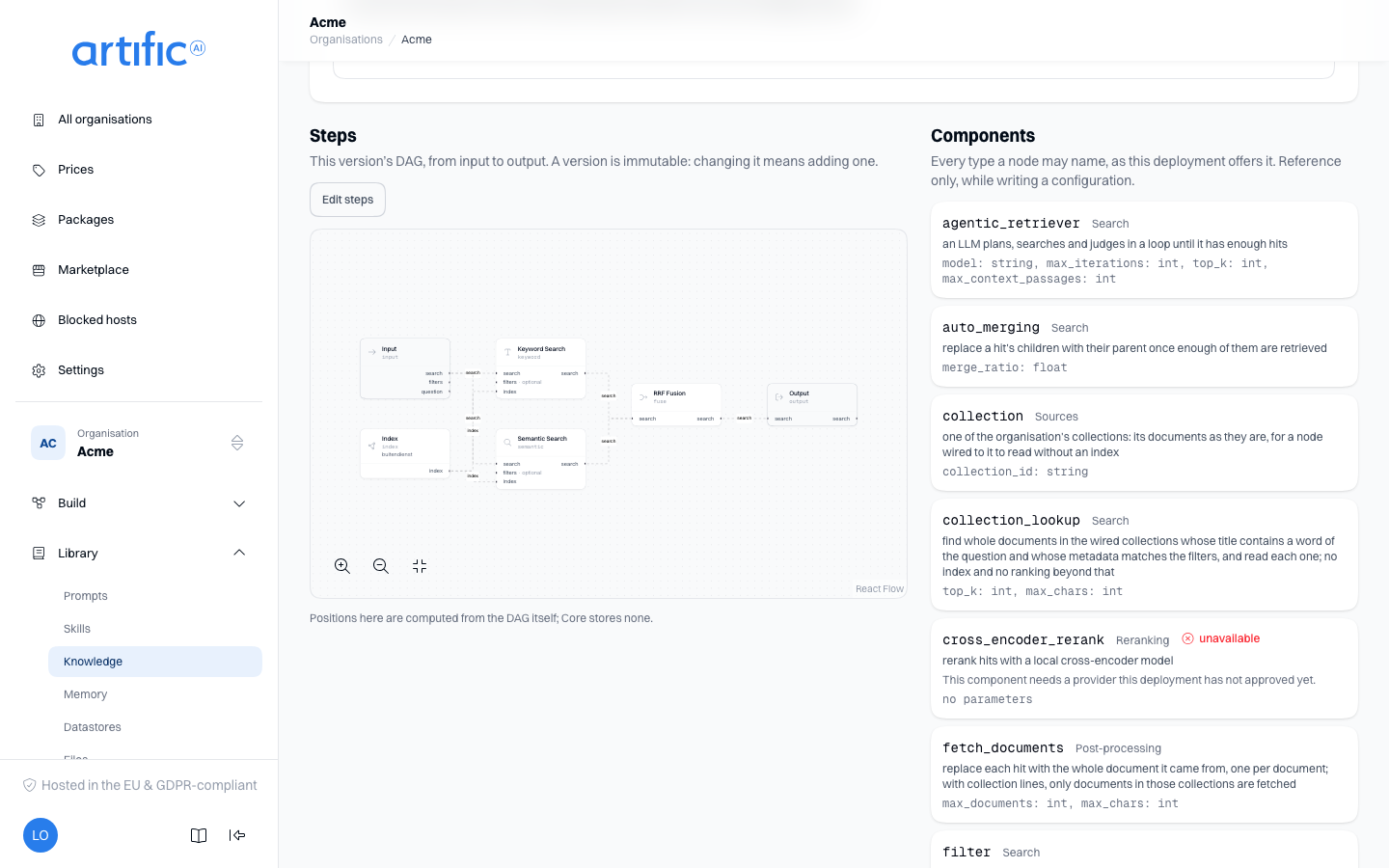
Steps draws the latest version as a diagram: left to right, one box per step, with the arrows between them. The placement is computed from the chain itself every time. Core stores no positions, so everybody who opens the same version sees the same picture. Zoom and fit to view sit in the bottom left.
Components beside it lists this deployment’s supported step types and their parameters. A type this deployment does not offer is greyed out with the reason.
The same diagram sits on an index’s screen under Ingest pipeline, and on a search tool’s under Query pipeline. Underneath it is the name of what runs there: a built-in template, or your own pipeline with its version number.
Editing the steps
Edit steps opens the chain full screen. The versions are on the left, the components you can add beside them, the diagram in the middle, and the step you click on the right with its parameters. Drag a component onto the diagram or click it. Connect two steps by dragging from the dot on the right to the dot on the left. Arrange automatically puts everything back in line. Input and output belong to every pipeline and cannot be removed.
Each box says what that step takes and what it gives: a file with its metadata, documents, chunks, rows, the query with its filters, or the confirmation that the chunks were stored. A connection is only possible where those two meet — dragging from a step that gives documents to one that takes chunks is refused while you drag, with a line saying why. The same check runs over the JSON tab, so a connection typed there disables saving instead of being refused by Core afterwards. Input carries the file and the metadata the source was filed with; output is what the pipeline ended up storing.
A step that calls a language model has a Model of its own. It is a list of this deployment's chat models, and leaving it empty means the model of the turn the step runs in — outside a turn, such a step fails.
Saving works one way: Save as a new version. A version never changes, so editing always produces a new version. If you opened the editor from an index or a search tool, that resource moves to the new version immediately. If Core refuses the chain, the step where it went wrong turns red and the message sits in its panel.
Switch to JSON above the diagram to type the same edit, in the shape Core stores it in.
If an index or search tool runs a template, editing makes a copy first. A template belongs to Core itself and does not change along. A name is proposed. As soon as the copy exists, this index or search tool uses the copy instead of the template.
Filter what a search reaches
Filter is a step you put between input and a search step. It narrows every question that runs
below it to sources whose metadata matches what you give it: a Key of folder and a Value of
hr searches only what you filed in that folder. The keys are the ones you filed a source under, so
the value has to match exactly. Leave the step empty and it narrows nothing.
The keys are edited as rows, not as JSON; the same rows appear on a search step’s own Metadata filter parameter. A second filter step lower down wins a key an earlier one set, and a search step’s own parameter wins over both. If the search tool that runs the pipeline has a filter of its own, that one still applies on top: asking for another value of a key it pins returns nothing rather than a wider search. The Filtered template is this shape, ready to copy.
Templates
The Templates segment shows this deployment’s built-in pipelines. Filter by kind and search by name, id or description. Click one to see its diagram beside the list, and click a step in it to read what it does and which parameters it takes.
A template belongs to Core itself: the same for every organisation, and not editable. Use as a pipeline turns it into a pipeline of your own, through the same drawer as Create a pipeline.
Two ingest templates split their chain to make tables queryable beside the prose. Tables reads the document, then chunks and embeds its text on one branch and extracts its tables on the other, and both end in Output. RAG with Tables splits the same way after a parsing service has read the document, so the tables in a scanned PDF become rows too. Structured runs the extracting branch alone, which is what a spreadsheet or a file of records gets by default. With Images splits as well, for another reason: beside the text it embeds the document's pictures.
The default follows the file type. An index whose Ingest pipeline is left empty takes
Basic (ingest/basic) for text, Markdown, HTML, PDF, Word and PowerPoint files, and reads a
PDF from its text layer only; it takes Structured (ingest/structured) for CSV, JSON and
Excel files. The index Core keeps over an API key's own uploads is such an index. A key with the
knowledge capability can give that index another pipeline, for example Advanced Parse to
read scanned PDFs, by sending ingest_pipeline in PATCH /knowledge/indexes/{id}; renaming or
deleting that index, and changing its labels or collections, are refused. As on any index, a new
pipeline asks for a reindex (Create an index).
Advanced Parse (ingest/llama-parse) and RAG with Tables (ingest/rag-with-tables) run
the offline parse step first, so a Word file, a deck, a workbook or a web page is read without
leaving Core. The llama_parse step after it sends only what is still without text, such as a
scanned PDF or a picture, to the deployment's parsing service. Both templates need a deployment
with a parsing service; without one, Use as a pipeline refuses them.
Versions
Select New version to edit a copy of the latest configuration. Saving creates another version and preserves existing ones. Browse Versions and select Show steps to inspect earlier configurations.
Publishing a version does not update existing indexes or search tools. Select the new version on each resource that should use it.
You can edit the pipeline’s Identifier and Description independently of its versions.
Drafts
In New version, Save as draft saves the version as a draft: no key reads it, and no index or search tool can be set to it until it is published. Versions marks each draft draft and offers Publish, Discard draft and Test draft v…, which runs the draft as a test without leaving a trace. Publishing checks the draft again against the components your deployment has and the sources you may reach. A pipeline that has only a draft is marked draft and is not offered where an index or a search tool picks its pipeline.
Test a pipeline
Test runs the configured components and models without storing the processed content. The required input depends on the pipeline kind:
| Kind | You fill in | You get back |
|---|---|---|
| ingest | Text and its Media type | the Chunks that would have been stored |
| retrieval | a Question, the Indexes to search and a Maximum results | Answer and Results |
Expand Steps to inspect each step’s input and output. The result also identifies the version used.
Tests incur normal model and retrieval usage. Usage is attributed to the organisation and your console account, without a key. See Usage.
Delete a pipeline
Use the delete action at the bottom and type the pipeline name to confirm. This removes all versions.
Core refuses the delete with a 409 while an index, a graph or a search tool still runs the
pipeline, and the confirmation stays open and lists them, each a link. Move them to another
pipeline first; after that the delete goes through.
Empty lists and access restrictions
“No pipelines yet” means the organisation has no custom pipelines. Built-in templates remain available to indexes and search tools.
If knowledge is disabled, Index and search knowledge sources is off in the organisation's ceiling. The administrator of the organisation above turns it on under Permitted capabilities on Settings; for an organisation with none above it, your operator does.