Use the console
The console is the web application in which an administrator sets an organisation up: you create organisations for customers and API keys there, store agents, knowledge and tools, and review usage, audit events and traces. This page shows how you get in and where everything is. The pages under Manage and the console pages under Build explain each screen, starting with Sign in to the console.
Sign in
Open the console address supplied by your operator and sign in with your username or email address and password. For a new account, follow the invitation link to set your password first; see Signing in.
Your operator is Artific: the party that runs this deployment, created your organisation and invited you. Everywhere this guide says to ask your operator, that is who it means.
What you can reach
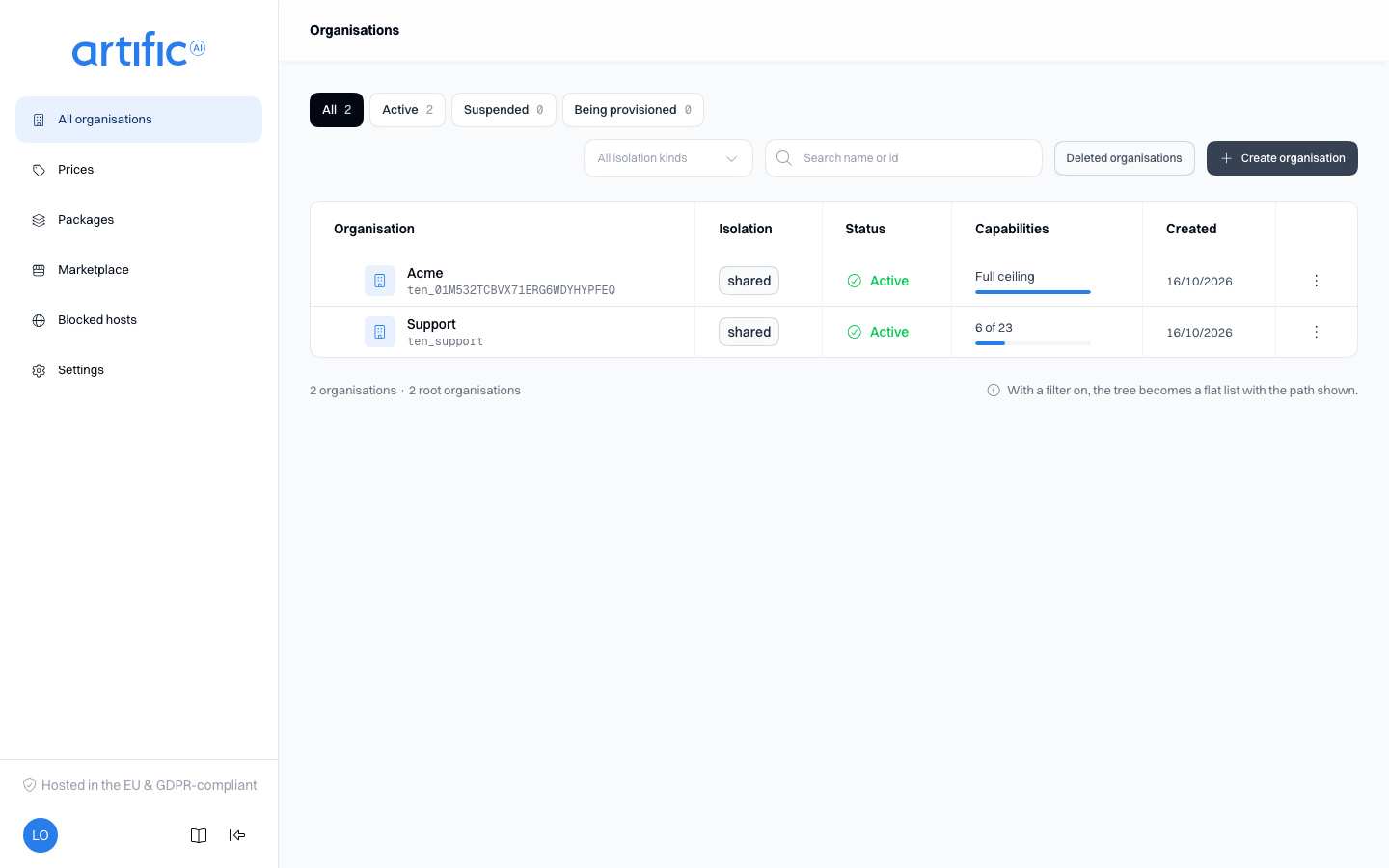
You see the organisations you administer and every organisation below them, and nothing else. An organisation outside that reach is not listed and cannot be opened by its address either.
After signing in, open your organisation from Organisations. This list is the starting screen even if you manage only one organisation. Afterwards, the switcher above the organisation's sections in the sidebar changes organisation and All organisations returns to the list.
On a phone the sidebar becomes a tab bar at the bottom of the screen. Inside an organisation the tabs are Organisation, Build, Library and Insight, each opening the group's first section; on a section's page, select the page title at the top to switch to another section of the same group. More holds Tools, Sharing, All organisations -- the way to change organisation on a phone -- the deployment's own pages if you are an operator, and your account. Outside an organisation the tabs are Organisations and, for an operator, Prices and Marketplace; More then holds your account, and Blocked hosts for an operator.
Organisation sections
Choose a section in your organisation's sidebar:
| You want to | Section |
|---|---|
| Configure organisation details, policy and retention | Settings |
| Manage administrator access | Admins |
| Create or revoke API access | Keys |
| Inspect models and configure fallback | Models, Routing, Routers |
| Add a markup to the price of usage | Markups |
| Reuse instructions | Skills, Prompts, Agents |
| Write a process down and run it step by step | Workflows |
| Test agents | Evaluations |
| Run a turn, a suite or a workflow on a clock | Schedules |
| Share or install resources | Publications and Installed |
| Make tools available | Overview and toolsets, System tools, API connectors, MCP servers, Scripts, Aliases, Computers |
| Make documents searchable | Knowledge |
| Let agents remember facts across conversations | Memory |
| Keep your own data for agents | Datastores |
| Find, download, rename or keep a stored file; open, share or publish an HTML file as a page | Files |
| Investigate usage and activity | Usage, Audit, Traces |
| Read proposals to improve agents and skills | Improvements |
The sections you can see and edit depend on your permissions and the organisation's settings.
Usage includes work started in the console. Filtering by one API key excludes that work.
Capabilities and keys
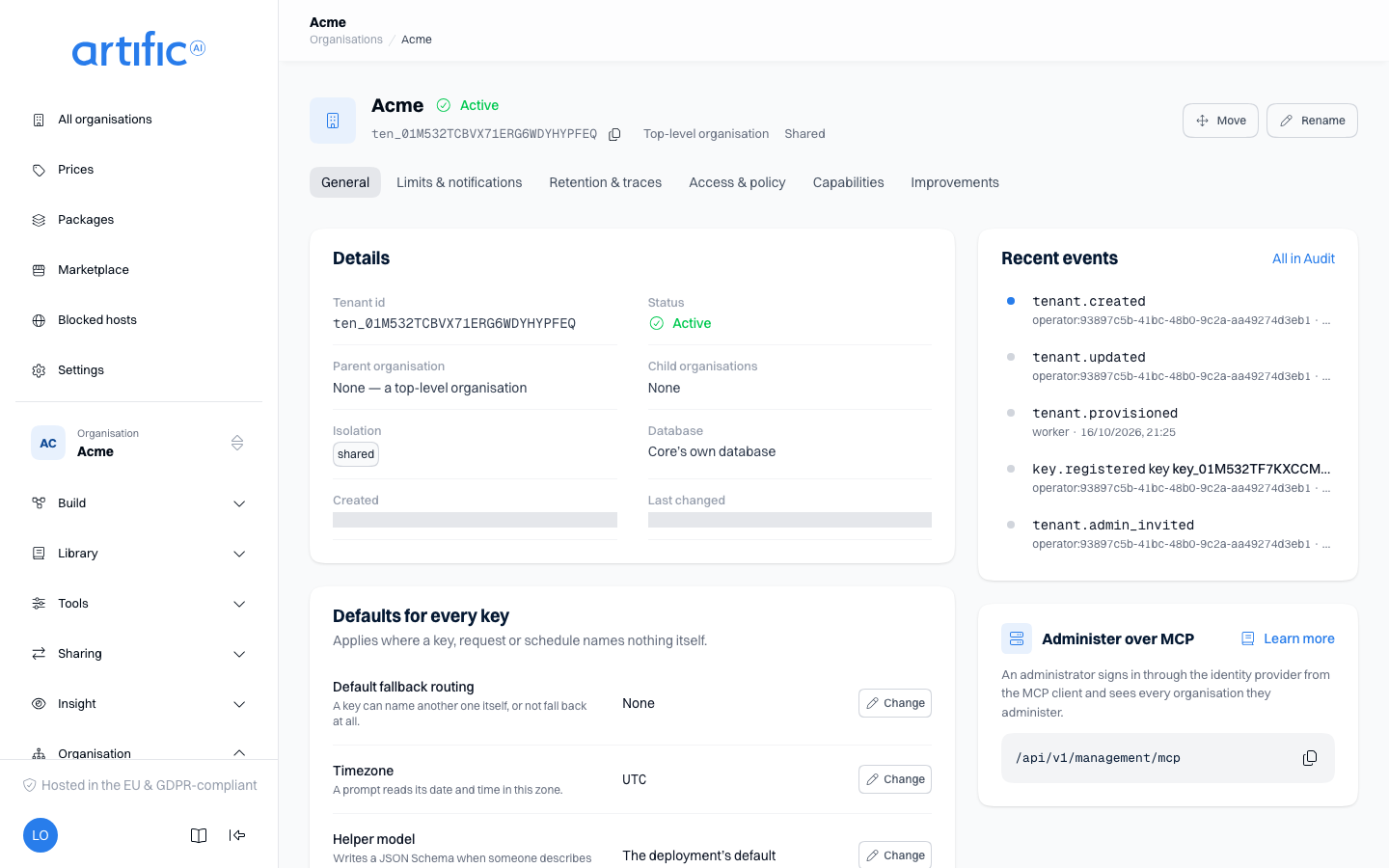
- Permitted capabilities, on Settings: the ceiling for every key of this organisation.
A key cannot switch on what is not permitted here. Turning one off takes effect at once, for
every key — the routes behind it start answering
404. - Keys, on Keys: register a key and hand its secret to whoever is going to call. The secret is shown once.
Change the language
Choose Dutch or English on Settings: the Settings link at the top of the sidebar, not the organisation's own Settings section further down, or the account menu under your avatar. The console remembers the choice on your device. This guide uses English screenshots.