Workflows in the console
A workflow is a process you write down as steps with connections between them: an agent, a prompt, a tool, a condition, a decision by a person. Core carries out those steps one by one in the background; one such execution is called a run. In the Workflows section you draw a workflow, start runs, follow them and answer the decisions that wait for an administrator.
You need an administrator account of the organisation, and the workflows capability has to be on
in the organisation's ceiling. Your operator switches workflows on for the whole deployment. You do
the same with a key in Workflows through the API. What a workflow is and
what it is for is explained in Workflows.
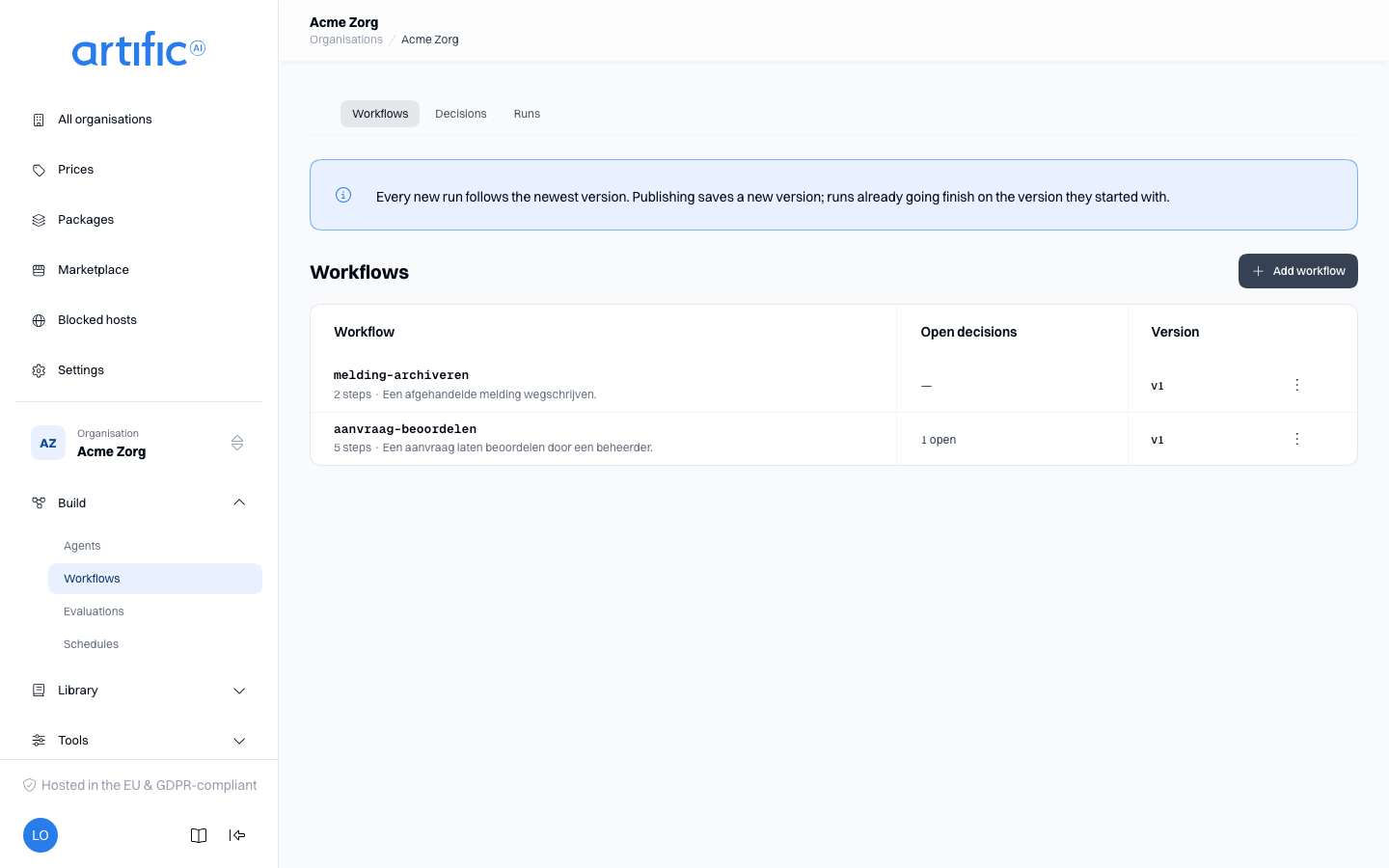
Under a workflow's name are its number of steps and its description. Open decisions counts what waits for an answer for that workflow; the column is left out when more decisions are open than fit on one page. Version is the newest version. How a workflow starts by itself is not in this list: its triggers are on its overview, and its schedules under Schedules.
Add a workflow
Select Add workflow. The drawer asks for:
| Field | What you enter |
|---|---|
| Name | unique in the organisation; lowercase letters, digits, - and _, at most 48 characters. A name never changes afterwards |
| Description | what the workflow is for. When an agent starts this workflow, the model reads this text to decide when |
| Metadata | optional. Your own key and value pairs, such as an owner or a ticket number. No rule reads them. A workflow's labels, set through the API, are what rules about Workflows read |
Add and edit creates the workflow with a start and an end and opens the editor.
The editor
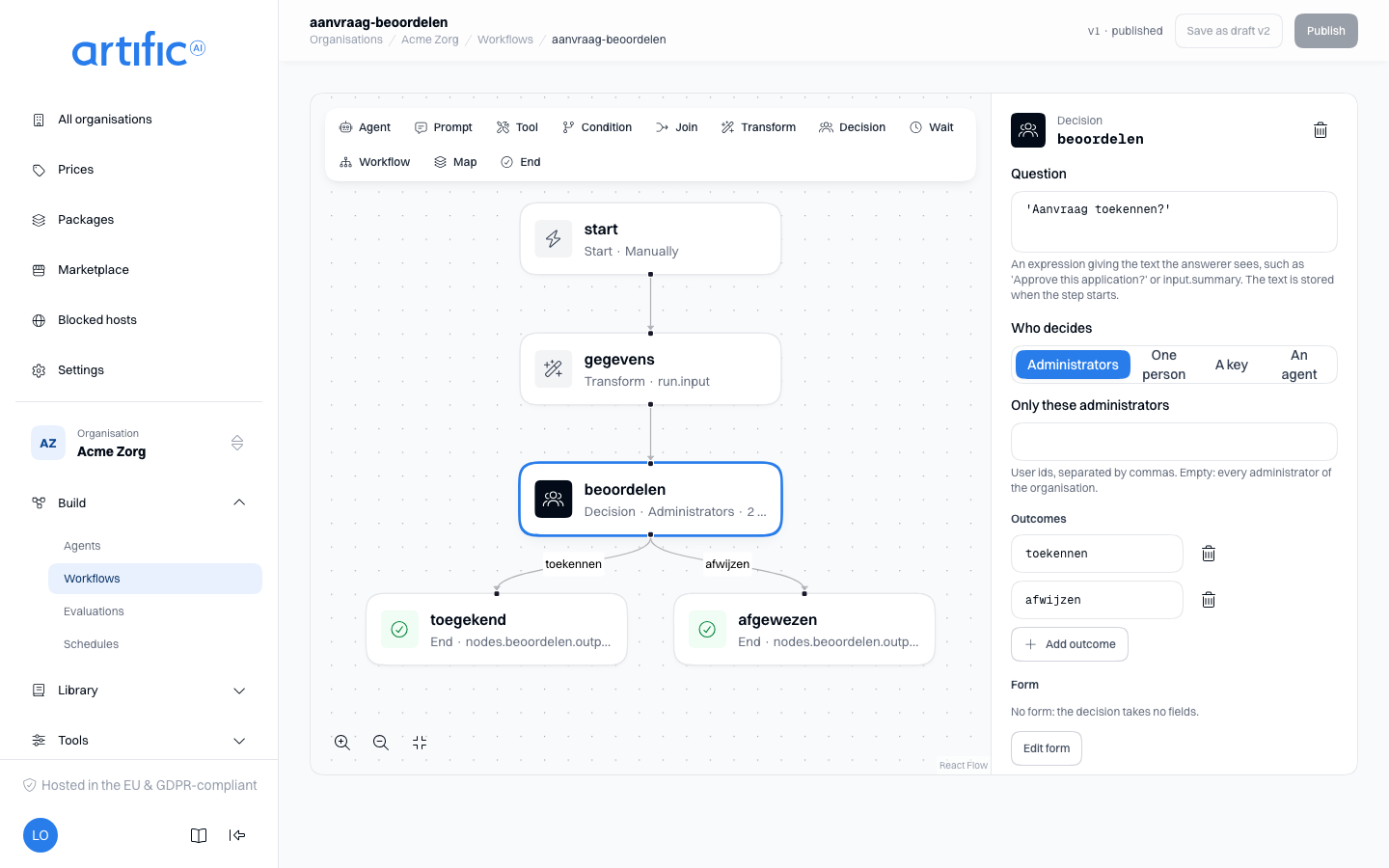
- Add a step. Click a kind in the strip at the top left of the canvas. The step appears unconnected on the canvas and opens in the panel on the right.
- Connect steps. Drag from the bottom of one step to the top of another. The editor refuses a connection to the step itself, to the start, from an end, or a second one between the same two steps.
- Set a step up. Click the step. The panel shows its kind and its id, the fields of that kind, and under Paths the connections that leave it.
- Remove. Choose a step or a connection and press Delete, or use the bin in the panel. The start cannot be removed.
- Declare call variables. The start step's panel also holds At call time: the values a run's
start sends in
variables, which an expression reads asrun.variables.<name>and a tool step passes on to its tool. Add one with Add a variable, with the same fields as for an API connector but never a secret, because a run keeps its variables readable. Publishing saves the call variables as you left them, and the install values of the version you started from unchanged, along with the steps.
You may drag steps to keep the canvas readable. Core stores no positions, so next time they are back where the editor computes them.
Fields several kinds share
| Field | On | Meaning |
|---|---|---|
| Input | every step except the start and Map | an expression over the run, such as run.input.name or nodes.summarise.output. Empty: the output of the step before. The expression language is described in Workflows through the API |
| Timeout in seconds | Agent, Prompt, Tool, and a Decision an agent takes | how long the step may take. Empty: what the step itself allows |
| Attempts and Wait between attempts, in seconds | Agent, Prompt, Tool, and a Decision an agent takes | how often Core tries the step before it fails, and how long it waits in between. On a tool this is possible only when the tool's registration says sending twice is safe |
| On an error | the paths leaving an Agent, Prompt, Tool, Condition, Transform, Decision or Wait step | makes the path the step's safety net: when the step fails, the run follows this path instead of the others. A step has at most one such path |
Problems and publishing
The editor has Core check every change, half a second after you stop typing. The top right shows where the draft stands: Checking…, the number of problems, Unpublished changes, or the version in front of you. What Core refuses is listed under Fix these first, each problem with Open step. The list is on the right while no step is chosen; click an empty part of the canvas to see it again. The step itself gets a red ring and its panel the message Core refuses this step with the reason. Examples: an agent that does not exist, a cycle, an outcome without a path, an expression that cannot be read.
Publish becomes available once you have changed something and no problem is left, and saves what you drew as the next version. Save as draft v… beside it saves it as a draft instead: a version no run, trigger or schedule starts until you publish it. Nothing unsaved is kept: when you leave the page with changes, the console asks whether to Leave or Stay, and leaving discards them. Every new run follows the newest published version; runs already going finish on the version they started with.
Drafts
The workflow's overview lists its Versions, newest first, each draft marked draft; Draft v… ready opens the draft that waits beside the published version. An opened draft offers Publish and Discard draft, each behind a confirmation. Publishing checks the draft again as a version written now would be, so a step naming something deleted since is refused. A workflow that has only a draft is marked draft and offers no Start: a run acts as a key, and no key runs a draft.
If you see The editor cannot draw this version, the version holds a step the console does not know. Change such a workflow through the API.
The kinds of step
Start. Every workflow has exactly one. Edit input records which fields a run takes when it
starts; every step reads them as run.input.<field>, and a run starts only with input that fits
them. Without fields a run takes any input.
Agent. Has an agent take one turn. Choose the agent and optionally a Version; empty is the newest version at every run. Continue the conversation of lets the step go on in the conversation of an earlier agent or prompt step; otherwise it begins a new conversation. The output is the agent's last text, or the object its output format prescribes.
Prompt. One turn of a model, without an agent. Choose a stored prompt, or No prompt, own instructions and write the Instructions in the panel. Choose the Model as well.
Tool. Calls one tool; the Input supplies the arguments. The output is the tool's answer.
Condition. Chooses how the run goes on. Each path takes an expression under Takes this path when that is true or false; the path without an expression applies when no other holds.
Join. Brings branches that ran side by side back together. Goes on when decides when: Every path is done, The first path is done, or A number are done with the number.
Transform. Does nothing itself: its input is its output. You use it to shape data with an expression into what the next step expects.
Decision. Holds the run until someone answers. You can also put the question to an agent; the run then waits for nobody. You record:
| Field | Meaning |
|---|---|
| Question | an expression giving the text the answerer reads, such as 'Approve this application?' or input.summary. The text is stored when the step starts waiting |
| Who decides | Administrators, optionally narrowed to the user ids under Only these administrators; One person, the person the run is for or someone you name by id; A key, for a system that answers through the API; or An agent, which decides by itself with no wait for anyone: you choose the Agent and optionally a Version. What Core guarantees for an agent and what it does not is described in An agent decides |
| Outcomes | the answers to choose from. Each outcome belongs to exactly one path: a new connection out of the decision takes the first outcome that has no path yet, and on each path you choose which one it is under Takes this path on outcome. The editor names the outcomes that have no path yet |
| Form | fields the answerer fills in with the answer. Without a form the decision takes no fields |
| Time allowed in seconds | how long the decision may wait. Empty: until the run itself expires. Not with An agent: Timeout in seconds and Attempts apply there |
| If nobody decides in time | The run fails, Follow the route on error, or take one of the outcomes. Not with An agent: when the agent gives no valid answer, the run follows the On an error path, or fails |
Wait. Holds the run: A duration in seconds, or Until a moment, an expression giving an
instant with its offset, such as run.input.deadline. An instant already past lets the run go on
at once.
Workflow. Starts a run of another workflow of your organisation and waits until it is done; that run's output is the step's output. Choose the workflow and optionally a Version. The workflow you are editing is not in the list.
Map. Starts one run of another workflow per item of a list. List of items is an expression
that gives a list, such as run.input.cases; each item becomes the input of one run. At once
decides how many of those runs may be open at the same time. This step has no Input and no
attempts.
End. Its input becomes the output of the run. A workflow may have more than one end.
Start a run
Open a workflow and select Start. The Start a run drawer asks for:
- Runs as: the key the run runs as. You are a person and have no key of your own, and a run is
always the act of a key: every step falls under that key's capabilities and policy, and the usage
counts on that key. A key without the
workflowscapability is listed with (lacks workflows) and cannot start a run. If the organisation has no key yet, To keys takes you to Keys. - At call time: when the latest version declares call variables, a field for each, as a run's
variables. A required variable without a value is refused before the run starts. - Input: one field per field of the input the start records. When the workflow describes no separate fields, you give the input as one JSON object.
- Labels: optional. The labels the run starts with. Every conversation its steps open carries them, and so does everything created in those conversations, so a rule about Conversations decides who reaches that work. The workflow's own labels classify the workflow and are not passed on. With a label vocabulary, only labels declared for Conversations are accepted.
Start queues the run and opens its page.
Follow a run
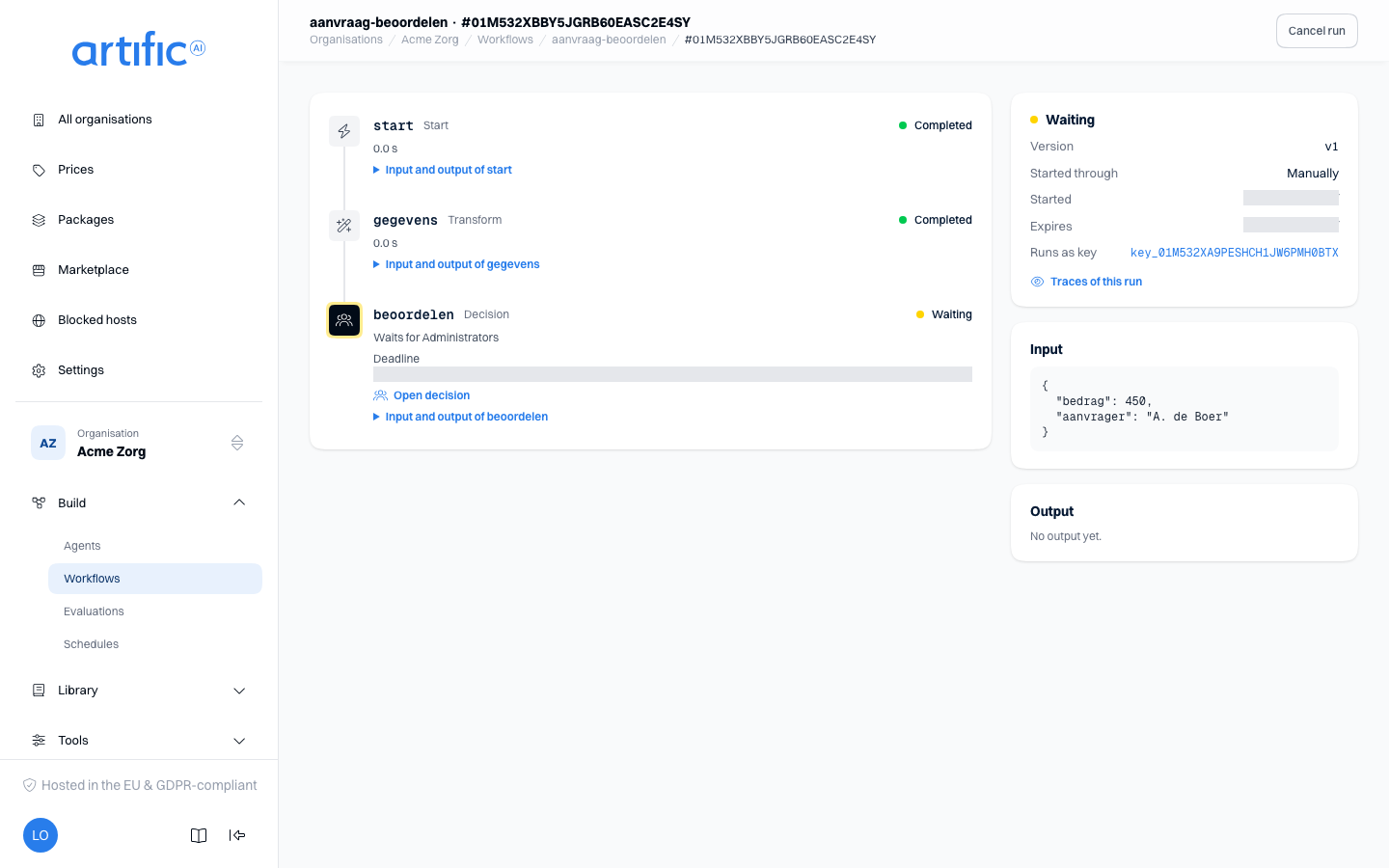
A workflow's overview shows its five latest runs; the workflow's Runs tab shows all of them, with a filter by status. Such a run opens on its page inside the workflow.
The Runs tab beside Workflows and Decisions shows the runs of every workflow of the organisation. A run from this list opens on a page of its own with its status, steps, input and output, but without Cancel run. Open in the workflow takes you, as long as the workflow is in your list, to the run's page inside its workflow, where you can cancel it. That way a run stays readable even when its workflow is gone.
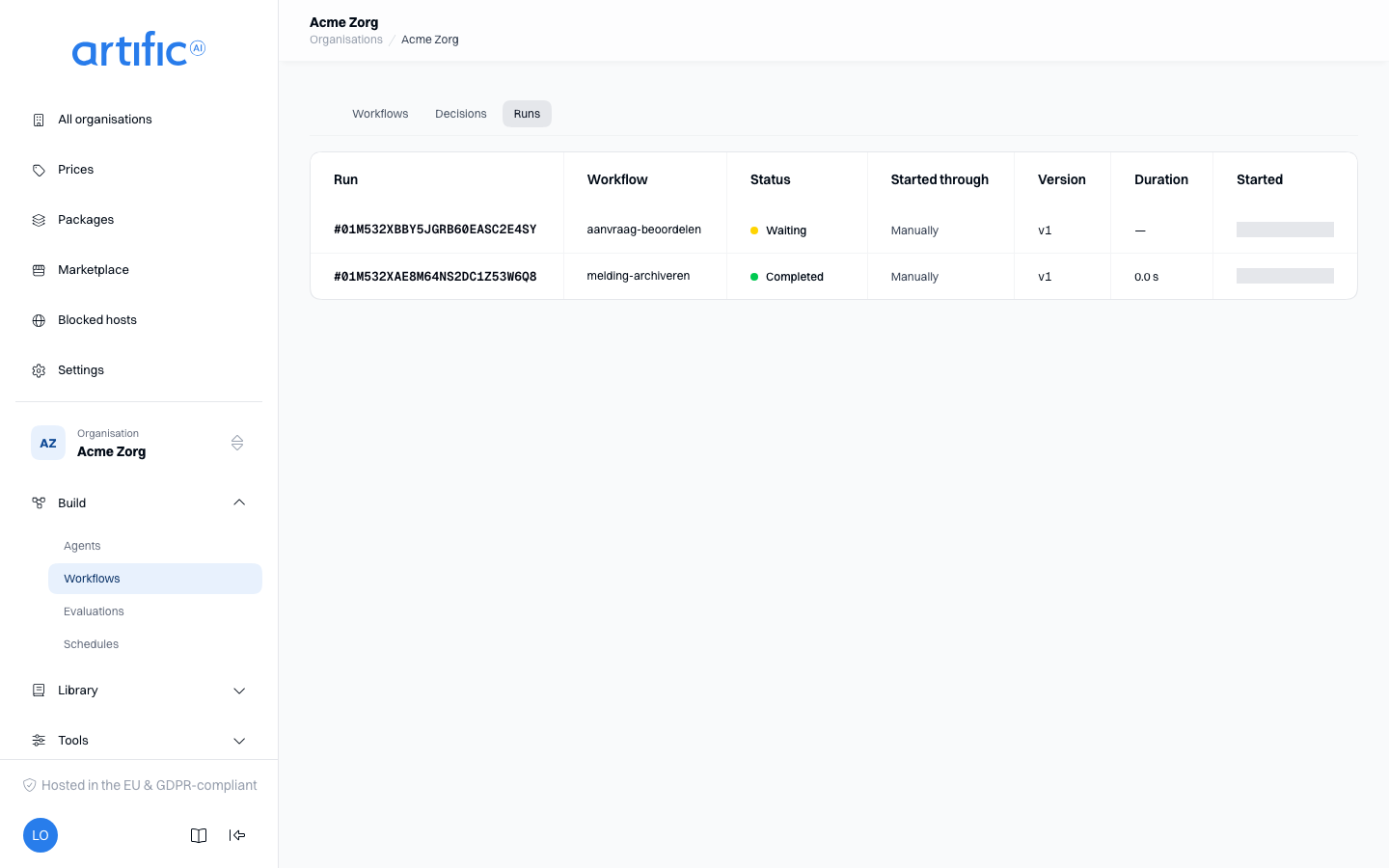
A run's page refreshes itself while the run is going.
- Steps. Every step that has begun, with its status, the number of attempts, the paths it took and, on an error, the error code. Unfold Input and output of … to see what the step received and produced. On a step that called a model, Open trace opens that call in Traces. A decision an agent takes shows Waits for agent … with the agent's name while the step is running, and afterwards Decided by agent … v… with the agent and the version that decided. While it runs, the name is shown only when the run follows the workflow's newest version; otherwise it reads Waits for an agent.
- This run. The status, the version, Started through (Manually, Schedule, Event, Webhook, Another workflow or An agent), the times, when the run expires, the key and, where there is one, the person it runs for. Traces of this run shows every conversation of the run.
- Input and Output of the run as a whole.
| Status | Meaning |
|---|---|
| Queued | the run is accepted and has not begun |
| Running | a step is running |
| Waiting | only a decision or a wait step is still open |
| Completed | the run reached an end; the output is shown |
| Failed | a step failed without a path on an error; the error code is shown |
| Cancelled | someone stopped the run |
| Expired | the run was still open when its time ran out |
A step has the same statuses, and Skipped as well: the run took another path, so the step was not carried out.
Cancel run is on the run's page inside its workflow while the run is open. The run stops and every step still running is cut off; what has already run stays run.
Runs a step started
A Workflow step shows a link Open run … to the run it started. A Map step shows its progress, for example 2 of 5 done · 1 running · 1 failed, and under Runs per item one link per item. The page of such a child run names under Part of the run and the workflow it belongs to, and under Item the number of the item.
Answer decisions
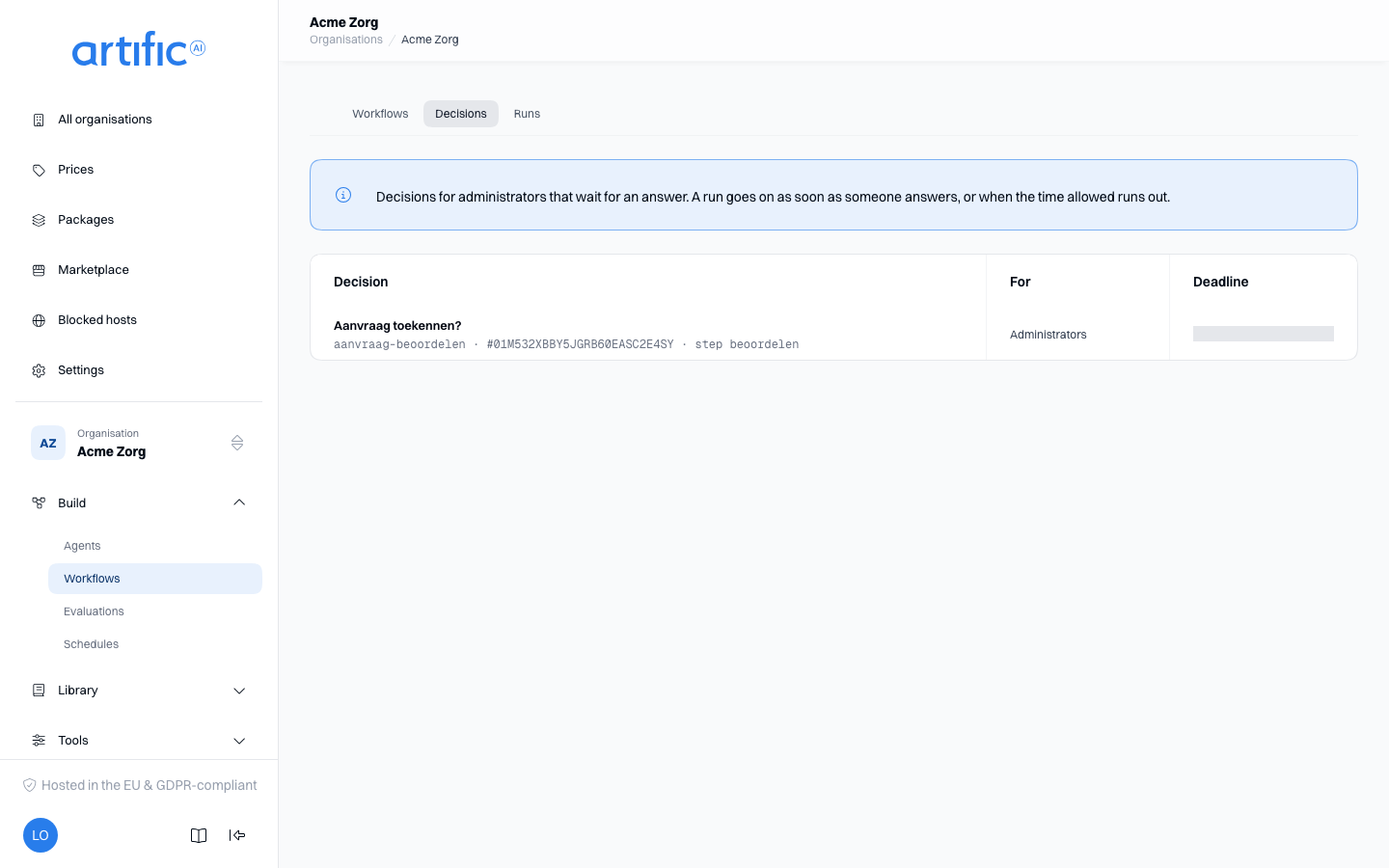
The Decisions tab shows the decisions for administrators that wait for an answer and that you may answer. If it says Nothing waits for an answer, there is none.
- Click a decision. The page shows What is asked, under What you are deciding on what the step received as input, and on the right the workflow, the run, who the decision is for and the deadline.
- If the decision asks for details, fill in the fields under Details with your answer.
- Choose one of the outcomes under Choose an outcome and confirm with Answer.
The run goes on along that outcome's path. An answer cannot be changed afterwards, and a second answer is refused. If you see This decision is already answered, someone else answered, the time ran out or the run was cancelled.
Who may answer. A decision for Administrators is for every administrator of the organisation, for an administrator of an organisation above it and for your operator. When the step names users under Only these administrators, it is for them alone. A decision for One person or A key is answered by that person or that system through the API, not in this tab. Core refuses an answer from anyone who is not assigned, with a message. A decision for An agent is not in this tab and nobody answers it; you see it on the run's page.
Notifications. For a decision for administrators Core sends a notification to the organisation's notification addresses, at most 20 an hour. Past that a decision waits in this tab without a notification.
Deadlines. The Deadline column says until when an answer is accepted; No deadline means the decision waits until the run itself expires. After the deadline, what the step records under If nobody decides in time happens, and a later answer is refused.
Have a workflow start by itself
On the clock
A schedule starts a run at a set time or again and again. In Schedules, select Add
schedule and under What this turn does the Workflow tab; the tab is there when the
organisation is permitted workflows. Choose the Workflow and optionally fill in Input of
the run (JSON). Each time, the schedule starts a run of the newest version. The clock, the key
and the other fields are described in Schedules in the console.
On an event
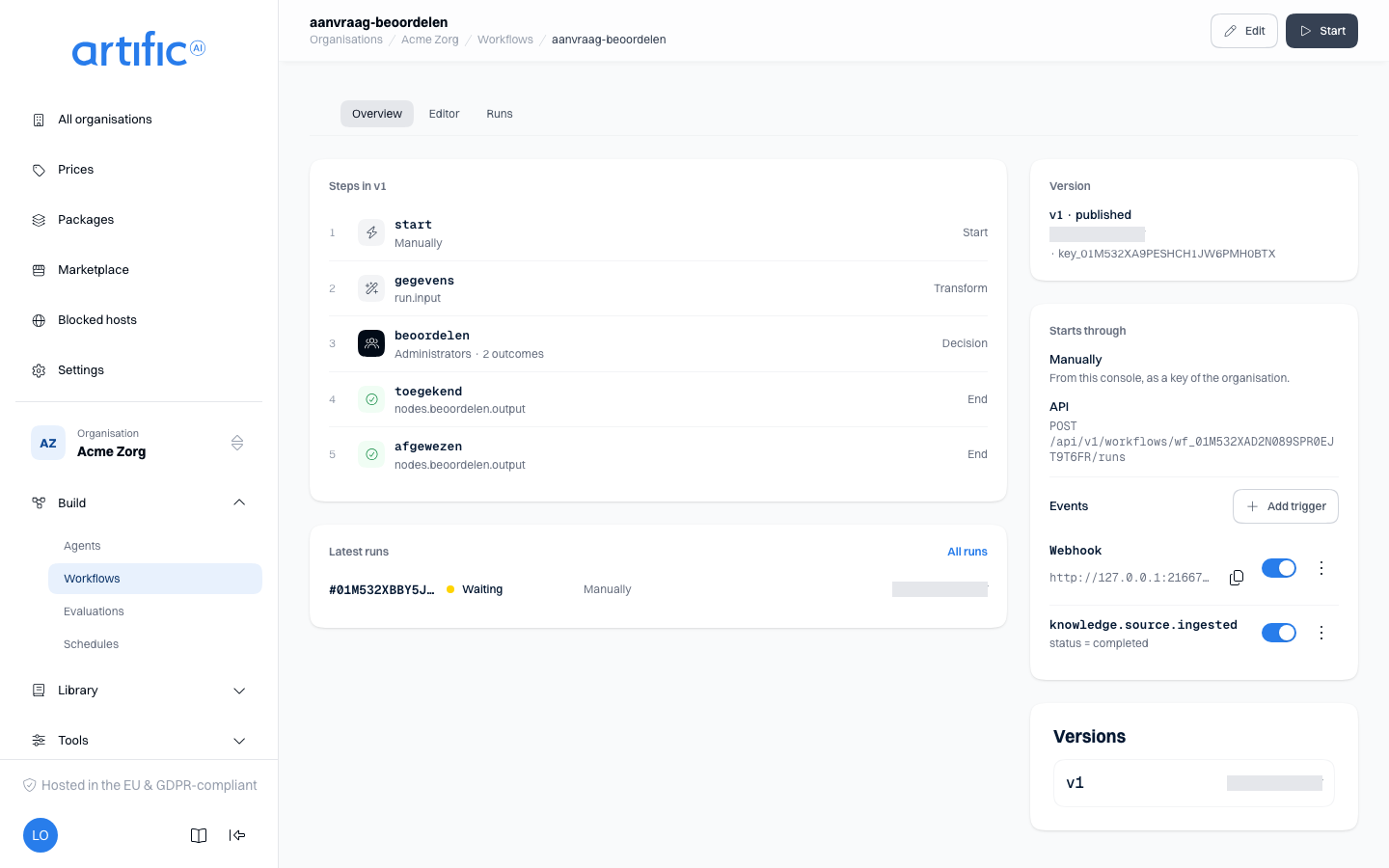
A trigger starts a run every time something of one kind happens in the organisation, for example a knowledge source that has finished ingesting. On the workflow's overview, in the Starts through card under Events, select Add trigger:
| Field | Meaning |
|---|---|
| Kind of trigger | Event. The kind is fixed once the trigger exists |
| Event | the kind of event. Events of runs, responses and threads are not offered: a run would start itself |
| Filter | pairs of a name and a value, at most eight. An event matches when its references carry every name with exactly that value. Empty: every event of the kind |
| Run input | an expression over the event (id, type, refs, subject_id, created_at). Empty: the run gets the event itself as its input |
| Key | the key every run starts as. A key without workflows is listed as (without workflows) |
| Person | who every run is for. Empty: the event's person, or nobody |
| Description | what the trigger is for. Only for whoever reads along |
| On: an event starts a run | whether the trigger works at once. Off: it is saved and starts nothing until you switch it on |
Each trigger has a switch in the card to turn it on or off, and a row menu with Edit and Delete. When you delete a trigger, the runs it started stay. Which events exist is described in Follow events.
The Event list does not offer new mail (mail.received). A trigger that starts a run for each
new message in a mailbox is made through the API, as
New mail describes.
From another system
A webhook trigger gives the workflow an address. A system of yours posts signed JSON to it, and each request starts a run with that JSON as its input.
- Select Add trigger and under Kind of trigger choose Webhook. Choose the key and optionally a person and an expression for the input.
- After saving, the console shows the secret once, under Keep this secret now. Copy it straight away: after that it can be read nowhere.
- The address is shown with the trigger in the card, with a button to copy it. It stays the same for as long as the trigger exists.
Where the deployment has no public address, Core refuses to save a webhook trigger and the console shows Core's message, This deployment names no public address, so a webhook trigger would have none. Your operator sets that address.
If you lose the secret, or it has to be replaced, select Rotate secret in the row menu. The old secret stops working at once, and senders still using it are refused until they have the new one. How the sender signs a request and which answers it gets is described in Workflows through the API.
By an agent
An agent can start a workflow in the middle of a conversation and hears the result when the run is done. Open the agent, select Add tools under Skills and tools and tick the workflow in the Workflows group. Each workflow carries the line Runs in the background as a task.
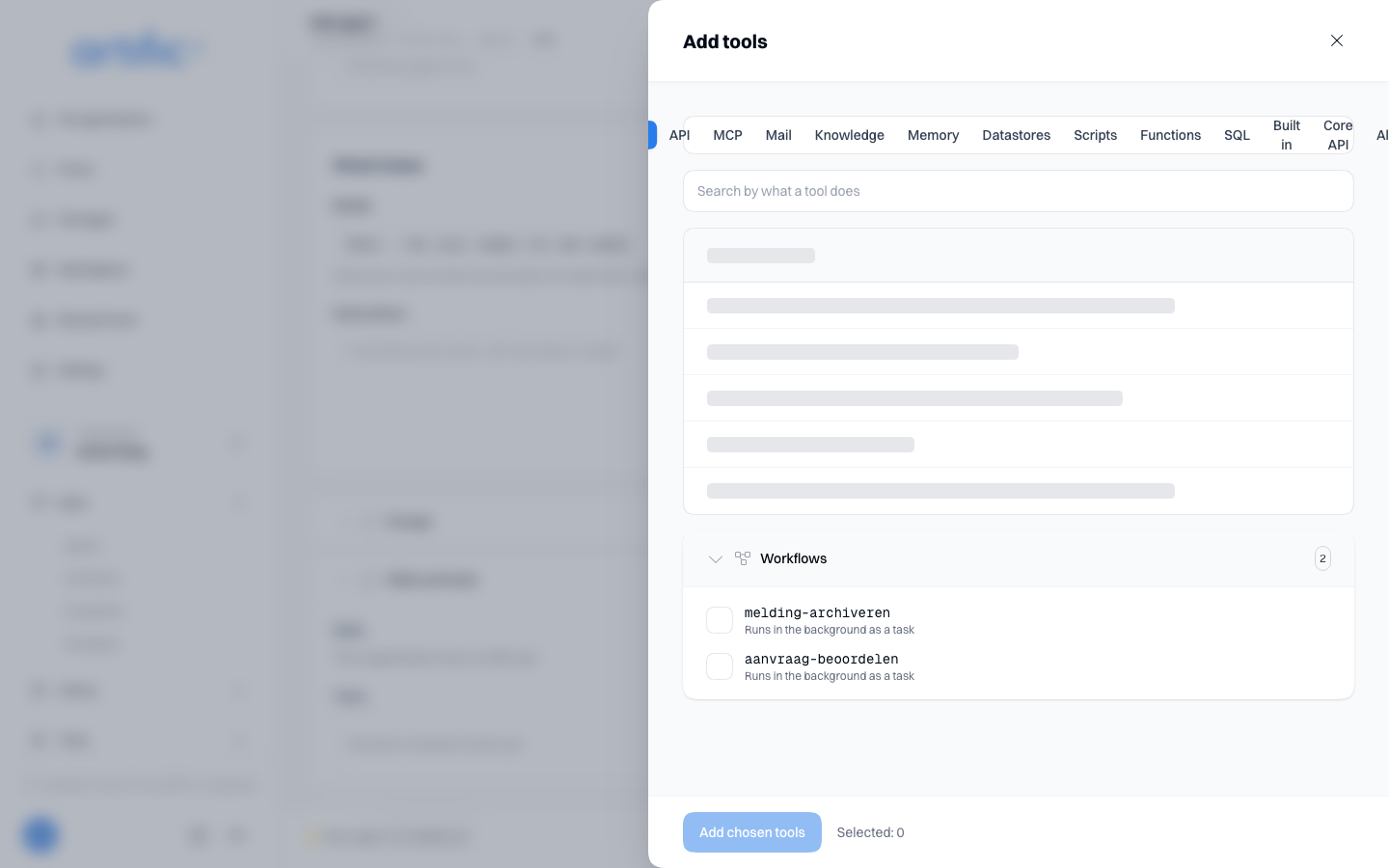
The group is there only when the organisation is permitted both workflows and tasks. The model
chooses the workflow by its description and fills in the input the start records, so write in the
description when the agent should use it. What the key needs and how the result comes back is
described in Let an agent start it and
Run a tool in the background.
Shared workflows
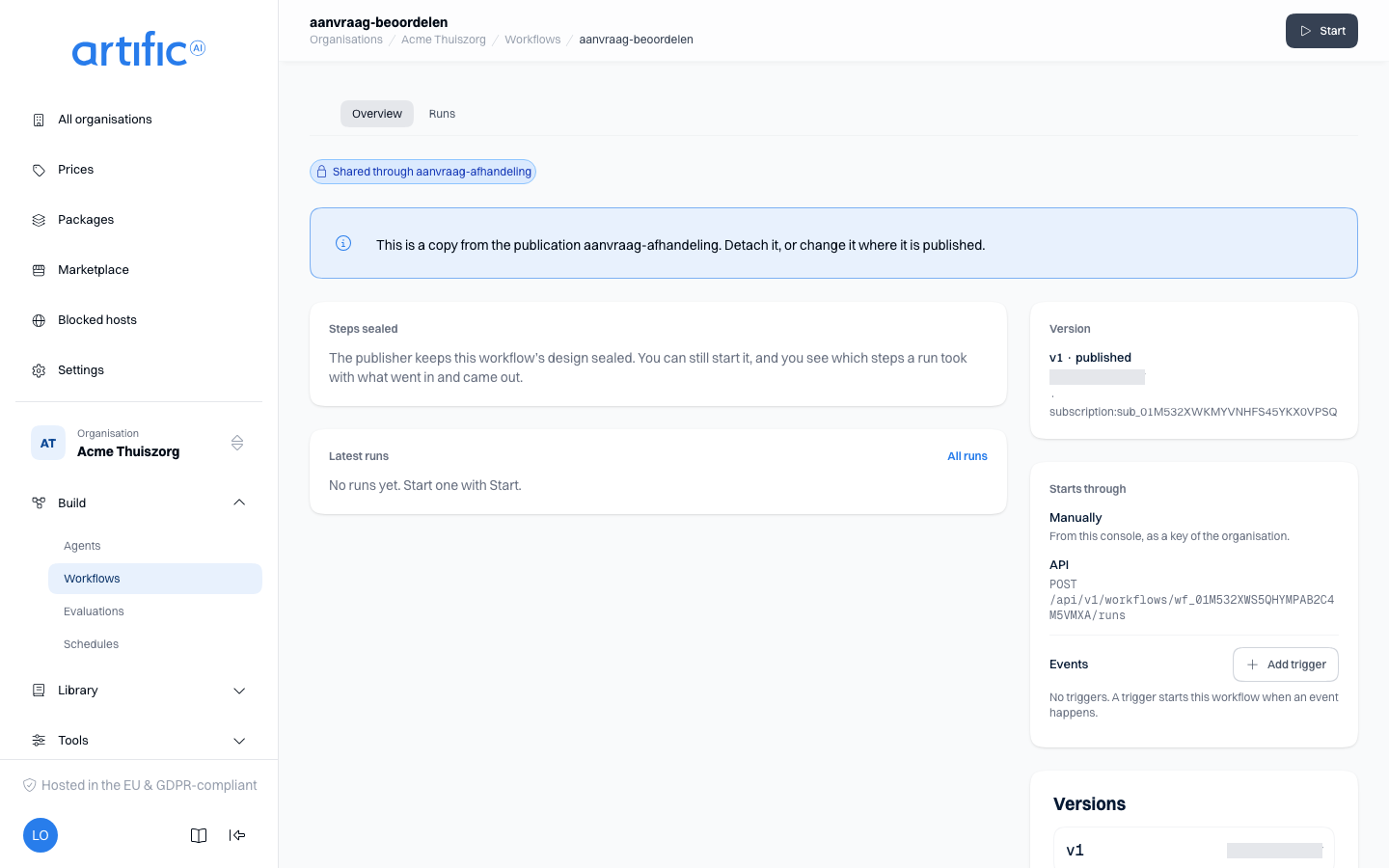
A workflow can come from a publication another organisation shares. You install the bundle like any other, under Installed and Available (Installing). On the bundle's page, above the list of its members, is how many of each kind it holds, for example Workflows · 1 and Agents · 2: the workflow and the agents it uses. Once the install is done, the workflow is in your list with Shared through name under its name, and you can start it at once.
A linked copy follows the publication. The editor opens for reading only: there is no strip of steps and no Publish, and a click on a step shows what it does. In the list Delete is disabled. A new version comes from the publisher; runs already going finish on their own version. Starting, triggers and schedules are yours and work as usual. If you want to change the workflow yourself and the publisher allows it, detach the copy (Detaching); from then on it is your organisation's own.
A sealed copy is a copy whose content the publisher withholds. The overview shows Steps sealed instead of the steps, and Edit and the Editor tab are not offered. Start works, and a run's page shows as always which steps the run took and what went in and came out. A sealed copy cannot be detached.
When the subscription lapses, the workflow leaves your list and no longer starts, not by a
trigger, a schedule or an agent either. A run that is going at that moment fails at its next step
with the error code copy_suspended. A run that waits for a decision or a wait step keeps
waiting: if the subscription is restored before its time runs out, it goes on where it was. In
the meantime a waiting decision leaves the Decisions tab and cannot be answered. The runs stay
listed in the Runs tab.
When the publisher withdraws the publication, the terms decide what happens to your copy.
Where you may detach, the copy is detached and becomes your organisation's own. Where the
publication asks for an entitlement, what is described above for a lapsed subscription happens.
Otherwise a copy that never ran is removed, and a copy that has runs loses its design. Open runs of such a copy fail with the error code copy_withdrawn. What the workflow did
in your organisation stays yours: in the Runs tab its runs carry the name with the label
Withdrawn, and a run opens with its steps, input and output. The name is free at once for a
new workflow or a new install.
Limits
These are the values of a default deployment; your operator can set them differently.
| What | Limit |
|---|---|
| Steps in one version | 64 |
| Paths leaving one step, and steps of one run going at once | 8 |
| Attempts per step | 5 |
| Timeout in seconds of an agent, prompt or tool step | 3600 |
| Characters in one expression | 2000 |
| Input of a run, and input or output of one step | 64 KiB |
| How long a run may stay open | 30 days, or shorter when the organisation keeps content for less |
| Open runs per organisation | 1000; past that a start is refused |
| Items in the list of a Map step | 100; a longer list fails the step |
| At once on a Map step when you enter nothing | 4 |
| Workflow or Map steps below one another | 3 deep |
| Runs in one tree of runs that started each other | 500 |
| Triggers per organisation | 50 |
| Runs triggers start per hour | 600 for events, and another 600 for webhooks |
| Request to a webhook's address | 256 KiB |
Delete a workflow
Delete in the list's row menu removes the workflow with all its versions and finished runs. That is not possible while a run is open: cancel it first, or wait until it is done.
Empty lists and access restrictions
“No workflows yet” means no workflow has been added for this organisation.
If you see workflows is off for this organisation, that capability is off in the organisation's ceiling. The administrator of the organisation above turns it on under Permitted capabilities on Settings; for an organisation with none above it, your operator does. Workflows also requires runs and threads: every agent or prompt step is a background turn on a conversation of its own.