Tools in the console
The concept behind tools is explained in Tools.
Everything about tools sits in the left rail under Tools:
| Part | What you do there |
|---|---|
| Overview | see which tools your organisation has, by kind, and open and try one |
| MCP servers | register a server and choose which tools it offers, see MCP servers |
| API connectors | register an HTTP request of your own as a tool, see API connectors |
| Scripts | a program of your own as a tool, see Scripts |
| Aliases | a second name for a tool you already have, see Rename a tool |
| System tools | see what Core brings itself and which keys have it on |
| Toolsets | group tools so a request can name the group instead of every tool |
| Computers | the computers the computer tools started, see Computers |
Knowledge search tools are configured under Knowledge > Search tools; they appear in the Overview among the other tools.
Organisation keys can offer these tools in a turn, subject to their policy. See Tools through the API for API examples.
You need an administrator account for the organisation, and the tooling capability must be on in
the organisation's ceiling.
Compose a toolset
A toolset is a named group of tools from any source, and it is made of rules: single tools or
patterns such as mcp__agenda__*. A request names the set instead of listing every tool in it. What
falls in changes as tools come and go. Every MCP server you register is also a toolset of its own
tools, marked automatic with the server in the list; you change that one under MCP
servers, not here.
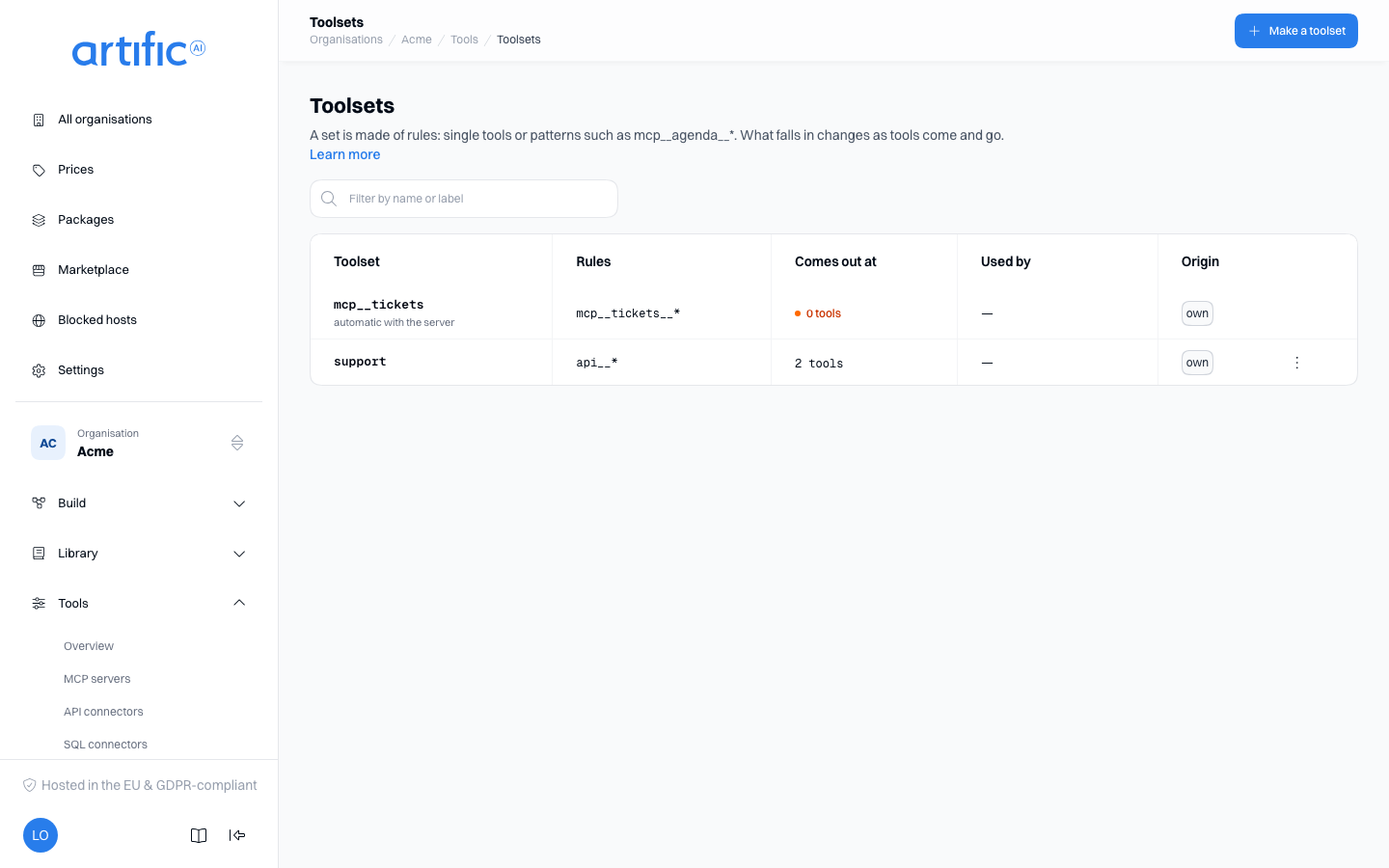
The list shows each set's first rules, how many tools Core takes from it now, which agents name it and where it comes from. A set that comes out at nothing, or at more than 128 tools, is shown in orange. Type in Filter by name or label to narrow the list.
Select Make a toolset and compose the set:
- Type a tool in Add a rule, such as
mcp__agenda__vrije_tijden, or a pattern with*, such asmcp__agenda__*orapi__zaak*, and select Add.*stands for any part of a name, somcp__agenda__*is every tool of the serveragenda, including tools that server adds later. Your agents are tools too:agent__summarise-*is every agent whose name starts withsummarise-, and a turn offered the set gets each one as an agent tool. - Or select Add tools to pick tools from the catalogue, in groups and with a search field. You do not need to know how a tool's name is built. A group's checkbox adds the whole group: for an MCP server, that is its pattern.
- Below the rules, fill in the Identifier a request names the set by (it cannot change later;
lowercase letters, digits,
-and_, at most 48 characters), a Description and any Labels. - Select Save in the bar at the bottom.
Each rule says what it comes out at now, with the first tools it reaches, and at the top the page says how many rules the set has (at most 64) and how many tools it comes out at in total. When the set comes out at nothing, or at more than 128 tools, the page warns you: such a set offers no tools, or cannot be offered over MCP.
Select a toolset in the list to open its page. A change only takes effect after Save in the bar at the bottom; you stay on the page afterwards. Delete it in the danger zone; a request that names the set then gets an error. The tools themselves stay. A toolset the latest version of an agent still names cannot be deleted while it is named.
Offer a toolset over MCP
Every toolset's page — a set you composed, or an MCP server's automatic set — has its own endpoint:
POST /api/v1/mcp/toolsets/{name}, a key's bearer, where tools/list answers with this set's
expansion instead of the whole catalogue. An agent in the set is served too, and a call of it runs
the agent's turn and answers its answer; an agent that only runs in the background is left out.
Copy the path, and the Claude Code and Cursor snippets
beside it, the way a key's own Connect over MCP section offers them. A set of more than 128
tools is not offered this way. See Use Core from an MCP client for what a call to
it looks like.
Read the overview
Overview shows everything a model can call, by kind:
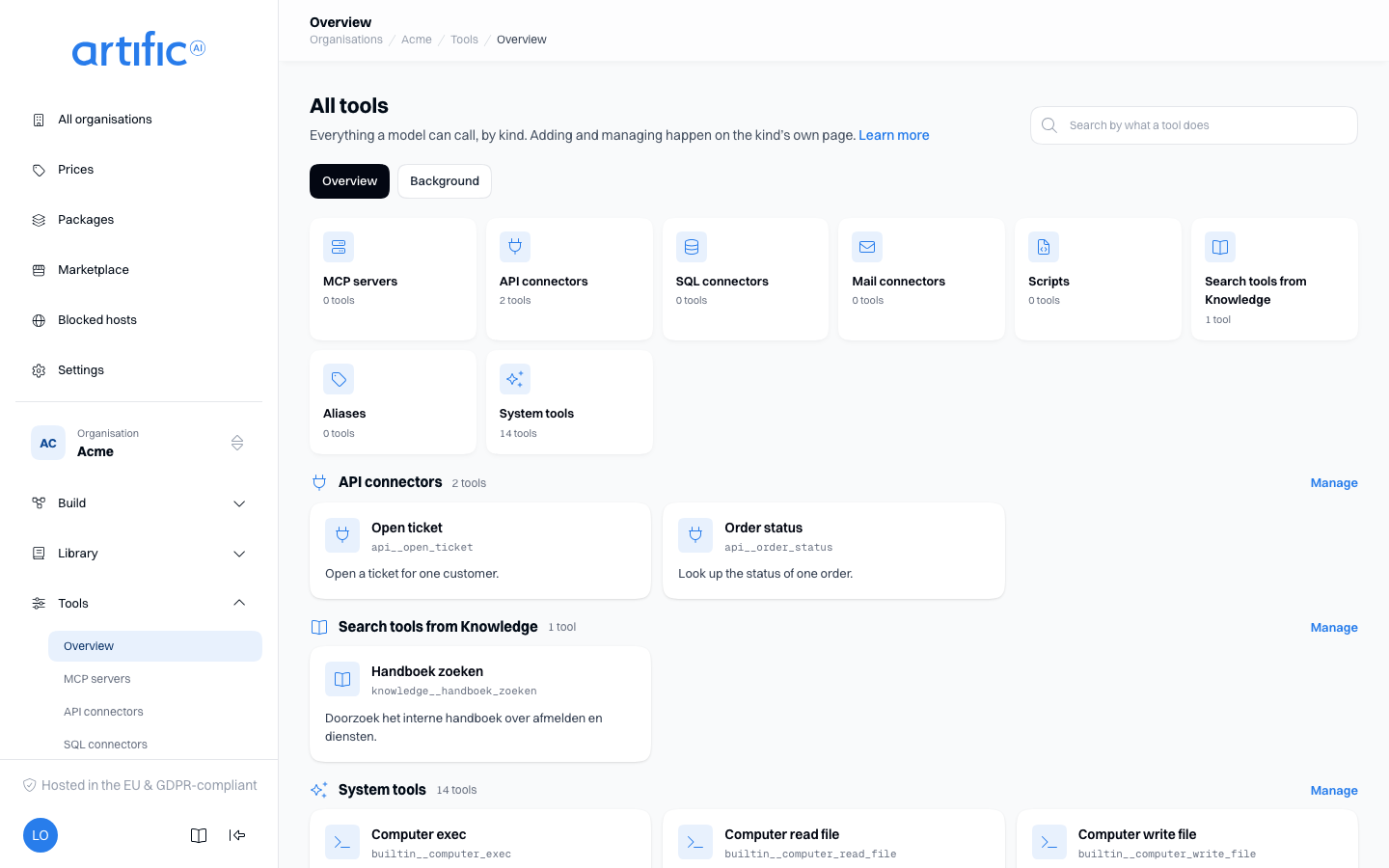
| Kind | What is in it |
|---|---|
| MCP servers | the tools your MCP servers offer |
| API connectors | your API connectors, one tool each |
| Scripts | your scripts |
| Search tools from Knowledge | your search tools |
| Aliases | your own second names for other tools |
| System tools | the tools Core brings itself |
Each kind has a tile with its count of tools that opens the page where you add and change them;
each group of cards repeats that as Manage. Each tool is a card with its name made readable (mcp__agenda__afspraak_maken reads
Agenda › Afspraak maken), its real name under it, what the model is told it does, and its labels.
Type in the search field to find tools by name or description; kinds without a match disappear.
A card for a tool that the model may start in the background carries a clock with Background possible or Always in background. Under the search field, Overview and Background switch between these cards and a list of every tool with its background state, its longest run and where the setting is stored, with the button that changes it. That list is described under In the console on Run a tool in the background.
Above the list, a warning appears for each agent whose latest version offers more tools than its model's Max. tools, such as support v3 offers 140 tools, with Go to the agent. Requests with that version are refused; offer fewer tools or choose the tool router on the version. The count covers the version's own tools and toolsets, not what a call adds, and a version set to the router gets no warning.
The card Not in this overview names what is not here and where you manage it: the tools of
Memory, Datastores, Agents and Workflows, and Core's own API
(core__...), which is the same for every organisation. Core ships those operations the way it
ships a system tool: a key reaches one exactly when it reaches the same operation over HTTP.
The tools of SQL connectors (sql__...) and mail connectors (mail__...) each have a group of
their own in the overview, after the API connectors, with a tile that leads to SQL connectors
or Mail connectors (SQL connectors, Mail
connectors). Such a tool's page links to its connector's page.
When the list is empty, no source has produced a tool yet; the empty list points to registering an MCP server.
A tool's page
Select a card to open the tool on its own page. It shows:
| Card | What is on it |
|---|---|
| Description for the model | what the model is told the tool does |
| Arguments | every argument the tool takes, with its type, and required where it must be given |
| Comes from | a link to where the tool is really configured, what a key needs for it, and the labels |
| Used in | the toolsets that reach the tool, with the rule that does, and the agents that name it, with their version |
| In the background | whether the model may start the tool as a task, the longest run, where the setting is stored and the button that changes it; only for a tool that has a background setting, see Run a tool in the background |
| Try it | run the tool now, see below |
Look at Used in before you delete a connector, a server or a search tool: an agent that names the tool holds the delete back. Apart from the labels, the cover of a system tool or an operation of Core, and a background setting that is kept on the organisation or on an MCP server, nothing can be changed here; a tool is changed where it is registered. A tool that does not exist, or that the server no longer offers, gives a page with the way back to the overview.
Try a tool
Try it on a tool's page runs that one tool now, with arguments you fill in yourself, and shows what a model would get back. It is a real call, not a preview: the tool's source is called, the usage is metered and every policy decision is recorded.
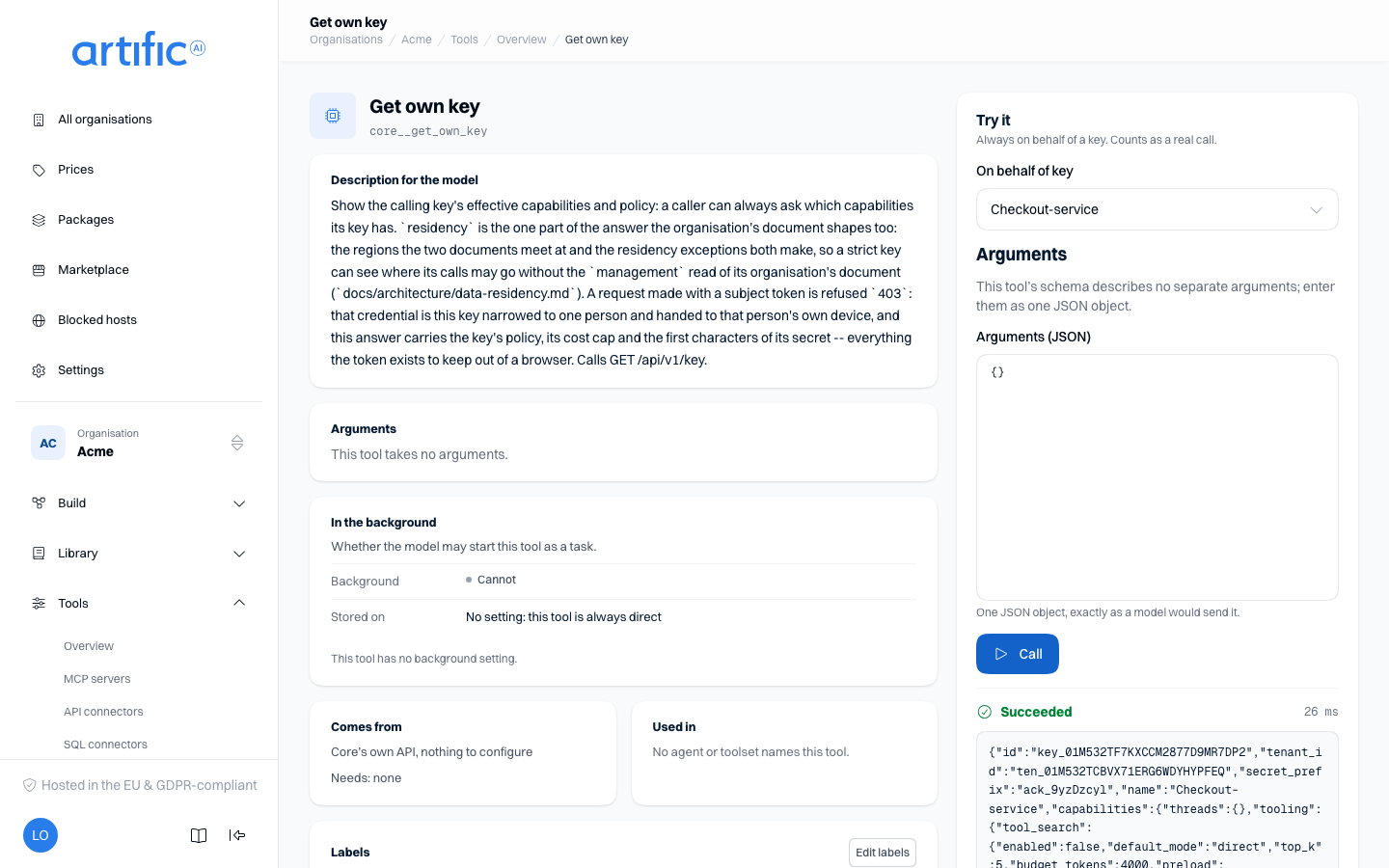
- On behalf of key: choose one of your organisation's keys. You hold no key yourself, so the tool runs under that key's capabilities and policy, the way an evaluation run does, and the usage counts on that key. A key that lacks tooling, or a capability the tool needs, is marked in the list and cannot be used. An organisation without a key has nothing to run as; the block points to Keys.
- Arguments: one field per argument the tool's schema declares, marked when it is required. A field for a list or an object takes JSON. Switch on Edit as JSON to type the whole arguments object at once; a tool that declares no separate arguments only has that box.
- At call time: when the tool declares call variables, a field for each, between the key and the arguments. A secret variable is a password field. Core keeps no secret, and its field is emptied as soon as the call has an answer. A required variable without a value is refused before the call.
- Select Call.
The outcome appears under the button: Succeeded, Refused by the key's policy (with the reason), Error from the vendor or another error in Core's own words, Failed with Core's reason, Cut off or Cancelled, with the source's status and how long it took. Below it is what the model reads, any structured content, and the files the tool made: an image directly, another file as a download. A file is only carried when the key holds artifacts and it is not larger than one artifact may be.
When Core does not even allow the call, the outcome says that too: This key does not get the tool (the key's or the organisation's rules do not allow it, or it no longer exists), Too often or Not set up on this environment. See Call a tool directly for the same call made with a key over the API.
Aliases
An alias is your own name and description for a tool you already have, with arguments the model
never sees (Rename a tool for one context). In its form, Fixed
arguments takes a row per argument; a value is JSON, or plain text when it does not parse. A value
that is exactly {$name} is filled with an install value, and exactly {@name} with a call
variable your application sends. Below the arguments a row appears for each token: an install value
asks for its value, a call variable for its type, Required, description, allowed values and default. An alias
cannot keep a value encrypted, so neither is ever a secret. A token inside other text is refused. See Pass a
customer's value to a tool.
System tools
System tools shows which tools Core brings itself, such as searching the web, fetching a page, generating an image, transcribing audio, reading a document and the computer. You do not switch them on here but per key, in the Permissions block of the key. The table shows for each tool what it does, what a key needs for it, how many keys have it on (a link to the keys), whether it is available here, and under Background whether the model may start it in the background, with Edit for the image tools, the transcription tools and the shell tools; see Run a tool in the background. Not set up on this environment means the operator has not configured the service behind it; the platform log is for the support organisation only.
Labels
A toolset carries Labels: your organisation's own classification, which the rules for people are written over. A toolset is judged under the Tools kind when a request names it, and every tool in it is judged on its own classification besides.
A tool inherits its source's classification; Comes from on its page shows it. A system tool and an operation of Core's own API have no row of their own, so those you classify on the tool's page with Edit labels. A tool alias carries its own classification and is judged on its target's besides.
See Build for people for how a rule over them is written.
For a key's request that names a person, the rules about Tools also decide which toolsets and
tool aliases GET /toolsets and GET /tool-aliases list, and whether one may be changed or
deleted: a toolset by its name, an alias as alias__<name>
(Registrations). The console lists every toolset.
Empty lists and access restrictions
“No toolsets yet” and “No tools yet” indicate empty lists. When a list could not load, the page says so with Core's status and a Try again button; tools that are already offered keep working.
If you see tooling is off for this organisation, Call tools and MCP servers is off in the organisation's ceiling. The administrator of the organisation above turns it on under Permitted capabilities on Settings; for an organisation with none above it, your operator does. That holds for every part under Tools.