Collections in the console
The concept behind knowledge is explained in Knowledge.
In the Collections segment of Knowledge you create collections, put documents in them and connect a system they arrive from by themselves. A collection groups the documents you want to search, and is itself a choice of source: you fill it by hand, or it pulls its documents from a system you already have. Then connect an index to make the documents searchable.
You need an administrator account of the organisation, and the knowledge capability has to be on
in the organisation's ceiling. You do the same with a key in
Knowledge through the API.
Knowledge segments
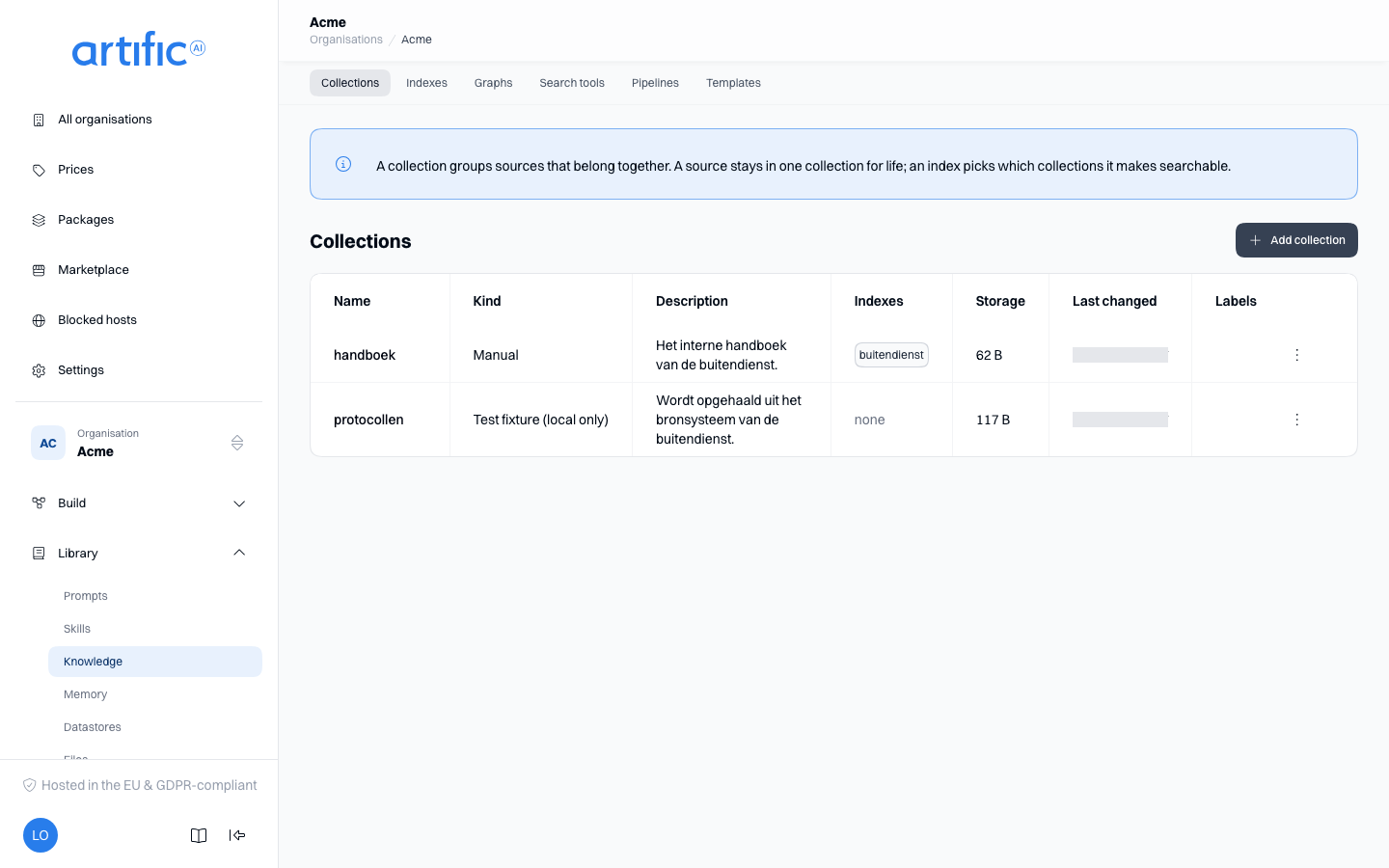
The Knowledge section has a segment bar across the top, one segment per kind of thing:
| Segment | What it is for |
|---|---|
| Collections | where you put documents |
| Indexes | what makes those documents searchable |
| Graphs | the entities and relations your documents are about, extracted into a graph |
| Search tools | the search a model may call by name |
| Pipelines | how chunking and searching go, step by step |
| Templates | the built-in pipelines, the same for every organisation, to start a pipeline of your own from |
Memory has a section of its own in the console: Memory.
Follow these steps in order, or use the API as described in Knowledge through the API.
Create a collection
Select Add collection. The first question is Source kind: Manual, or the system this collection pulls its documents from. That choice is fixed afterwards — for a different source, create a new collection.
Choose a system and that type's fields appear, along with the two path filters and the schedule; they are described under Choose a source below. Beside them, enter a unique Name and, optionally, a Description and Metadata.
Collection metadata is entered as rows: a Key and a Value each, for example department
and care. It is stored with the collection and available through the API. The console does not
use it for other processing; an index can filter on it.
If the source is refused — a wrong secret, a URL that may not be crawled — the collection is not created: the message appears under the field that caused it, and you can correct the form and submit it again.
Choose the Retention a new source in this collection takes when you do not set one on the source itself: Temporary, which falls under the organisation's own retention window, or Keep until deleted, which stays until something removes it. You can change this default later; it never rewrites a source already in the collection.
The Kind column says what each collection is. The Indexes column lists connected indexes; none means the collection is not included in an index and cannot yet be searched. Storage is the size of everything the collection currently holds, summed from its sources — not a total accumulated over time.
Key collections
Every API key gets a collection of its own, the first time it stores anything: a file uploaded through the API with no collection named, or an artefact one of its turns produced. Its row reads Key uploads in the Kind column and the key's own name in the Name column — a key that has since been removed shows its id instead, with a note that the key is gone; the collection and its documents stay regardless, because they belong to the organisation, not to the key.
Its row menu offers no Delete: Core refuses one, since deleting it would throw away everything that key has stored. Opening it for Edit shows its name fixed — that does not change here either — but its Retention stays a real choice: the retention a key's own uploads take by default is Temporary, so they fall under the organisation's retention window unless a file is marked to keep, and you can change that default here to Keep until deleted if this key's uploads should stay longer than the window.
Add files
This is for a manual collection. A collection with a connected source is filled by its sync, and offers neither the upload box nor New folder.
A collection that came from a publication holds the
publisher's documents and is filled by the subscription's sync. While it is linked, an upload
answers 409; detach it first to put your own documents in it.
Open the collection and drag files onto Add files, or select Choose files. Supported formats are Text, Markdown, HTML, PDF, Word, PowerPoint, Excel, CSV and JSON; anything else is refused. Files are uploaded one at a time — each in a single call, straight into the collection, up to 25 MiB each. A larger document — text, PDF, Word, PowerPoint or Excel up to 100 MiB — is uploaded through the API in an upload session, which needs your organisation's files kept in an object store (A large file goes in parts); an index then still reads it, a section at a time. Each file you add here shows Working, Added or Failed, with a reason for any failure.
Above the upload area, Retention for these files offers The collection's default (the
unset choice, so the collection's own retention_default decides), Temporary or Keep until
deleted. The choice applies to every file of that batch; a file can always be changed
individually afterwards.
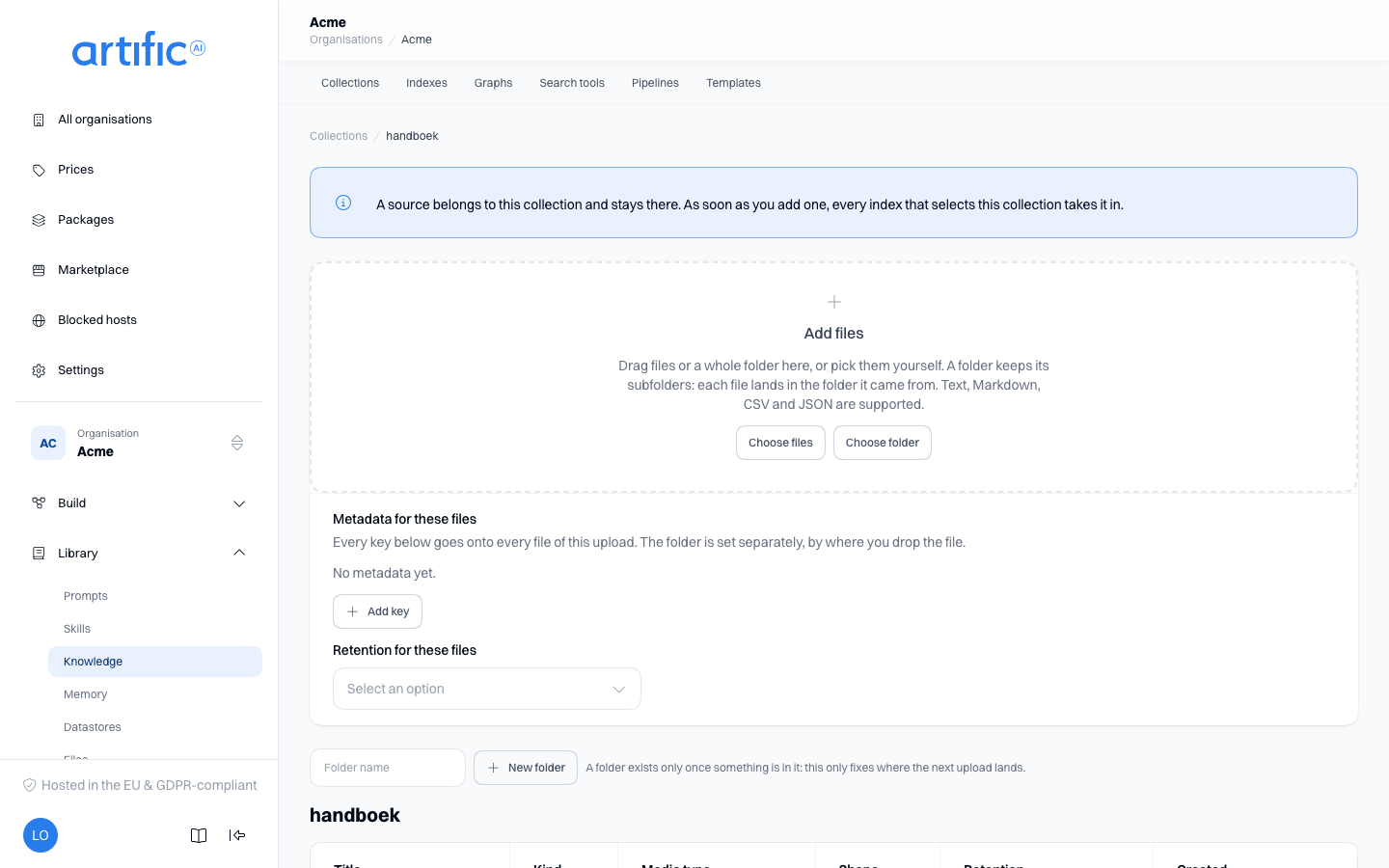
Each uploaded file becomes a source whose title is the filename. Sources cannot be moved between collections. To relocate one, upload it to the target collection and delete the original source.
The media type determines the Shape and available operations:
| File | Shape | What you can do with it |
|---|---|---|
| text, Markdown, HTML, PDF, Word, PowerPoint | text | an index chunks it and searches inside it |
| CSV, JSON, Excel | rows | the same, plus querying its tables by field |
A Word file, a deck, a web page or a PDF has to be read before it can be chunked, and the pipeline
an index runs does that — the built-in default reads all of them. An Excel workbook comes in as
tables: one table per worksheet, each with its own fields, and each queryable on its own. A
Word document or a PDF that carries tables can have them read as tables too, beside its text — that
is what the Tables ingest pipeline does. An older Word file (.doc, not .docx) is the one
exception: only a pipeline with the llama_parse step reads it, by sending it to the deployment's
parsing service. The Advanced Parse and RAG with Tables templates carry that step, and
both need a deployment with a parsing service. In an index whose pipeline has no llama_parse
step the file fails: select the source and its Status per index shows that index's row with
the Error code needs_parse.
A source's metadata
Select a source in the table. Its drawer has two groups. Properties is what is fixed the moment the source exists: its kind, its shape, the media type, who created it and when. None of that changes again.
Metadata is what you can change: the title, the folder, and any key you add yourself. A folder
is simply one of those keys — a path with slashes, for example policy/2026; leave the field empty
and the source sits at the collection's root. Choose Add key for a key of your own, for example
department with the value hr. Values are always text.
Beside the title, Retention is this source's own — Temporary or Keep until deleted — which may always differ from the collection's own default: a file you mean to keep stays, even in a collection whose new sources fall under the retention window by default, and the other way round.
A source a tool produced during a turn (Kind: artefact) carries a read-only Provenance card: the tool that made it, and the response whose turn did. It otherwise behaves like any uploaded file — the folder tree treats it the same way.
Save replaces the whole set: a key you remove is gone. Which indexes this source belongs to is then decided again. An index that filters on metadata takes it in as soon as the new set matches, and lets it go as soon as it no longer does — you see that in Status per index in the same drawer. What was already searchable and stays so is not processed again.
On a connected source a few keys sit behind a lock: connector.uri, connector.hash, filename,
media_type, modified_at and extension. The connector writes those itself and uses them to spot
what changed at the origin. The folder of such a source is shown read-only too: the connector
sets where a document lives, and a change is refused.
Below the metadata, the Labels card holds the source's own labels: what a rule about Knowledge sources reads to decide for whom a turn may retrieve the source. Add one row per label and value, then select Save labels. The card saves on its own, so saving the title or the metadata leaves the labels as they are, and a label your organisation's vocabulary refuses is marked on its row.
Add files offers the same keys up front: they then go onto every file of that upload. The folder is decided there by the folder selected on the left and by the folders that come along with an uploaded directory.
Choose a source
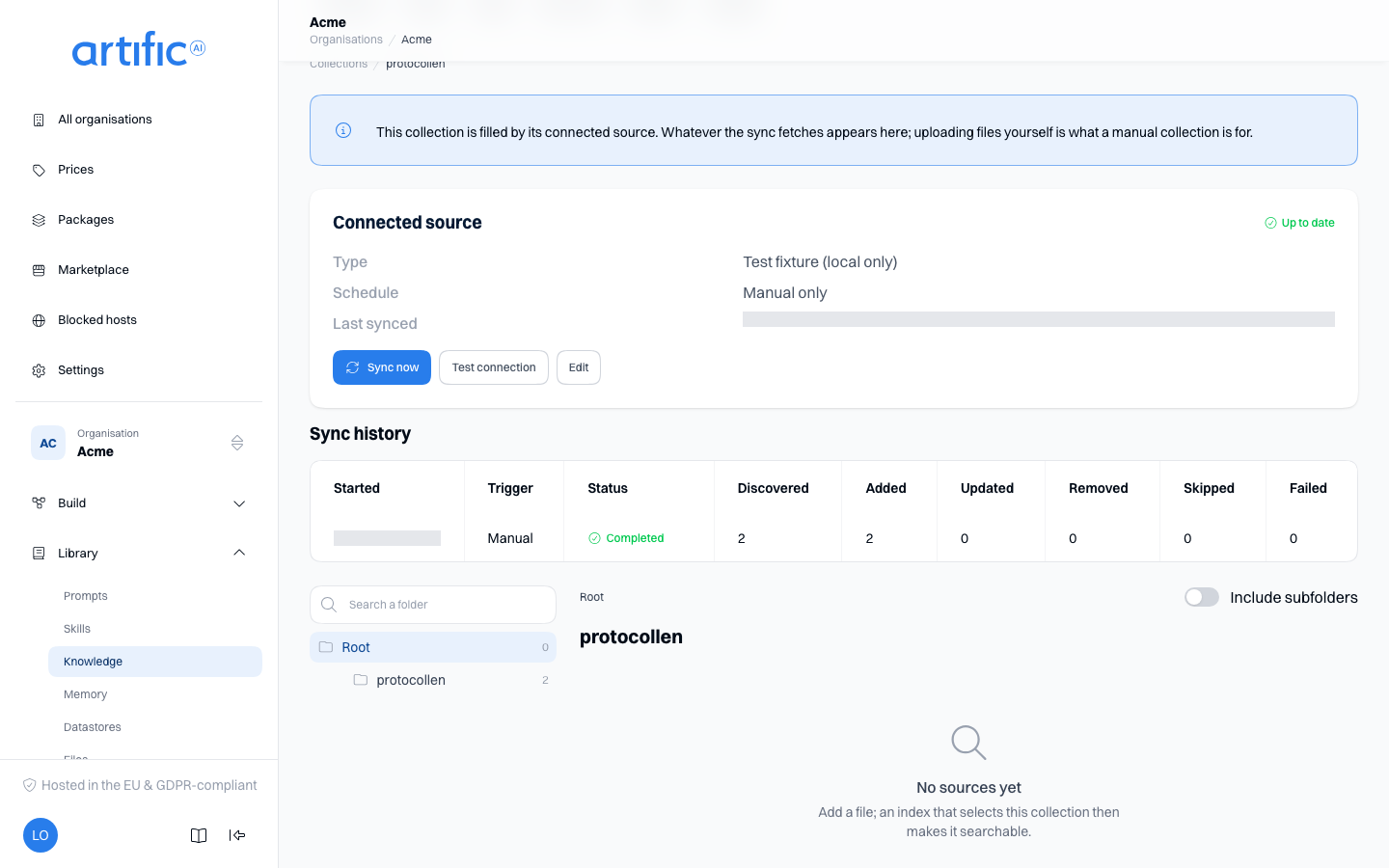
A collection can pull its documents from a system you already have, instead of you uploading them. That is the Source kind choice on the form above; the collection's own screen then carries the Connected source card.
| Type | What it pulls in | What it needs |
|---|---|---|
| Website | pages crawled from a public URL | the root URL; optionally max pages, crawl depth and allowed/blocked patterns. No secret: the crawl runs on this deployment's own account |
| SharePoint | a site's document libraries | the site URL, tenant ID, client ID and client secret of an Entra ID application |
| Google Drive | a folder's documents | the folder ID, the Shared Drive ID when it lives in one, and a service account key JSON |
| Amazon S3 | a bucket's objects | the bucket, region, access key ID and secret access key; a prefix and an endpoint URL for an S3-compatible store |
| Zendesk | a Help Center's published articles | the subdomain, an agent email and an API token; optionally a locale and section IDs |
A collection carries one source, and its type is fixed as soon as the collection exists. A different source is a new collection.
Two settings apply to every type. Include pattern and Exclude pattern are regular expressions matched against each document's path. Images, video, archives and other binaries are always skipped, whatever you write. Patterns must be ones RE2 accepts, which means no backreferences and no lookarounds; anything else is refused when you save, under the field.
Schedule decides how often the source is fetched on its own: Manual only, Every hour, Every 6 hours, Daily or Weekly. You can always sync it yourself.
Secrets are write-only. The field opens empty when you edit a connected source — through Edit on the card — and a note says a secret is stored; leave it empty to keep it, or type a new one to replace it.
Sync, and what a sync did
Test connection reaches the system and lists at most one document, so you can see the credentials work before anything is fetched. It stores nothing. Sync now queues a sync; while one is going, Cancel sync stops it between documents, so a document being fetched finishes rather than arriving half-written.
The Sync history table lists every run, newest first, with the counters it wrote:
| Column | What it counts |
|---|---|
| Discovered | documents the system offered, after your patterns |
| Added | new sources created |
| Updated | sources replaced because the document changed |
| Removed | sources deleted because the document is gone at the source |
| Skipped | unchanged, or over the size limit |
| Failed | could not be fetched or stored |
A failed run says why in a sentence beside its status. The counters update while a run goes; the screen re-reads them by itself and stops when the run settles.
Synced documents become ordinary sources of the collection, with the folder they came from, so the folder tree beside the sources table shows the structure at the source. An index selecting this collection processes them like any other source.
Disconnect
The console does not disconnect: the kind of source belongs to the collection. To manage the same documents by hand, create a manual collection.
The API does (DELETE .../connector, see Knowledge through the API). The
sources the connection fetched then stay in the collection, and a sync in flight stops. Files
you uploaded yourself are never touched by a sync.
Ingestion status
Open a source to view Status per index. It shows processing status for each connected index, matching the index’s Content list.
| Status | What is going on |
|---|---|
| Queued | the index knows about the source and has not started |
| Working | the source is being chunked right now |
| Ready | searchable, with the number of chunks beside it |
| Failed | with an Error code saying what went wrong |
If you see No index selects this collection, create an index and select this collection.
After linking a collection, reindex to process sources that were already present. Sources added after the link are processed automatically by each connected index.
A source's tables
Tables in a source's drawer lists every table that has been extracted from it — a worksheet, a file of records, or a table inside the document — with where it came from, its columns and how many rows it holds. Pick a Table, then a Field, Comparison and Value, and set a Limit. This operation does not call a model or incur model usage. Unknown fields are rejected with a validation message.
A source nothing has extracted a table from yet says so instead of offering the form: an index whose pipeline carries a Tabular Extract step does the extracting when it ingests the source.
Delete a collection or source
Select Delete in a source's row menu to move the source to the trash: it is gone from every search and read at once, and can be restored for 30 days with the Trash switch beside the collection's name, which lists the trashed sources with Restore and Delete for good (Trash), or from the API (Delete, restore or purge a file). Deleting a collection removes all of its sources and indexed content for good, those in the trash included. Both operations require confirmation; for a collection, the confirmation asks you to type its name.
A collection that an index or a graph still selects cannot be deleted: Core answers 409; the
confirmation stays open and lists them, each a link. Untick the collection in those indexes and
graphs first.
Remove outdated sources when replacing documents. An index continues returning their content until they are removed.
Labels
A collection carries Labels: your organisation's own classification, which the rules for people are written over. The list has a column for it and a collection's drawer a field.
That is a different thing from a source's metadata above. The collection's label is what a rule about Knowledge collections reads, whether a person reaches the collection at all. A source's own labels, on its Labels card or through the API, are what a rule about Knowledge sources reads, so which documents a turn retrieves for that person. For one release such a rule also reads a key in the source's Metadata where the source has no label by that name (Labels and metadata). Both rules stand in a key's policy (Rules about a person). See Building for people.
Empty lists and access restrictions
“No collections yet” means this organisation has no collections.
If knowledge is disabled, Index and search knowledge sources is off in the organisation's ceiling. The administrator of the organisation above turns it on under Permitted capabilities on Settings; for an organisation with none above it, your operator does.
Uploads also require Upload and attach files. Without it, you can browse collections but file uploads fail.