Schedules in the console
The concept behind agents is explained in Agents.
In the Schedules section you store a turn nobody starts by hand: a cron expression that keeps firing, or one instant in the future that fires once. Core then runs an agent, a prompt, a free request or an evaluation.
You need an administrator account of the organisation, and the schedules capability has to be on
in the organisation's ceiling. You do the same with a key in
Schedules through the API.
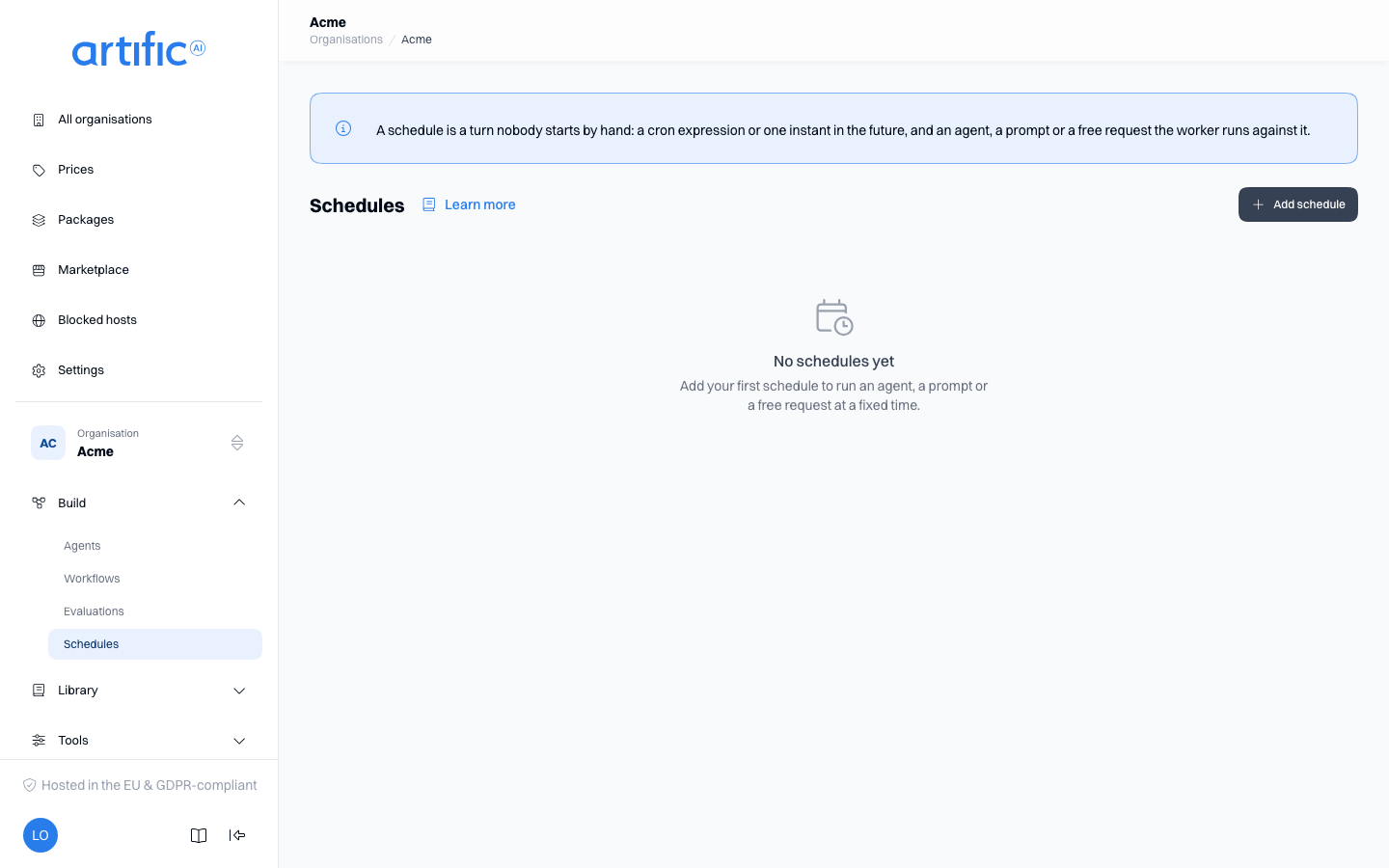
The Target column shows a label -- Turn or Evaluation -- and what the schedule drives on every fire: Agent, Prompt or Free for a turn, or the evaluation's own name for an evaluation schedule.
Adding a schedule
Choose Add schedule. The drawer opens with:
| Field | What you fill in |
|---|---|
| Name | how you recognise this schedule; lowercase letters, digits, - and _, starting with a letter or digit, 64 characters at most |
| Description | what this schedule is for. For readers only |
| Recurring / One-shot | the kind of clock -- see below |
| What this turn does | Agent, Prompt, Free, Evaluation or Workflow -- see below |
| Subject id | who every fired turn is for; optional |
| Runs as | the API key of this organisation every fired turn rebuilds its reach from |
| Labels | this organisation's own classification |
Runs as is required: you are a person with no key of your own, and a turn is always a key's act. A key that creates a schedule of its own through the API does not need this -- it schedules as itself.
Recurring: a cron expression
Choose one of the three presets -- Every hour, Daily at 09:00, Weekly on Monday at 09:00 -- or Custom for a five-field cron expression (minute, hour, day-of-month, month, day-of-week) you type yourself. Timezone is the zone that expression is read in, so a daylight-saving change moves with the wall clock instead of staying fixed to UTC.
Under the field are the next few times the expression fires, once it is valid -- a custom expression included. While that preview is still being fetched, or when it briefly fails, the drawer shows its own short estimate for the three presets above instead, so the field never sits empty.
One-shot: a single instant
Choose the instant in your own timezone. Once that instant has passed, the schedule does not fire again -- Next run then reads empty.
What this turn does
- Agent: choose the agent, optionally an older version than the latest, and the variables the pinned prompt of that agent version declares.
- Prompt: choose the prompt, optionally an older version, and the variables that version declares.
- Free: no agent and no prompt.
- Evaluation: choose the evaluation; there is nothing else to fill in -- that evaluation's own scenarios decide what runs, one run per agent it measures. Fixed once created: to change it, delete this schedule and create a new one.
- Workflow: choose the workflow and optionally fill in Input of the run (JSON). Each time,
the schedule starts a run of that workflow's newest version. The tab is there when the
organisation is permitted
workflows, and this type too is fixed once the schedule exists. The runs are listed with the workflow itself (Workflows in the console).
For Agent and Prompt, Variables first lists the variables the chosen version declares. A
variable with a default carries a label, such as automatic:
Today's date or default: «…». You need not give a value for such a variable. For a variable
whose type of value is Number or Whole number, type
the number; for Yes or no, type true or false. The console sends it as that type, and
saving refuses a value that does not fit, with the reason under Variables. A schedule
therefore needs nobody to fill in the date: Core decides it at the moment the schedule fires, in the
schedule's Timezone. A one-shot schedule has no timezone field in the console and therefore
reads the time in UTC; create it through the API if you
want another zone.
For Agent, Prompt and Free, Values for tools sits below that: the values your application would
pass to the tools on every fired turn, in tool_variables. Add a row with Add a variable and
fill in a name, a type (Text, Number or Yes or no) and a value; the model never sees
them. Secret only hides what you type: the field becomes a password field. Core seals a value
only when one of the organisation's API connectors or MCP servers declares that name x-secret.
A value under any other name is stored readable and shown again, secret switch or not. A sealed
value you can replace but never read back: afterwards the row says Set with an empty field;
leave it empty to keep the stored value, or type a new text to replace it. A value that no tool of
the turn declares is ignored, and one a tool requires but lacks makes that turn fail like any turn
(Pass a customer's value to a tool).
Agent, Prompt and Free share the same fields below the tab, since a schedule may carry anything an ordinary turn can:
| Field | Required | Meaning |
|---|---|---|
| Input | Free only | the text sent as the message |
| Instructions | no | a standing developer instruction for this turn; for an agent, read before the agent's own |
| Model | Prompt and Free; optional for Agent | for Agent, fill this in only if the agent version fixes no model of its own, or to name the same one -- a different model than the agent version fixes is an error on that field |
Show more expands an extra block: Skills and Tools (the same pickers an agent's own form uses), Temperature, Max output tokens, Labels and Metadata. These fields are added to the turn; for an agent, skills and tools join the agent's own, and where the agent version fixes a field itself the turn runs on the agent's value and its trace names the field yours was dropped from.
The Labels in this block are the labels of the conversation a fired turn opens, and everything created in that conversation carries them, so a rule about Conversations decides who reaches the result. The Labels at the top of the form classify the schedule itself.
Firing a schedule now
Run now, in the list's row menu and on a schedule's own page, fires it immediately instead of waiting on its clock -- useful for checking it does what you mean. For a turn schedule Core reports that the run was queued; for an evaluation schedule Core reports how many runs were queued, one per agent the evaluation measures. While the previous turn (or the previous runs) of this schedule is still running, Core answers "This schedule is still running." and nothing extra is started: an overlap is skipped, never stacked.
Enabling and disabling
The switch on the list and on a schedule's own page turns it on or off. A disabled schedule has no next run; its history and the turns it already fired stay as they are.
Reading a schedule
A schedule's own page shows its clock, its kind label (Turn or Evaluation), its last outcome and Runs.
For a turn schedule that is every turn it has fired, with status; a row with a thread behind it opens that conversation. For an evaluation schedule that is the runs of that evaluation this schedule queued, with agent, duration, score and status -- the same list the evaluation's own page shows, narrowed to what this schedule queued; a row opens that run. Both lists refresh themselves while something is still moving and stop by themselves. Once the last tick of an evaluation schedule has queued a run, View last run sits beside Edit settings.
Edit settings opens the same drawer as Add schedule, filled with what is stored now; the kind is fixed by then (see above).
Three last outcomes:
| Outcome | Meaning |
|---|---|
| Fired | the last tick queued a turn |
| Skipped | the previous turn was still running when the tick fell due |
| Failed | the tick could not fire -- a revoked key, for instance; the schedule stays enabled and its next run is computed as normal |
Deleting a schedule
Delete in the list's row menu removes the schedule. The turns it already fired stay as they are.
Empty lists and access limits
"No schedules yet" means no schedule has been created for this organisation yet.
If you see schedules is off for this organisation, that capability is off in the organisation's ceiling. The administrator of the organisation above turns it on under Permitted capabilities on Settings; for an organisation with none above it, your operator does. Schedules also requires runs, which in turn requires threads: a turn nobody asks for by hand is still a background turn on a thread.