Usage in the console
The concept behind usage, audit and traces is explained in Insight.
On Usage you see what an organisation consumed and what it cost: by period, by resource type, by API key and by user, and how far along each of this month's caps is. You use it to follow cost and to see which key or person causes the consumption.
You need an administrator account of the organisation. When the organisation above reserves the usage figures, you do not see the screen (below). You read the same figures with a key in Usage and audit through the API.
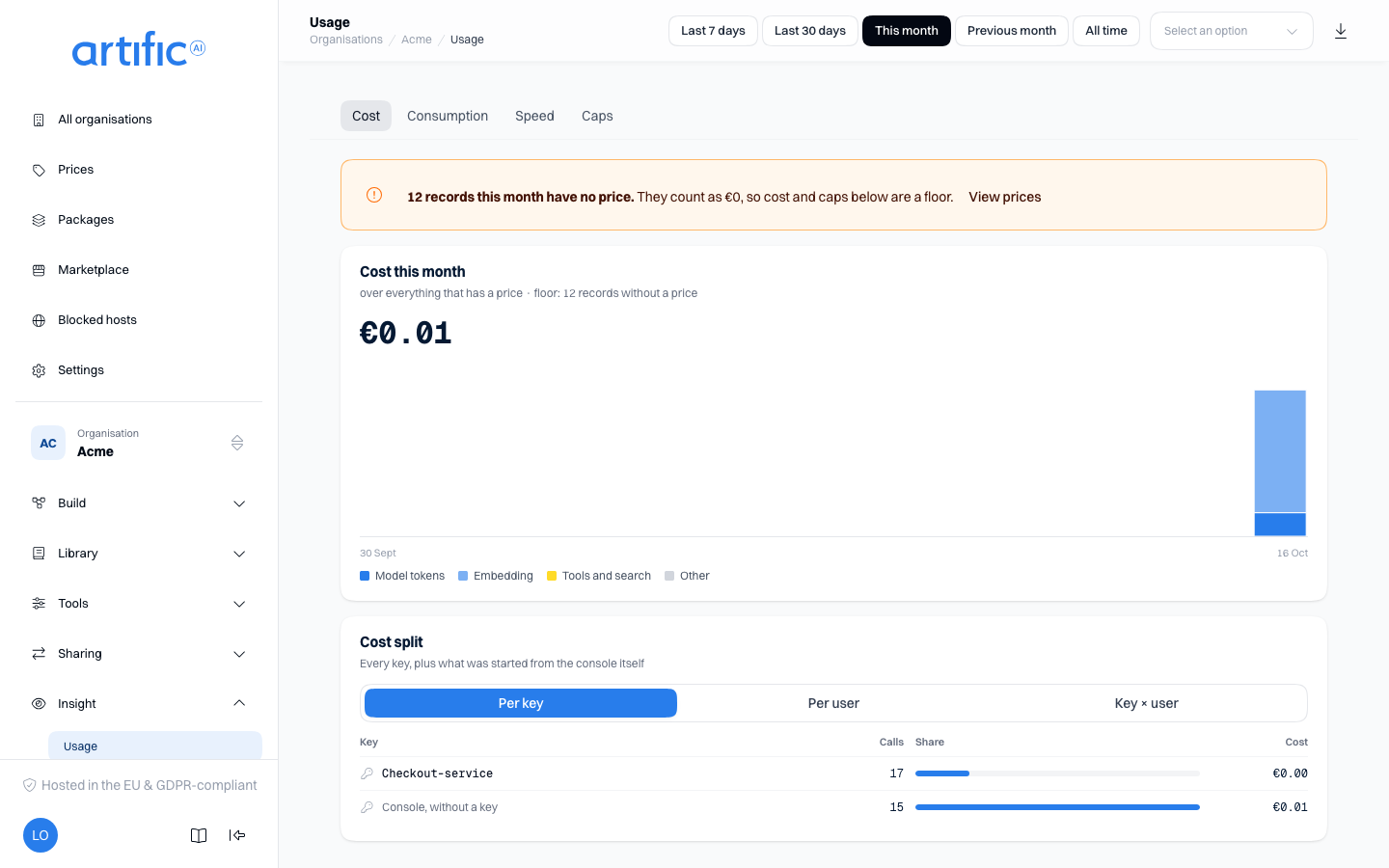
The screen has four tabs: Cost, Consumption, Speed and Caps. The period, the key, the scope, the tab and the split are part of the link, so whoever opens a shared link sees the same figures.
Period, key and export
Choose a period at the top: Last 7 days, Last 30 days, This month, Previous month or All time. Leave the Key dropdown on All keys for the whole organisation's figures, or choose a key to see only its usage. On a phone the period buttons sit in a row you scroll sideways, with the key choice below them.
Export downloads the rows of Per model or tool (on the Consumption tab) as a CSV file, for the period, key and scope you chose.
The period and the key apply to Cost and Consumption. Speed follows the period only and always counts every key of this organisation. Caps is always about the current calendar month (below).
When part of the period's usage has no price, one warning above every tab except Caps gives the number of records without a price. Those records count as €0, so cost and caps are then a floor. View prices takes you to where you set a price; which price applies to which model is on Models.
Cost
The Cost card, titled with the chosen period (for example Cost this month), shows what the period cost, over everything that has a price. Each record costs the price in force when it was recorded, so a price change inside the period does not re-price earlier usage. A price in a currency other than euro is converted at the newest rate until your operator closes the month; until then the amount moves with the rate (A price in another currency).
Under the amount is a bar per UTC day, split into Model tokens, Embedding, Tools and search and Other. Point at a bar for that day's amounts. With All time, and with Including those below, there is no chart but a line saying why: choose a shorter period, or look at one organisation on its own.
Cost split
Below the cost sits Cost split, with three choices:
- Per key: every key that cost something in the period, with calls, cost and share. What was started from the console itself has its own line, Console, without a key.
- Per user: the ten costliest users, with the number of users in the period above them. What named no user, such as every action from the console, has its own line, No user.
- Key × user: the two costliest keys, and within each key its two costliest users.
A user here is the id your own application tied a call to a person with. Core keeps no name for that id, and the screen does not look one up.
Per key and Key × user always count every key, even when you chose one key at the top; the card says so. Per user does follow the chosen key.
Per helper
When helpers did work in the period, the Per helper card follows: one line per helper, by its
name, with what its work cost. The lines are your own helpers, by the name your turns gave them in
helper (Build your own helper), and Core's own, such as
assist.json_schema for Describe what you need. A line adds up everything the helper's work
spent: every model, tool and agent. Usage no helper did has no line here. Without helper work in the
period, the card is not shown.
Consumption
The Consumption tab shows one tile for each kind of usage Core meters:
| Tile | What it holds |
|---|---|
| Model tokens | tokens in and out, from every model call |
| Embedding tokens | text embedded for the knowledge base and memory: indexing, searching, remembering |
| Tool invocations | the count, with the tool called most often |
| Searches | searches in a knowledge base; hybrid search counts as two, because it runs both keyword and semantic retrieval |
| Cache reads | tokens from the provider's cache |
| Images | generated images |
| Sandbox time | how long code ran in the sandbox |
| Storage | what your files, artefacts and sources hold right now |
| Parsed pages | pages of documents that were parsed |
| Crawled pages | pages fetched by web_fetch and website sources |
| Trace storage | what this organisation's traces hold right now |
Each tile says how much it changed against the period of the same length before. The two storage tiles do not: they show what is stored now, not a total over the period. All time has no period before it, so then no tile shows a change.
Per model or tool
Below the tiles sits Per model or tool: every group of usage with its model or tool, its kind, its Count and its Cost. Where n without a price appears under an amount, no price covered those records and the amount is a floor.
Two kinds adjust the model tokens of the same model rather than counting new work. Cache reads is input the provider read from its prompt cache; its cost is zero or negative, the discount the cheaper cached rate gives. Cache writes is input the provider wrote into its cache; its cost is zero or positive, the extra the cache-write rate adds. See prompt caching.
Shared bytes is what share links sent: each time somebody opens a share link, the size of the file it shows is added. What you open in the console yourself is not counted.
Speed
The Speed tab shows Speed per model: one row per model that answered a call of this organisation in the chosen period, over all keys together. The key choice and Scope do not change this table.
- Calls: how many calls the model answered.
- Time to first token: the time between sending the request and the first byte of the answer. The bar is dark up to the median (p50) and light up to the 95th percentile (p95); both figures are shown in milliseconds. All bars share one scale.
- Tokens/s p50 / p95: how many tokens per second the model produced from that first byte on. This counts only calls that kept going at least 100 ms past the first byte, and a note below says how many of the calls the figure rests on. Where no call reached that limit, a dash stands in.
Here the period counts from the moment the first byte arrived, not from the moment Core sent the request. If you see No calls with a first byte in this period yet, choose a longer period or check whether there were calls in it.
Caps
The Caps tab shows what each cap allows this calendar month and what has been spent so far. These figures are always about the current calendar month in UTC, whatever period you chose at the top: that is the month Core enforces the cap over. A cap is in euro and only in euro.
At the top are three counts: how many caps have cap reached, how many are over 80% and how many are well within the cap. The Caps tab carries a red number as soon as a cap is reached or over 80%.
The table has a row per cap, in three groups:
- Organisation: one cap for everything the organisation uses, every key together. Where the cap counts the organisations below as well, the bar and the amount are for the organisation and everything below it, and the row says of which its own beside it.
- Keys of the organisation: each key with a cap of its own within the organisation's. Such a cap counts only what went through that key.
- Organisations below: only when the organisation has organisations below it. Each has its own cap, and this organisation's cap holds them as well: once it is reached they stop too. Whether their usage counts towards it is chosen where the cap is set. When an organisation's cap cannot be read, its row stays and says so.
Each row shows a bar, Used / cap and Expected at month end. Without a cap it says no cap. A cap that has been reached says reached, and the amount stays what was really spent, even slightly past the cap: a turn that had already started runs to its end. Expected at month end is an estimate: what the month has cost so far, drawn on in a straight line to the end of the month. When the estimate goes past the cap, the row says so. During the first day of the month there is no estimate yet.
The pencil on a row opens where that cap is set: the organisation's on Settings, a key's on that key's own page, and an organisation below's on its own Settings. Whether you may change the cap there depends on your role: an organisation does not set its own cap.
Below the table a line says at which percentages a notice goes out and to which addresses. You set those thresholds and addresses in the organisation's settings. When the organisation has no notification address, the line says the notices go nowhere.
Once the cap is reached Core answers a new turn 429 and a background run ends with
usage_cap_exceeded; at the start of the next month it runs again. What a caller sees of that is
in your monthly cap.
The cap counts everything that has a price: tokens, images, tool invocations, searches, parsed pages, crawled pages, sandbox time and the bytes sent through share links. Storage never counts: it measures what is held now, not priced usage. A record without a price costs zero against the cap; how many such records a period had is in the warning above the other tabs. Ask your operator to price a subject that keeps turning up there.
Count the organisations below too
When the organisation has organisations below it, Scope sits under the tabs: Only followed by this organisation's name, or Including those below. The second adds up this organisation and everything under it. Beside the choice is how many organisations that covers and what they cost together. The scope applies to Cost and Consumption. Scope is not on the Speed tab, which reads this organisation alone, nor on the Caps tab, because each cap belongs to one organisation.
With Including those below, the Cost tab changes like this:
- The Per organisation card shows what each organisation cost. While an organisation's name is not loaded its id stands in, so the amount never disappears.
- There is no chart per day: that line is per organisation.
- Cost split stays about this organisation alone, because keys and users belong to one organisation. The card says so.
With this organisation alone, Cost shows the Organisations below card: how many organisations below have usage of their own, which does not count here. View including those below switches the scope.
Where a markup is in force on an organisation below you, Charged and Paid sit side by side: by the period's cost, on Per organisation and on Per model or tool. Charged is what that organisation is charged, Paid is what you yourself pay for the same usage, at your own prices. The two agree except where a markup makes them differ; point at the Paid header for the same explanation. With this organisation alone there is no Paid column, because there the two prices are the same one. What you pay for one organisation below yours on its own is in the API, through a key of yours.
An organisation whose usage is reserved to you counts normally; only its own administrators do not see it in their own roll-up.
When the organisation above reads usage
With the usage figures reserved by the organisation above
(Reserved), this screen carries only the sentence The organisation
above reads usage for this organisation., and Usage is not in the navigation. The
organisation's keys are unaffected: GET /usage answers them as usual.
Attribution
API activity is attributed to the key that made the call. Console activity, such as trying a search tool, pipeline test or reindex, is attributed to the organisation and the person who started it. Organisation totals include both. Filtering by key excludes console activity; in Cost split it appears as Console, without a key.
Where a call names a user, Core counts that id on its own, shown under Per user. Core keeps no name for that id; record that association in your own application.
Empty results
If you see No usage in this period yet, check the selected period and key. Core meters activity for every key.