Search tools in the console
The concept behind knowledge is explained in Knowledge.
A search tool gives a search a name a model calls as a tool. The tool runs one version of a query pipeline and reaches exactly the indexes, collections and graphs the source blocks of that version name. The model chooses the query and may narrow it by the filter keys you name, never widen it. On this page you create, test and delete search tools in the Search tools segment of Knowledge; the API side is in Knowledge through the API.
You need an administrator account of the organisation, and the knowledge capability has to be on
in the organisation's ceiling.
The list of search tools sits on the left, each name with its description under it, and the one you picked on the right. Search above the list to narrow it, and use the plus to create one.
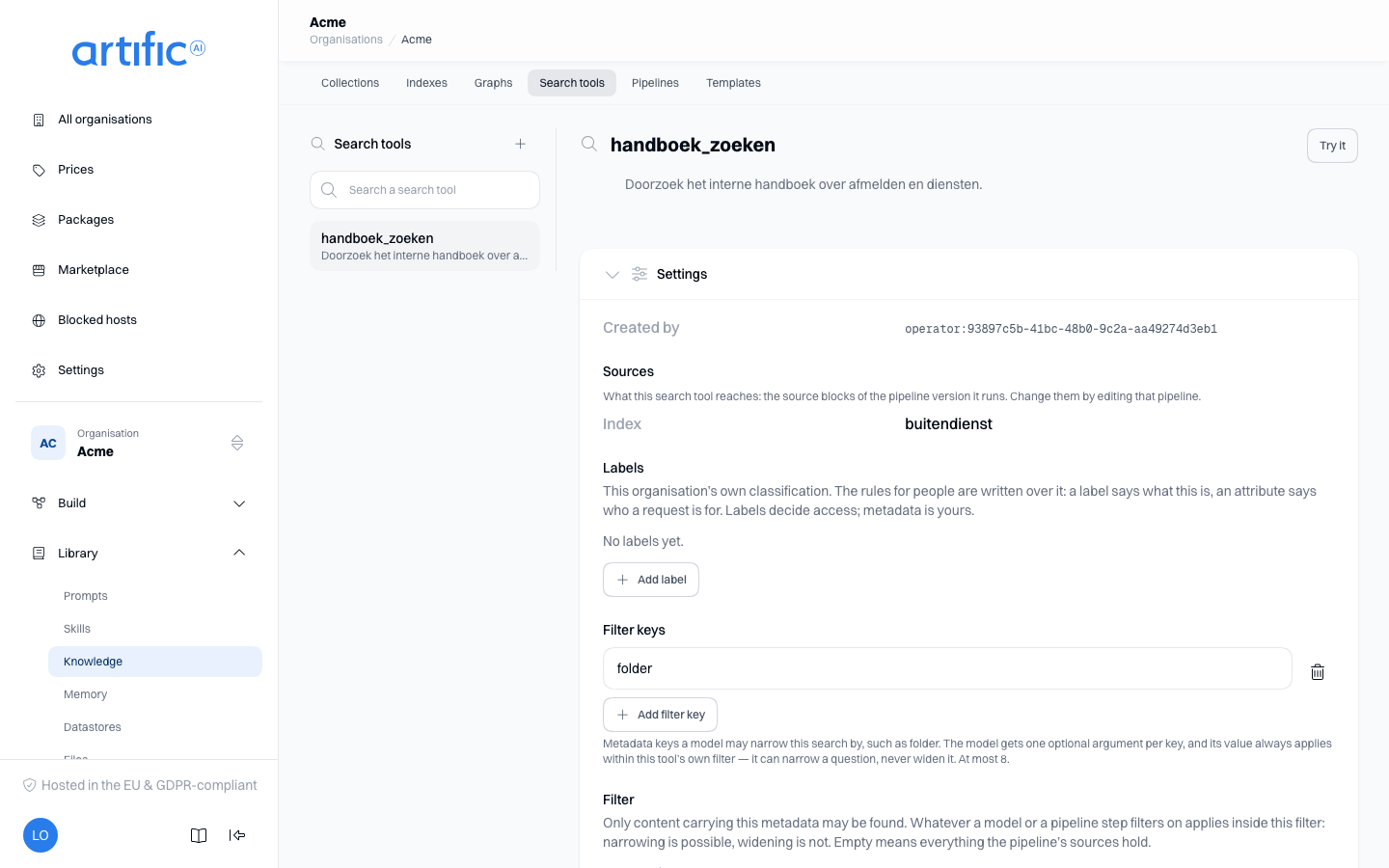
Search tools are configured here, and they appear alongside every other tool your organisation has in the Tools overview, where each one's page links back to this page.
Create a search tool
Select the plus above the list and configure these fields:
| Field | What you fill in |
|---|---|
| Identifier | what the model calls this tool (knowledge__<identifier>); never changes after you create it. The field shapes what you type into lower-case letters, digits, _ and -, at most 48 characters |
| Description | what the model reads to decide when to call it |
| Labels | labels by which rules in a policy select the tool; see Labels |
| Filter keys | the metadata keys a model may narrow the search by, at most eight |
| Filter | the tool's own filter: what has to be on a chunk before it may be found at all |
| Pipeline | the query pipeline the tool runs: a pipeline of your own at a fixed version, or a template |
| Sources | with a template only: which index, collection or graph each source block of the template reads |
Describe when the model should use the tool. For example: “Searches the internal handbook for leave, expenses and allowances.”
Pipeline and Sources together decide what the tool reaches. Choose a pipeline of your own and its source blocks already name the sources. Choose a template and its source blocks are empty, so you fill them in here; Core makes a pipeline of your own from the template with those sources and sets the tool to its version 1. Create separate search tools if different tasks should search different sources.
Filter keys are the metadata keys the model is allowed to filter on, such as folder. Each key
becomes one optional argument on the tool, and the value the model passes always applies within
this tool's own filter: it can ask a narrower question, never a wider one. A value that contradicts
the tool's own filter returns nothing rather than more. Name no keys and the tool takes only a
question and a maximum.
Filter is that own filter, entered as rows with a Key and a Value. Only chunks carrying that metadata may be found -- by a pipeline step that filters for itself as much as by the model. Leave it empty and everything the pipeline's sources hold may be searched. They are the same keys that sit on a source.
The identifier, and what the screen fixes
The identifier is fixed once the tool exists: it is the name policy, usage and the audit trail
carry as knowledge__<identifier>. It is therefore text on the screen rather than a field. The
description, the labels, the filter keys and the filter are edited where they are shown; as soon as
something changes, a bar appears with Cancel and Save.
Under Settings, Sources shows what the tool reaches: every index, collection and graph the source blocks of its pipeline version name. You change them by editing the pipeline, not here.
Pipeline settings
Choose a Pipeline from Built-in templates or Own pipelines. It controls keyword and semantic search, result merging, ranking and any model-generated answer. Custom pipelines require a fixed version. See Pipelines for configuration details.
The Query pipeline section draws those steps as a diagram, with the name of what was chosen underneath. Edit query pipeline opens the editor; see Pipelines. What you save there becomes a new version of the pipeline, and the tool runs that version from then on. A pipeline you edit elsewhere does not change the tool until you set the tool to the new version.
A search tool carries no chat model of its own. Each step that needs one names it in the pipeline;
a step that names none uses the model of the turn the search tool was called in. Try it below
has no surrounding turn, so such a step fails with no_model_configured unless the step itself
names a model -- see Pipelines.
Test a search tool
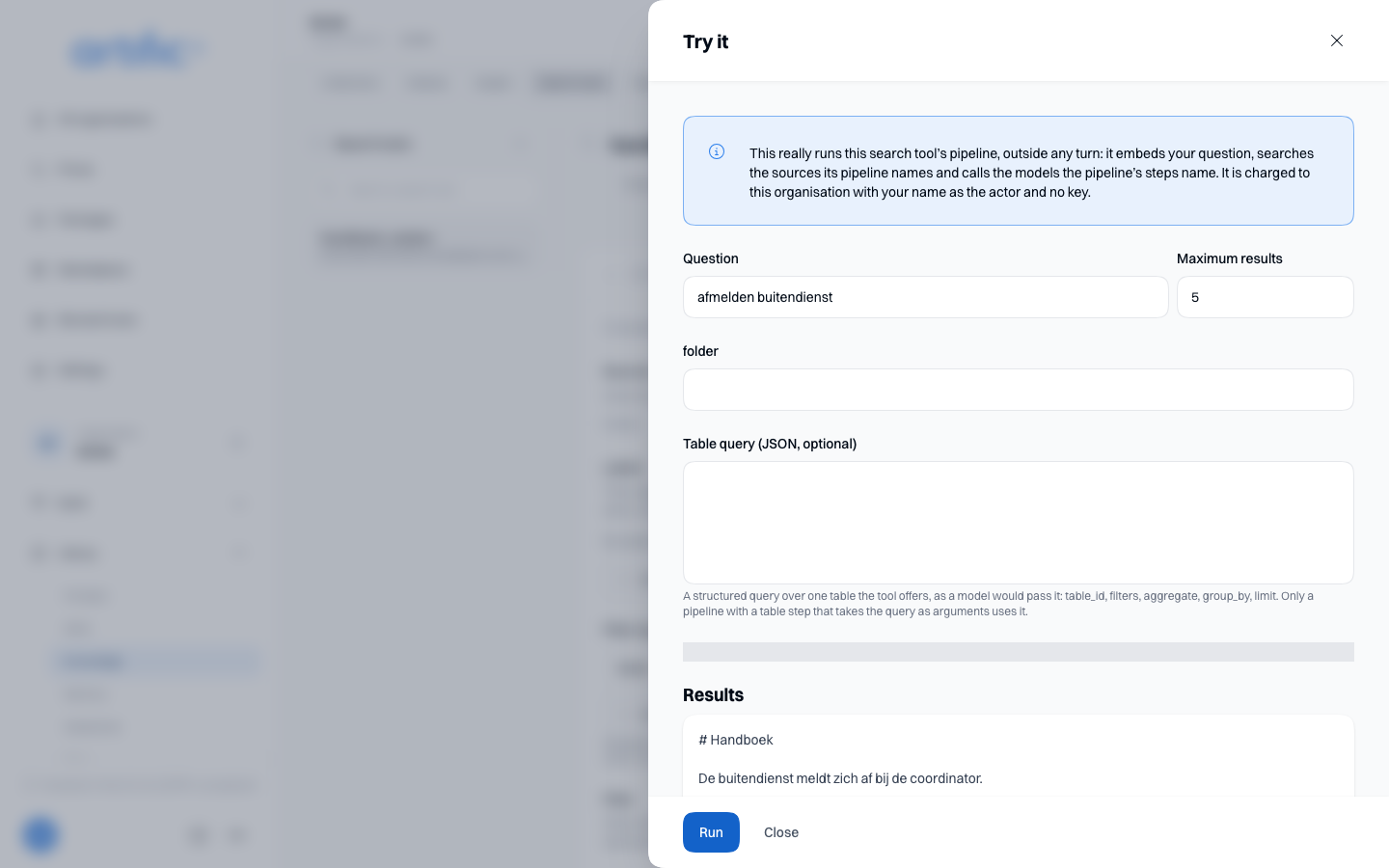
Select Try it at the top right to run the tool with a test query. It embeds the query, searches the sources of its pipeline and runs any configured model steps. A tool that names filter keys shows one field per key: fill one to ask the narrower question a model could ask, leave it empty to leave it out. The output matches what the model receives during a turn.
| Block | What it is good for |
|---|---|
| Answer | the written answer, when the pipeline has a step that writes one |
| Results | the chunks found, with their Source, their Index and their Score |
| Steps | behind a button: what each step took in and gave back |
Expand Steps to investigate unexpected results. Check which step found, filtered or removed the passages.
Tests incur normal usage, attributed to the organisation and your console account. On Usage, they appear in organisation totals and are excluded when filtering by key.
The displayed duration measures elapsed time in your browser, including the request. It is not a server processing-time measurement.
This question returned no chunks means the search found no matching passages. The same result would be returned to a model turn.
Delete a search tool
Use the delete action at the bottom and type the tool name to confirm. Later calls referencing it
receive 404, the same answer as for a name that never existed. The sources and the pipeline remain.
Labels
Use Labels on the page or creation form to classify search tools.
Rules about Tools determine whether a person is offered the search tool. Rules about
Knowledge indexes, Knowledge collections and Knowledge graphs must also permit every
source the tool's pipeline names; when the policy refuses one, a request that names the tool gets
404. Rules about Knowledge sources determine which documents the tool may retrieve for that
person. Access to a tool therefore grants no access to the sources behind it.
Write both in a key's policy (Rules about a person). See Build for people for examples.
For a key's request that names a person, the rules about Tools also decide whether
GET /knowledge/retrieval-tools lists the search tool and whether it may be changed or deleted,
under its tool name knowledge__<name> (Registrations). The console lists every search
tool.
Empty lists and access restrictions
An empty column on the left means none have been configured. Applications can still search indexes directly.
If knowledge is disabled, Index and search knowledge sources is off in the organisation's ceiling. The administrator of the organisation above turns it on under Permitted capabilities on Settings; for an organisation with none above it, your operator does.