API connectors in the console
The concept behind tools is explained in Tools.
Under Tools > API connectors you register an HTTP endpoint of your own as a tool. An
API connector is an endpoint of your own that Core calls with the arguments the model
produced. Each connector produces one tool, api__<identifier>, which appears in the
Overview and fits in a toolset.
You need an administrator account of the organisation, and the tooling capability has to be on in
the organisation's ceiling. The host of the address has to be one of the organisation's
allowed hosts.
Organisation keys can offer these tools in a turn, subject to their policy. See Tools through the API for API examples.
Add a connector
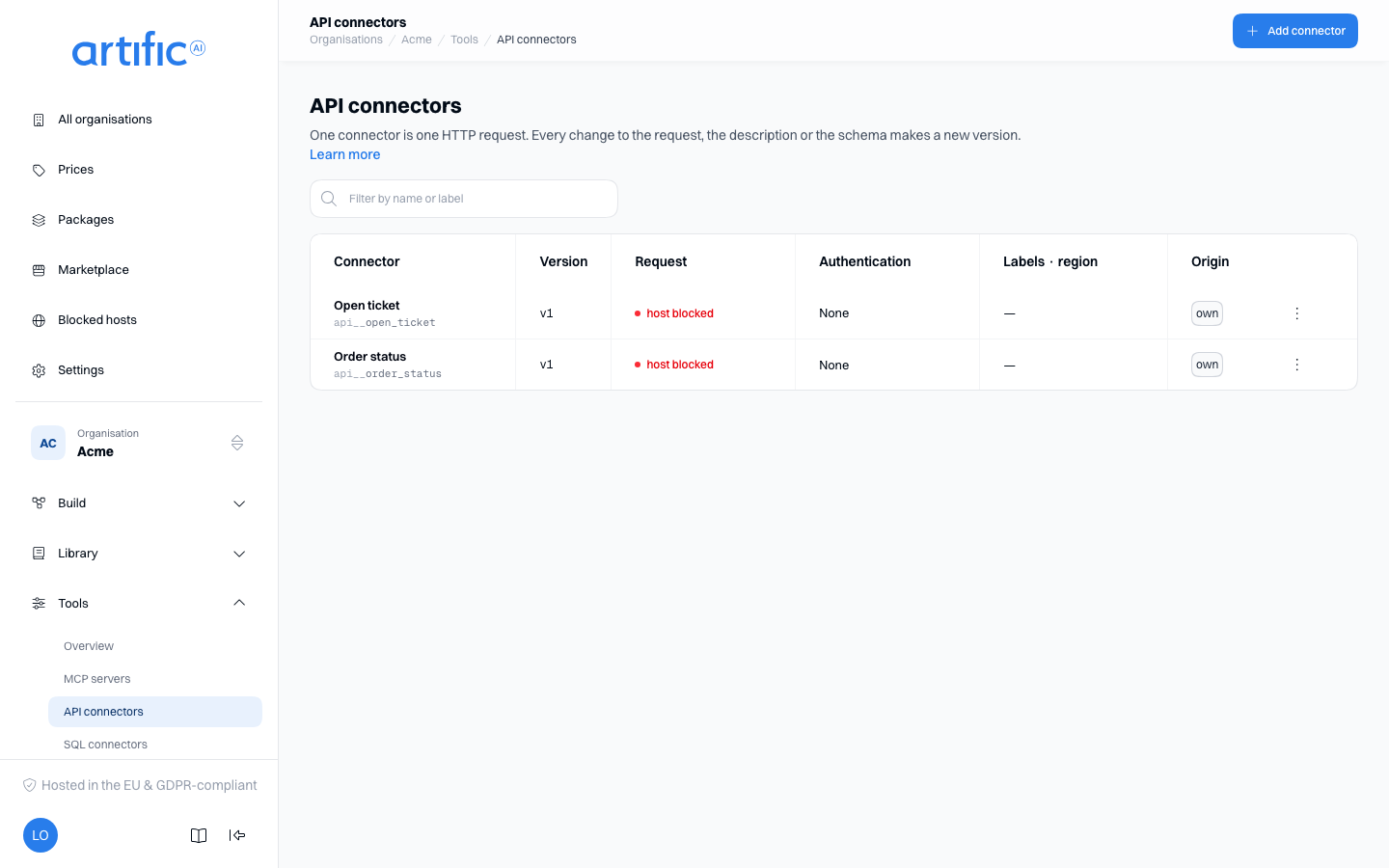
The list shows each connector's name as api__<identifier>, its version, its request as method and
host, the kind of credential (with set when a secret is stored), its labels and region, and where
the connector comes from. Type in Filter by name or label to narrow the list. Select a row to
open the connector's page.
Select Add connector in the bar. A page opens; complete these fields and select Save in the bar at the bottom, which says that saving makes v1:
| Field | What you fill in |
|---|---|
| Identifier | what the model calls this tool (api__<identifier>); cannot change later. The field shapes what you type into lower-case letters, digits, - and _, at most 48 characters |
| URL | the address Core calls, must start with http:// or https:// |
| Region | where the address is served, see Where the host is served; may stay empty |
| Description | what the tool does, as the model sees it, at most 1024 characters |
| Parameters (JSON Schema) | a JSON object describing the arguments. Empty means: no arguments. Build it field by field in the Visual view, paste it in the JSON view, or have Describe what you need make a draft. A field's description is what the model reads |
| Authentication | how Core authenticates to the address, see Store a credential |
| Custom request | off: Core POSTs a fixed body. On: Core sends the request you build, see Configure the request |
With Custom request off, Core POSTs the arguments to the address above and hands the answer back
to the turn. A tool your own application runs instead is described on the request itself, as a
function tool; it needs no registration here.
A connector's name cannot be edited: it is what policy rules, usage rows and the audit trail record. Create another connector if you need a different name.
An example of the exact request body the address receives appears under the parameters, built from
the schema as you type it: tool, arguments, response_id and call_id, with one example value
per property. It shows the shape, not validated content.
On a phone you read the list and the pages; adding and editing happen on a larger screen.
Delete a connector in the danger zone on its page, or with Delete in the row menu. The confirmation names the toolsets and aliases that lose the tool: a toolset whose rule reaches the tool comes out at fewer, and an alias aimed at it becomes unavailable. When the latest version of an agent names the tool, Core refuses the delete and the dialog names those agents; take the tool out there first.
The host has to be allowed. Core calls the address only when the host is one of the organisation's allowed hosts, and the same holds for the token endpoint of an OAuth credential. When a host is not, or the environment blocks it, the list shows host blocked in red, and the connector's page says Core does not call it until that changes, with To allowed hosts; that link opens the Allowed hosts card.
Where the host is served
Region says where this connector's host is served: eu, us, global, in-cluster, or a
two-letter country code such as nl, in lower case. It matters only to a key whose policy limits
its regions (policy.settings.regions_allow): such a key reaches this connector only when its list
names this region or one containing it (nl lies inside eu, and everything inside global), and
needs no declaration of its own for the host — though a host_regions entry in the key's or the
organisation's policy that places the host more widely still wins. Each connector says it
for itself, so one may be served in the EU and another in the US. Leave the field empty and each
key places the host with its own policy.settings.host_regions instead; emptying it on an existing
connector clears the stored region. The list shows the region in the Labels · region column. See Allowed
destinations.
Configure the request
Turn Custom request on when your endpoint does not accept that fixed body — when it wants a
GET, its own path, a query string, headers of its own, or a body of your own shape.
| Field | What you fill in |
|---|---|
| Method | GET, POST, PUT, PATCH or DELETE |
| Query parameters | a name and a value per row. The name is literal text; the value may use an argument |
| Headers | the same, one row per header |
| Body (JSON) | shown for the methods that carry one. Leave it empty to send no body |
| Timeout (seconds) | how long this call may take. Core uses the shorter of this and its own budget |
Write an argument as {name} in the URL path, the URL query, a query value, a header value or
anywhere in the body. A value that is exactly one {name} keeps that argument's own type, so
"{count}" with the number 3 sends 3 and not "3"; an argument inside a longer piece of text is
substituted as text. There is no way to send a literal {name}.
Three rules are worth knowing before you type:
- an argument in the URL may only appear in the path or the query, never in the scheme, the host or the port — the address Core dials is fixed when you register it;
- every
{name}must be a property of Parameters; an argument used in the URL or in the middle of a longer string must also be required there, because there is no way to leave out part of a path or part of a sentence; - a credential belongs under Authentication: never type a fixed token into a header here.
Cookie,Proxy-Authorizationand a header Core sets itself are refused.Authorizationis saved only while Authentication is None, for a token that differs per request; such a token is a secret call variable (Values your application sends, TheAuthorizationheader).
Under the fields, one chip per argument says whether this request uses it. A red chip is a {name}
your parameters do not declare — fix it or the connector cannot be saved. Below that, Example of
the request shows the whole request with example values filled in from the schema: that is exactly
what your endpoint receives.
Values you set once
Some values belong to the connector rather than to a call: a region, an account id, a page size.
Write such a value as {$name} -- with a $ -- in the URL path or query, a query value, a header
value or the body, such as https://your-app.example/{$region}/tickets. As soon as the URL or the
request holds one, Install values appears with a row per {$name}, labelled with the token
itself. Each row takes the same fields as an install value on a
prompt: Type (Text, Number or
Choice), your value, the Allowed values of a choice, and a Description.
Core fills these values in before the arguments, so the model never sees them and cannot set them.
Example of the request shows the request with your install values already filled in; a token
whose value is not complete yet stays as you typed it. In the body, a value that is exactly one
{$name} keeps its type, so a Number sends 50, not "50".
The section refuses what Core would refuse:
- a
{$name}in the scheme, host or port of the URL (An install value may stand in the URL path or query, never in its scheme, host or port.), or in a query or body key; - a name that is also an argument in Parameters (This name is already an argument the model is given. Give the install value another name.);
- an empty value, a value containing
{or}, and.or..as a value in the URL path.
An install value of type Text, Number or Choice is not a secret: anyone who can read
the connector reads it back. A credential that is the same for everybody belongs under
Authentication. For another credential the endpoint needs besides it, choose the type
Secret: the row becomes a password field, Core stores the text encrypted and never shows it
again. When you edit the connector later, the row says Set and the field stays empty; leave it
empty to keep the stored value, or type a new text to replace it. A secret may stand only in a
header value or a body string; the form refuses it in the URL or a query value (A secret install
value may stand only in a header value or a body string, never in the URL or a query value: those
end up in logs.), and Example of the request shows it as ••••••. When you share the
connector through a publication, every plain install value becomes a parameter of the bundle, and
whoever installs it fills in their own (see Text the installer fills
in).
Values your application sends
A value that differs per request rather than per connector, such as your customer's account id or
own token, is a call variable. Write it as {@name} where it goes, in the same places as an
install value, and a row appears under At call time for each {@name}. A row has:
| Field | Meaning |
|---|---|
| Type | Text, Number, Whole number or Yes or no |
| Required | a request without a value is refused; off, and not available, once the variable has a default |
| Secret | for a customer's own token: text with no default and no list, stored encrypted and masked in the tool's result |
| Description of the variable | what the application should pass, for whoever calls the tool |
| Allowed values | one per line; empty admits any value of the type |
| Default | the value the tool receives when the request gives none |
Your application sends the values in tool_variables (Pass a customer's value to a
tool). The model never sees them. Next to Example of the request you can
type a sample value per variable to see which request your endpoint would receive; a secret
variable has no sample and shows as ••••••. The sample is only on this screen: it is not stored.
The form refuses what Core would refuse: a {@name} in the scheme, host or port of the URL or in
a key, a name that is also an argument or an install value, a default that does not fit the type
or the allowed values, and a secret in the URL or a query value.
Store a credential
Authentication says how Core authenticates to this source. It is the same section on an API connector and on an MCP server, because it is the same stored credential.
| Kind | What you fill in | What Core sends |
|---|---|---|
| None | — | nothing, and any stored credential is removed |
| Token in a header | a header and the token | the token, exactly as you typed it, under that header |
| API key | header or query, a name and the key | one header, or one query parameter |
| Username and password | both | Authorization: Basic … |
| OAuth (client credentials) | token endpoint, client id, client secret, scopes, audience | Authorization: Bearer <access token>, fetched at the token endpoint |
| OAuth (the person's own login) | authorization endpoint, token endpoint, client id, client secret (optional), scopes, audience | one person's own access token, see A person's own login |
An MCP server offers all but the API key and the username and password: its transport carries headers and no query string of its own.
A token is sent exactly as stored — Core adds nothing. If your API expects Authorization:
Bearer abc, type Bearer abc. If it wants a bare token in that header, type the bare token. That
also leaves Token, ApiKey and any other scheme reachable without a setting of their own.
A credential may not take a header Core sets itself, such as Idempotency-Key or User-Agent.
The secret is encrypted and never shown again, not even to you. When you edit a source that has one, the field is empty and a line under it says a credential is stored:
- leave it empty to keep the stored credential;
- enter a new value to replace the whole credential;
- choose None to remove it.
Changing the kind always asks for that kind's own secret, because a credential is replaced whole.
For OAuth (client credentials), Core fetches a token when it needs one and keeps it in memory only; the token endpoint must be an allowed destination in the same way the tool's own address is.
A person's own login
The five kinds above authenticate the organisation: one credential, used for everybody. OAuth (the person's own login) authenticates one person. The registration holds nothing that can call anything by itself, only how to ask somebody, and Core keeps one grant per person per source. Both API connectors and MCP servers accept it.
| Field | What you fill in |
|---|---|
| Authorization endpoint | where the person's own browser is sent. Core never opens it |
| Token endpoint | where Core exchanges the code, and later the refresh token |
| Client id | the client you registered at the provider |
| Client secret | optional: leave it empty for a public client. Core uses PKCE either way |
| Scopes | what the person is asked to grant |
| Audience | only when the provider asks for one |
Under those fields the form shows the redirect URI path, /api/v1/oauth/callback, with a copy
button. Register it at your provider with your Core deployment's own public base URL in front of it
— the value of CORE_PUBLIC_URL in the environment. That is the one address Core serves without a
credential, and it is where the provider sends the person back.
Who the person is comes from the application, not from this console: an application calling Core
sends its own opaque user on each request, and Core resolves that person's grant by it. The first
time a tool of this source runs for somebody with no grant, the model is handed a sentence carrying
a log-in URL to pass on to them. An application that would rather connect people ahead of time asks
Core for the same URL through the authorizations routes; both are described in Tools through the API.
A source of any other kind answers those routes with an error, and nothing anywhere reads a stored grant back.
A connector's page
A connector's page reads what it does, without changing anything:
| Card | What is on it |
|---|---|
| Request | the method and the URL with every {name} marked, the query and the headers (or the fixed contract when there is no request of its own), the install values, the authentication and the time-out |
| Versions | see Versions |
| Access | the labels, the region and where the tool is used |
| Try it | call the stored version on behalf of a key, as in try a tool |
Change it with Edit in the bar: that opens the same form as adding, with the identifier fixed. A connector installed from a publication has no Edit; one from a sealed publication also hides its request and schema.
Versions
Every connector carries a version, shown in the list and on its page. Saving a change to the description, the URL, the parameters, the request or the install values records a new version; changing only the authentication or the region does not, because both belong to the registration rather than to what the connector does.
The Versions card on the connector's page shows them, newest first, with when each version was made and its description; Show opens its URL and who made it. A version never changes and there is nothing to activate or roll back to here: an older version is used by pinning it on a request, see Tools through the API.
Asynchronous tool
The Asynchronous tool section of the form decides whether the model may start this connector as a task: a call that keeps running after the turn has ended, whose result comes back into the conversation later. It is part of the version, so saving a change to it records a new one.
The same section, with the same fields, is on the form of an MCP server, where it holds for every tool of the server, on the forms for a new script and for its next version, and on the forms for a new agent and for its next version.
| Field | What you choose |
|---|---|
| Start in the background | Never (the default): every call waits for its answer. Allowed: the model may start it in the background as well as call it directly. Always: a direct call starts it in the background and returns a handle to the task |
| Longest run (seconds) | how long a task may run, a whole number of at least 1. Leave it empty for the limit the platform sets itself; that limit is also the maximum |
| Safe to send again | on a connector, an MCP server and a script; not on an agent. On: Core may send the same call again after an interruption, with the same Idempotency-Key. Turn it on only when the other side handles a repeat the same way as the first call. Off: an interrupted task ends as interrupted |
A connector or a server whose authentication is OAuth (the person's own login) shows the section switched off, with the sentence Signs in as a person, so it is never started in the background.
The section is shown whether or not the organisation has the tasks capability. Without it the
setting is stored and nothing is started in the background: every call waits for its answer.
What the model does with the setting, what happens after an interruption, the limits and the routes that read a task are on Run a tool in the background.
Labels
A connector carries Labels: your organisation's own classification, which the rules for people are written over. The list has a column for it and a connector's form a field.
The connector's tool carries that label. A connector salaris labelled department: payroll
makes its tool api__salaris a payroll tool, and a rule about Tools in a key's policy (Rules
about a person) then decides it by that label. A tool a
person may not see is absent from GET /tools, and one she may not use is not offered to the model.
The same rule decides the connector itself for a key's request that names a person: GET
/api_connectors lists only the connectors whose tool she may see, changing one needs see and
write on its tool, and deleting one needs see and delete
(Registrations). The console lists every
connector. See Building for people.
Empty lists and access restrictions
“No API connectors yet” indicates an empty list. When the list could not load, the page says so with Core's status and a Try again button.
If you see tooling is off for this organisation, Call tools and MCP servers is off in the organisation's ceiling. The administrator of the organisation above turns it on under Permitted capabilities on Settings; for an organisation with none above it, your operator does. That holds for every part under Tools.