An organisation's settings
The concept behind organisations is explained in Organisations and customers.
Use Settings to manage an organisation's details, policy, capabilities, spending cap and retention periods. Your role determines which fields you can change. The screen is the organisation's own base page.
At the top are the organisation's name and status, its tenant id with a copy button, where it sits
in the tree and its isolation, with the buttons Rename and -- for an operator -- Move.
Below them six tabs divide the settings: General, Limits & notifications, Retention &
traces, Access & policy, Capabilities and Improvements. The open tab is part of the
address (?tab=), so a link you send someone opens on the same tab. On a phone the tabs are a row
of buttons you scroll sideways, with shorter names: General, Limits, Retention,
Access, Capabilities and Improvements.
Changes on the cards themselves are saved together. As soon as you change a field or switch on a card -- the cap, the notifications, retention and traces, the reservations, the ceiling or the improvement analyses -- a bar appears at the bottom with the number of unsaved changes, even when they sit on different tabs. Save saves them all; Cancel puts everything back. When Core refuses one, that card keeps its change and shows the problem, the rest is saved, and you are taken to that card's tab. Leaving the screen with unsaved changes asks first whether to discard them. What opens in a drawer or a dialog -- the details, the policy, the vocabulary, the identity providers, moving and deleting -- saves with its own button.
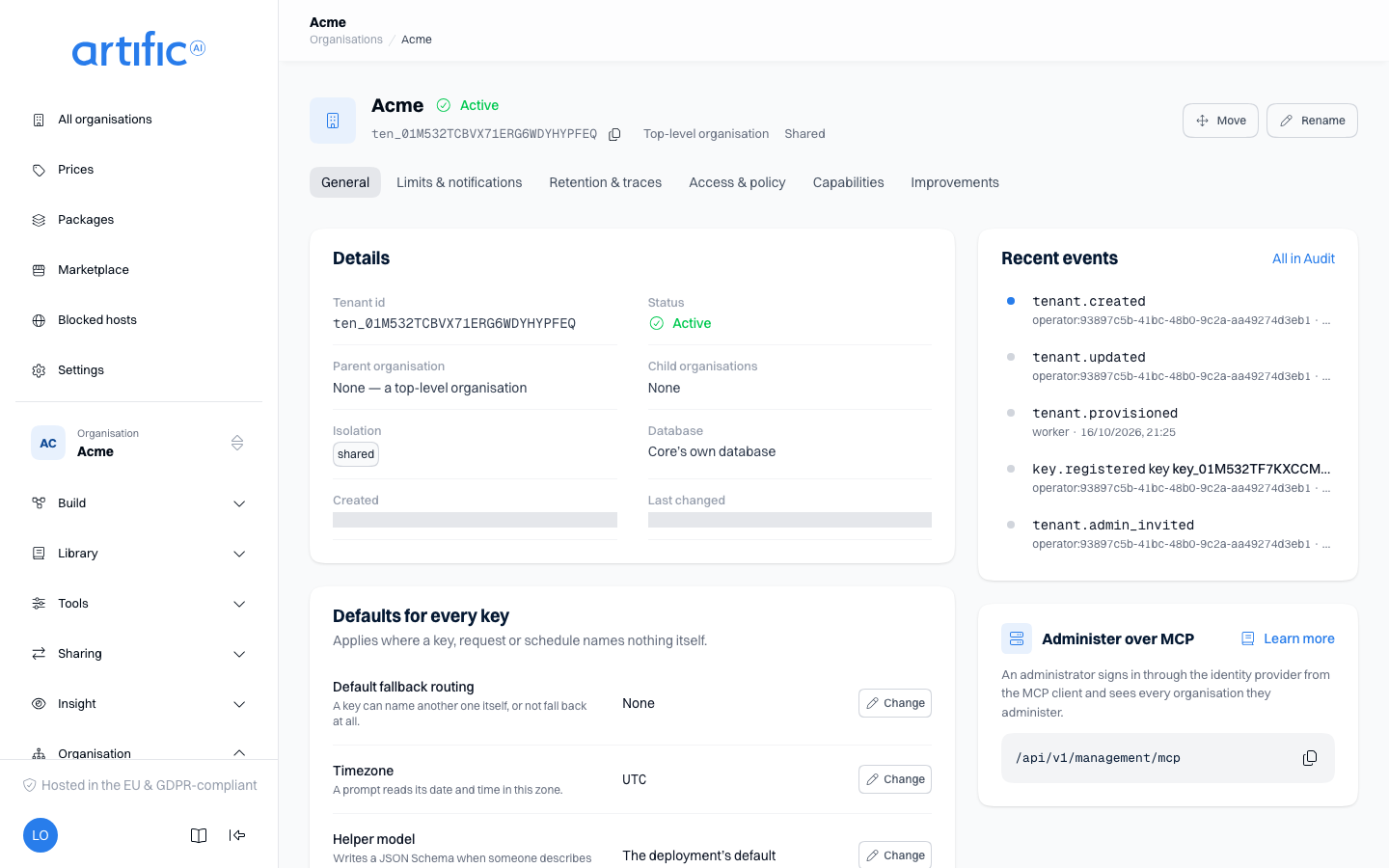
The sidebar groups an organisation's sections under six headings; Settings sits in Organisation, alongside Admins, Keys, Routing, Routers, Models and Markups. Open a heading to see its sections -- the one holding the section you are on opens on its own. The console introduction helps you find the right section. The documentation link at the bottom of the sidebar opens the relevant guide, or the guide home page when no specific page is mapped.
Details
The General tab shows the Details card, the Defaults for every key card, the danger zone, recent events and the management endpoint for MCP. The danger zone is shown to an operator and to the administrators of the organisation above this one only; its own administrators do not see it.
| Field | Changeable |
|---|---|
| Name | yes — it heads the screen; Rename opens the Edit details drawer |
| Tenant id | no; this is what its keys belong to |
| Parent organisation | no; where an organisation sits is Artific's to change (below) |
| Child organisations | no; the count links to that branch of the list |
| Product | shown as the product’s display name and namespace once an operator has named a product for this organisation; changeable by an operator only, in the Product section of the Edit details drawer (audit events from your product) |
| Reserved | no; shown only when the organisation above keeps something (below) |
| Monthly cost cap | shown here to the organisation's own administrators only; set by the administrator of the organisation above it, and Artific where there is none above it, on the Limits & notifications tab (below) |
| Default fallback routing | yes — on the Defaults for every key card, with Change (below) |
| Timezone | yes — on the same card, with Change (below) |
| Helper model | yes — on the same card, with Change (below) |
| Status | with Suspend / Reactivate in the danger zone: the administrator of the organisation above it, and Artific where there is none above it |
| Isolation | no, ever: row-level or its own schema, chosen when the organisation was created |
| Database | no, ever, from this screen: Core's own database, or the name of a dedicated database -- the one the organisation above it lives on by default, or a different one your operator gave this organisation directly, in which case every organisation below it defaults to that one in turn |
| Created, Last changed | no |
Rename and every Change open the same drawer, Edit details, with the name and the three defaults one under the other; it lands on the field you opened it for. Save in the drawer sends only what you changed. An operator also sees a Product section there, with the Namespace and Display name of the product that delivers events for the organisation; both are set, or both cleared. Renaming preserves the organisation’s keys, data and audit history; the tenant id never changes.
Where the organisation sits
Parent organisation links to the organisation this one sits under, or says "None — a top-level organisation" when it is one itself; the head of the screen says the same. If you do not administer that parent, the card says there is one and that it is not yours. Child organisations counts what sits directly below and opens the list narrowed to this branch.
Where an organisation sits is Artific's to change: moving one moves who administers it along with it, and no data moves. An operator does so with Move at the top; ask your operator when an organisation belongs somewhere else in the tree. Because no data moves, an organisation cannot be moved under one that lives on a different database: the move is refused and says so.
Suspend in the danger zone immediately blocks calls from every key in the organisation and in every organisation below it, and stops their background runs and schedules. Data is retained, and Reactivate restores access for the whole branch, except for an organisation below that was suspended itself, which stays suspended until you reactivate that one too. An organisation stopped this way keeps its own status and shows a notice that an organisation above it is suspended.
Work that came due during a suspension is dropped, not kept for later. A background run ends
failed with tenant_unavailable, or cancelled when it was already running; a schedule skips
that time and fires at its next one; a connector's sync and the indexing of a source fail with
tenant_unavailable and run again at the next sync, the next reindex or the source's next change.
Send again what does not come back by itself.
Delete in the danger zone removes the organisation and its data (Delete); the confirmation asks you to type the tenant id, because two organisations may share a name.
Editing is unavailable while an organisation is being provisioned or deleted.
Permitted capabilities
Permitted capabilities is the Capabilities tab. The top right says how many are on; a capability that needs another sits indented under it with requires ... beside it. Flip switches and choose Save in the bar at the bottom.
Every organisation starts with all of them on — everything the organisation above it may have, or everything there is for a root organisation. These switches are how you take one away, not how you hand one out.
These settings determine which capabilities can be enabled on the organisation’s keys.
| Switch | What it permits a key to do |
|---|---|
| Store and continue conversations | keep a conversation across calls |
| Summarise older messages instead of sending them | summarise a long conversation before it goes to the model |
| Background runs on a thread | run a turn without holding a connection |
| Fire a turn at a time you set yourself | create schedules that start a turn, an evaluation or a workflow run at a set time |
| Call tools and MCP servers | let the model call endpoints and servers |
| Give a turn an isolated computer to run commands in, with files copied in and exported as artifacts | let the model run code on a computer |
| Upload and attach files | upload bytes a turn can read |
| Store artefacts the model produced | keep and download what a tool produced |
| Register and use skills | store packaged instructions |
| Manage prompts with versions | store versioned instruction templates |
| Store agents a call names by name | store a whole request under a name, with versions |
| Measure an agent against a stored suite | write and run evaluations |
| Index and search knowledge sources | make your own documents searchable |
| Memory per user | keep facts across calls |
| Keep custom datastores: JSON records with a key, an optional schema and references between them | create datastores and read and write their records, through the API and as a tool in a turn |
| Replace personal data before the model sees it | hide personal data from the model provider |
| Hand a person a token narrowed to their own data, and erase one person | issue tokens for a person and inspect or erase their data (Build for people) |
| Have a piece of configuration written from a description, such as a JSON Schema | use Describe what you need, and the same through the API |
| Let a turn start an agent in the background and read its result when it is done | let a tool, an agent or a workflow run in the background while the conversation goes on |
| Read the organisation’s improvement analyses and act on the changes they propose | read and act on improvement proposals |
| Run stored processes of agents, prompts and tools step by step in the background | write and run workflows |
| Tell the model which text is data: Core's preamble and <untrusted> around everything that cannot be vouched for. Off: the model reads all of it as plain text | have its turns tell the model which text is data — trust_envelope, see The trust_envelope capability |
Administer this organisation, its keys and the organisations below it — management — is the
one switch that is not about what a turn may do: a key holding it runs this organisation and the
ones below it from the API, exactly as an administrator does in this console, so leave it out of
the ceiling if no key of this organisation should administer anything.
The administrator of the organisation above sets this ceiling — Artific, where there is none above it. If you administer this organisation itself, you can read the ceiling but not change it.
Core checks the ceiling at the moment you set it: what you give an organisation has to fall within the ceiling of the organisation directly above it. When you later narrow the ceiling of an organisation above, the ceilings stored for the organisations below it do not change with it. The narrowing holds there all the same from the next call. A capability is in force only where the organisation and every organisation above it permit it, for its keys and for the people who manage it. Widening the ceiling above again gives the organisations below back what their own ceiling holds, as far as every organisation above them permits it.
Turning a capability off here also turns it off at once for every organisation below this one, hiding of personal data included.
The Capabilities tab shows this organisation's own stored ceiling. An organisation above it can still keep a capability off that the tab shows as on; the screens of that capability then say it is off for this organisation.
Disabling a capability takes effect on the next call for every key: its routes return 404.
Re-enabling it restores access for keys that already have it enabled. trust_envelope has no
routes of its own: with it disabled here, no key's turns tell the model which text is data. See capabilities per
key.
Memory requires knowledge; summarising and background runs require conversations; schedules require
background runs; tasks and workflows require background runs and conversations; artifacts require
files; evaluations require agents; the computer requires tools.
The
console identifies missing dependencies when you try to save an invalid combination.
Monthly cap
The Monthly cap card on the Limits & notifications tab sets a ceiling in euro on what this organisation may spend in one calendar month (UTC), across all of its keys together. Fill in an amount and choose Save in the bar at the bottom.
- Empty is no cap. That is where every organisation starts.
- 0 is a real cap: the organisation then spends nothing that has a price until the month turns.
- Type the amount with a point, such as
250.00. That is what Core stores, to the cent. - The cap counts everything that has a price -- model tokens, embedding tokens, images, tool invocations, searches, parsed pages, crawled pages and sandbox time -- billed to this organisation, including a background run's, an evaluation's, and work you start from this console yourself. What you store is not one of them: storage is a gauge and never counts against the cap (Usage).
Under the amount, What the cap counts has two choices:
- This organisation and everything below it: what the organisations below use counts towards this cap. Every organisation starts with this choice.
- This organisation alone: only its own usage counts towards this cap.
While the first is chosen, Usage of deleted organisations keeps counting is on: what an organisation below used this month keeps counting after it is deleted, until the month turns. Switch it off and that usage leaves the count as soon as the organisation is deleted.
Whichever you choose, an organisation that has reached its cap stops the organisations below it as well: their calls that cost are refused until the month turns or the cap is raised.
The ceiling is in money and not in tokens: a token is worth a different amount on every model, and a budget is something you can hold Core to.
The administrator of the organisation above sets it, and Artific where there is none above it. Administering the organisation itself, you see the cap on the Details card but get no field for it: an organisation does not decide its own ceiling. A cap per key is set on Keys; the organisation's own applies alongside it regardless.
Where a subject is capped but nothing prices what it uses, that usage costs zero against the cap; Usage says how many such records there were.
What has been spent against the cap, and what happens once it is reached, is on Usage.
Notifications
The Notifications card sits on the Limits & notifications tab, under the monthly cap: the addresses Core mails about this organisation, the Slack channel it posts in, which of the two it uses, the budget marks that are notified, and which kinds of notification the organisation wants. Change them and choose Save in the bar at the bottom. Who receives what, and when, is on Notifications.
Data retention
The Data retention card on the Retention & traces tab sets a window on how long this organisation's own content survives. Turn on Automatically delete content, fill in the number of days beside the switch, and choose Save in the bar at the bottom.
- Off keeps everything for ever. That is where every organisation starts.
- Once content is older than the window: conversations with their messages, responses, memory, and every document marked temporary — which is what an API key's own uploads and the files its tools produce are — go, together with their bytes. A document marked keep stays, and so do configuration and the audit trail: what the organisation built, not what it was sent. Each collection sets the default for the documents in it, and one document may differ.
- The window is counted from when each item was created, never from when it was last touched, and a background job enforces it within the hour. The audit trail keeps its own, separate window and is never shortened by this one.
The administrator of the organisation above sets it, and so does the organisation's own administrator: unlike the monthly cap, this window is the organisation's own decision about its own content.
Traces
The same card carries a second half, Traces: whether Core records what this organisation sends to a model, and how long those recordings are kept.
Record model calls is on for every organisation. With it on, every call Core makes on this organisation's behalf is recorded as one trace — the body the provider received, its answer, and Core's own reading of the same call — and the Traces section appears in the left rail.
Turn it off and two things happen, and only two: new calls are not recorded, and the rail no longer offers the section. Nothing already recorded is hidden. The section's own page still opens for anyone who has its link, says that recording is off, and lists what is still stored until a retention window takes it.
Delete traces sooner than the rest gives traces a window of their own. It can only shorten: Core takes a trace at whichever of the two windows comes first, so a trace never outlives the conversation it came from, whatever number is typed here. Leave it off and traces fall under the window of Automatically delete content above, like every other kind of content.
The reason traces get an extra window is size, not sensitivity: a month of conversations is a few megabytes and a month of the bodies behind them is not. What the choice is worth is on Usage, where Trace storage is reported beside the files figure and never added into it.
Who may set both: whoever may set the retention window above them — an administrator of an organisation above this one, and the organisation's own administrators.
Reading one call
Traces in the left rail opens on Conversations: the organisation's calls grouped into the work they belong to, newest activity first. A row is one conversation, one stateless turn, or one job Core did by itself, and it says when it was last active, who it was for, how many turns and calls it holds, how many of those did not work, how many tools they ran and which models answered. A conversation opens as a page of its own; a single turn and a job have no page of their own, so they open the second view, Calls, with exactly their own calls in it.
Calls is the flat list, newest first, with the time, the kind of work, the model asked for and — after a fallover — the one that answered, how the call ended, the tokens, the duration, how many tools Core ran for that call and how many of those failed, and links that lead to the conversation, to this turn inside it, or that narrow the list to one person. Both views take the same filters: the period in the page bar, kind, outcome and model above the table, and person, response id, job kind, job, tool and tool outcome under More filters. The view and the filters are part of the link, so a list somebody was sent shows the same rows.
A conversation reads as a conversation: oldest turn at the top, a group per turn with the person's message and, indented under it, what the model did (its thinking, each tool as one box of what was asked and what came back, with how it ended and, for one that did not work, why, in words) and the answer. Choose a card to read it in full beside the list; from there every model call is one click away (Read a trace).
Select a row for the call itself: a header of what the row says plus the routing chain and the timings, and three views of the document behind it.
| View | What it shows |
|---|---|
| Context | Core's reading: every context element in the order it was sent, with whose words they are and whether Core could vouch for them, and beside them every tool this call decided about, the blocks that were injected and the placeholders it carried |
| Request | the body the provider received, as it received it |
| Response | what the model answered, beside the raw answer or a streamed call's chunks, and the provider's own error body |
The Response view leads with what the model answered: the text, a refusal named as one, the reasoning summary folded shut behind its length, and every tool the answer asked for with its arguments. It is there because it is the one thing a reader opens a trace for and the raw answer is hard to read — for a streamed call it is recorded as its chunks and never as one body. A call that answered nothing — one that failed, one that was cancelled, an embedding — shows no such card.
An element badged Untrusted is not a suspicious one: it is text that arrived from outside the
platform, which Core never sends as a system instruction. The badge is Core's own label; the model
was told the text is data only when the turn's key holds
trust_envelope. The tools that were not offered
are usually what answers "why did the model not use the obvious tool".
Personal data that was hidden before the model saw it is highlighted wherever it appears, with the kind of data in a tooltip. The original value is in no trace and on no screen here; to read it, use the conversation's own pseudonyms route, which exists for that and records the reading (Read a trace).
Opening a call is itself recorded. Core writes one trace.read audit event naming you and the
call, because listing that a call exists is free and reading what was sent to a model is not. You
will find it under Calls and product events on Audit.
A search of the messages from the box above Conversations writes one thread.items.searched
event naming the messages it found, never the words you searched for
(Read a trace).
Tool search
The Tool search card on the Access & policy tab decides whether this organisation's keys, agents and requests may offer their tools through the tool router instead of all at once. While its Tool search switch is off, no key below can switch search on and no child organisation can allow it. A new organisation starts with the value of the organisation above it. Only the organisation above, and the operator for an organisation with none above it, changes it: this organisation's own administrators see the switch held, with Set by the organisation above. Only they and an operator change this. A change is saved through the bar at the bottom.
Computers that reach the internet
The Computers that reach the internet card on the Access & policy tab decides whether this organisation's computers may reach the internet. Code that your scripts and computers run can then send data out, so the card says so in plain words. Organisations whose policy limits regions, vendors or hosts, or hides personal data, never get such a computer. Traffic that goes through Core's proxy is logged, and limited where the deployment configures a rate limit; code that avoids the proxy still reaches the internet and is not logged or limited. A new organisation starts with the switch as it counts for the organisation above it: on where it counts there, off otherwise and for a top-level organisation. After that this organisation's own administrators and anyone above it can change it. It only counts while every organisation above has it on too: when one of them has it off, the card says that the switch is on here but an organisation above has it off, so it does not count, and Core refuses to switch it on under such an organisation. Where the deployment offers no such computers the switch is held and does nothing. A change is saved through the bar at the bottom.
Switching it off does not end what is running. A computer that already has an open network keeps
it until its lifetime ends; the tunnels it has open through Core's proxy close at the proxy's next
check, about every 30 seconds. DELETE /computers/{computer_id} ends a computer sooner.
Policy
The This organisation's policy card on the Access & policy tab says whether the organisation has one policy document that applies to all of its keys (none or set); the document itself opens in a drawer: Every key is also decided against this document. A key can only narrow what stands here. Every decision asks both documents; they are never merged into one. A thing is reached only when the rules of each document allow it, and a Forbid in one is never lifted by a Permit in the other.
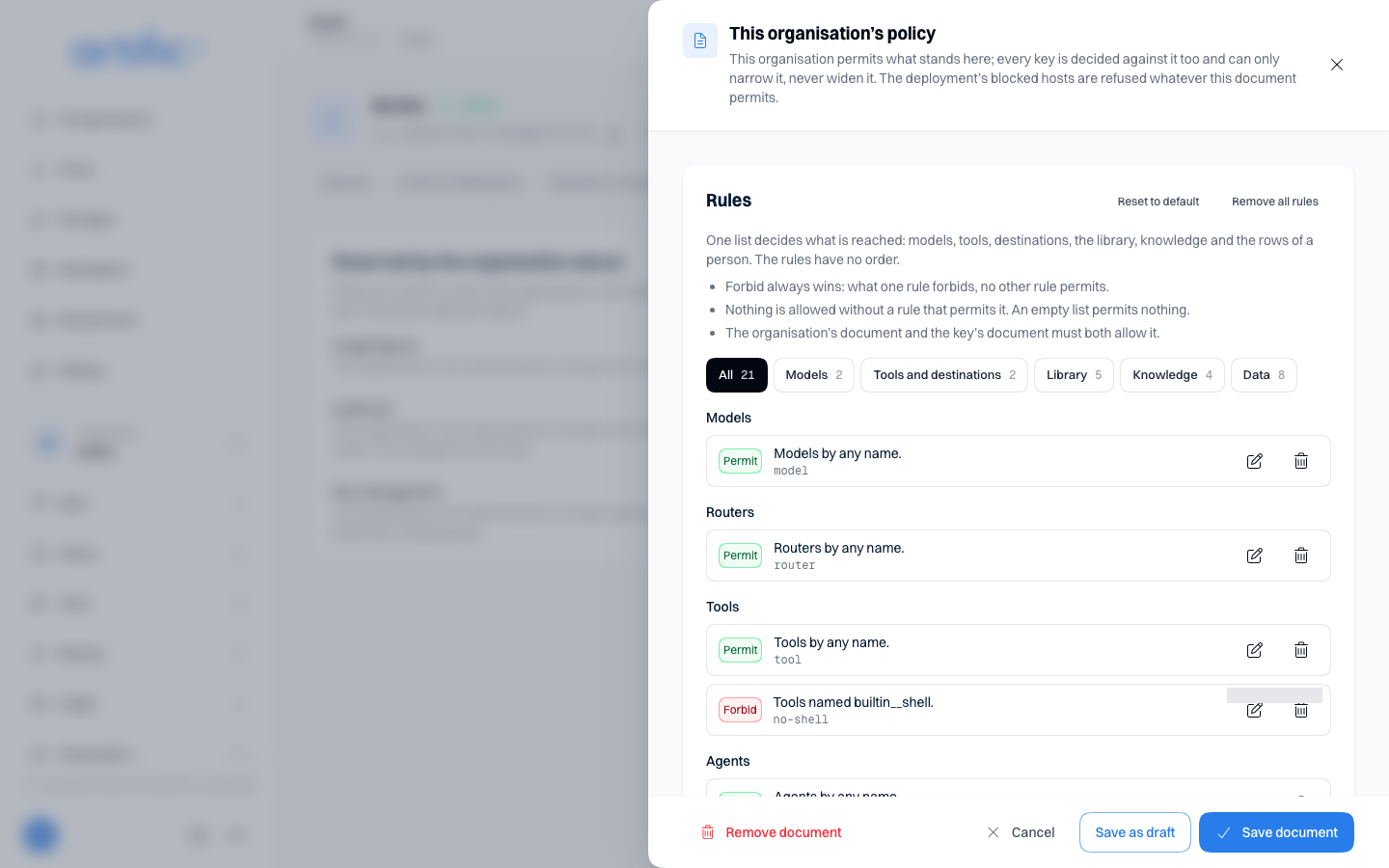
The editor in the drawer is the one on a key's own page: one Rules list and a Settings card (Keys explains every part). What you write here holds for every key the organisation has now and registers later. Select Save document at the foot of the drawer to store it.
When someone else saved first. The drawer remembers the version of the document it opened. When a colleague saved the document after you opened it, your save is refused and the drawer shows The document has changed in the meantime: Somebody else saved this document after you opened it. Your changes are still on screen and have not been saved. Load the saved document again to continue: your changes are then lost. Nothing was written. Note what you changed, select Load the saved document to put the stored document on screen, and make your changes again. Adding or removing a host on the Allowed hosts card changes the document too.
Save as draft, then publish. Beside Save document, the drawer offers Save as draft. A draft is the next numbered version of the document, but nothing changes yet: no key reads it and no request is decided under it until you publish it. The Versions card under the policy card lists every version, newest first; a waiting draft shows as Draft v2 ready. Open a draft to see You are reading draft v2. No key sees or runs it until you publish it., with Publish and Discard draft, each behind a confirmation. Publishing puts the draft in force from the next request; it is refused when a newer version was published in the meantime, or when the document changed since you opened the card. A discarded draft's number is never used again. Where a parent kept key management, you read the versions but publish and discard nothing.
Test a draft before you publish it. Test draft v2 opens a drawer that answers questions as a
request of one of the organisation's keys would be decided, under the draft and under the published
document side by side. Choose the Key, then for each question a Kind, a Name, an
Action where the kind has one, Labels and The person's attributes (both as
name=value, separated by commas), and select Ask. Each answer says Allowed or Refused,
and whose document and which rule decided; an organisation above is named without its rule. It is a
dry run: nothing is decided for real, nothing is saved and no host is called. A question about a
model is answered by the rules alone, without the hosting regions.
Without a document of its own, the organisation default applies. When the organisation has no document yet, the card says This organisation has no document of its own, so it is decided under the organisation default: every kind is permitted whole, but no host. It reaches no host until it allows one., with a Write a document button under it; when there is one, Edit opens it. The organisation default permits every kind whole, except two: no Destinations and no Share stored HTML files and pages through a link. A key is decided against its own document as well, so under the organisation default the key's rules decide everything else.
Write a document opens the drawer with the organisation default in the list. The first host you allow on the Allowed hosts card writes the same document, with one rule added. Remove document at the foot of the drawer takes the document away: the organisation falls back to the organisation default, so every host it allowed is removed with the document.
Sharing through a link is always decided here. A rule about Share stored HTML files and pages through a link in this document is consulted for every share link, made by a key or by a person in the console, and a link opens only while this document permits it. The default rules do not permit it, and an organisation without a document shares nothing, whatever a key's own rules permit (Share an HTML file).
Because both documents must allow a thing, a kind your document holds no Permit rule for is refused for every key. A document meant to narrow only models still needs the rules that permit everything else.
The organisations above bind this one too. When this organisation sits under another, the policy documents of every organisation above it are consulted beside its own, for six kinds of thing only: Models, Routers, Tools, Destinations, Artifact download and Writing memory. An organisation above is consulted about a kind only when its document holds a rule about that kind. One that wrote rules about Models alone narrows the models of every organisation below it and leaves their tools and destinations to them; one with no document narrows nothing. A document above that holds only Forbid rules about a kind holds no Permit rule for it, so it permits nothing of that kind below.
The three lists under Where data may go of every organisation above apply as well: every document that restricts regions must admit a destination or name it as an exception (Keep calls in your regions).
Work in the console that no key presents, such as a connector test or ingesting a source, is held to less of the documents above: their rules about Destinations and their three lists under Where data may go, and nothing else.
Nothing else of a document above applies here, and nothing is copied into this organisation's document. A change in a document above binds this organisation from its next call. You do not see the documents above unless you administer those organisations too, and for a refused call the audit trail says only that an organisation above refused it. A rule above that tests a label is weighed against the labels this organisation gave its own tools and models.
Writing is for whoever may manage this organisation's keys. When the organisation above keeps key
management (below), the card says The organisation above manages the keys of this
organisation. Reading is still yours. -- and when there is a document, View opens it read-only
in the drawer. From the API, a key with management does
the same with GET/PUT/DELETE /organisation/policy; GET /key still answers what stands on
that one key.
From the API, DELETE /organisation/policy answers 204 also when the organisation has no document
of its own, so a script can send it without reading first. A 404 there means the key does not hold
management. A 403
means the organisation above has reserved key management to itself.
Allowed hosts
The Allowed hosts card on the Access & policy tab decides which hosts outside Core this organisation may reach: The hosts this organisation’s connectors, MCP servers, identity providers and callbacks may reach. A key narrows this list and never widens it. You need the card before an API connector, an MCP server, a webhook or a Slack notification can send anything, because a new organisation reaches no host: This organisation reaches no host. Allow one to let a connector or an MCP server call out.
To allow a host:
- Select Add a host. The Allow a host drawer opens.
- Under Host, enter an exact hostname, such as
api.example.com, or*.plus a hostname for every subdomain, such as*.example.com. A wildcard never covers the domain itself. Lowercase letters, digits, dots and hyphens only, 200 characters at most; nohttps://, port or path. - Select Allow host. The host applies from the organisation's next call.
Remove on a row takes the host off the list; calls to it are refused from the next call. A wildcard that covers the same host is a row of its own and stays.
| What you see | What it means |
|---|---|
| Blocked by the deployment on a host | the deployment blocks this host for every organisation; calls are refused although it is on your list. Only your operator can change that |
| This organisation allows every host | the policy holds a Permit rule about Destinations with no names. You change that in the policy document, not on this card |
The list is a view of the Permit rules about Destinations in the organisation's policy; adding a host writes one rule there. A Forbid rule about a host is written in the document itself. Every key of the organisation reaches the hosts on the list; a key can narrow that with rules of its own (Keys). An organisation below has a list of its own and does not inherit this one: it reaches no host until it allows one itself.
This organisation's document limits the organisations below all the same, as soon as it holds any rule about Destinations, a Forbid rule included. An organisation below then reaches a host only when its own list allows the host and this organisation's document permits it too. The first host you allow here therefore closes every other host for the organisations below: put the hosts they need on this list as well, or their calls to those hosts are refused from the next call. A document here that only forbids hosts permits none, and the organisations below then reach no host at all (Policy).
Whoever may manage this organisation's keys may change the list; when the organisation above
reserves key management (below), you can read the list and not change it. From the
API, a key with management does the same with GET and POST /organisation/allowed-hosts and
DELETE /organisation/allowed-hosts/{host}
(Allowed destinations). Every change to the
list is recorded in the Management trail of Audit.
Label vocabulary
The Label vocabulary card on the Access & policy tab says which labels and attributes this organisation's rules, its
library and what a call asserts may name: Without a vocabulary every name is admitted, exactly as
it is today. Once you write one, every rule, every label on the library and every asserted
attribute naming something you did not declare is refused: a rule or a label with a 422 at the
moment you write it, an asserted attribute on the request that carries it -- 422, or 400 on
/responses and /messages.
The card shows how many labels there are and how many of them are an attribute. Edit opens a
drawer with the table: per label its name, its values (any value, or a closed set you list
yourself), the Kinds it classifies, whether a row may hold Several values under it,
whether a call may assert it as an attribute of the person, and a description for whoever writes a rule
later. The kinds are the fifteen rule kinds whose things carry labels, named as the
rule list names them: Models, Tools, Agents, Schedules,
Skills, Prompts, Knowledge collections, Knowledge indexes, Knowledge sources,
Knowledge graphs, Conversations, Memory records, Stored files and Datastore
rows. The name subject cannot be declared: it is the row's own id, not the organisation's.
No vocabulary is not an empty vocabulary. When the organisation has none yet, the card says every name is admitted, with a Write vocabulary button under it. Saving an empty one is the strictest choice there is: it then refuses every name. Remove vocabulary at the foot of the drawer is therefore not the same as emptying everything -- it takes the declaration away, after which every name is admitted again.
Once the organisation has a vocabulary, three places change with it. In the rule drawer of the policy card above and of a key's policy, a label becomes a list of the labels declared for the rule's kind, and the Attribute of the person a list of the labels marked as an attribute; the same holds for Labels a person may write. Every labels editor in the library becomes a list of the labels of the row you are classifying. A value becomes a list once the chosen label has a closed set. A label marked Several values may appear on more than one row of a labels editor, one row per value; any other label may appear once.
A declaration that contradicts what already exists -- a key's document, the organisation's own document, a label on the library -- is refused with the list of conflicts under it, never as a toast: nothing is stored until they are cleaned up.
Writing is for whoever may manage this organisation's keys, the same rule the policy card above
follows; reading is every key of the organisation's, because a key that will be refused for an
undeclared name has to be able to find out what the names are. From the API, a key with
management does the same with GET/PUT/DELETE /organisation/label-vocabulary, and for an
organisation below its own with GET/PUT/DELETE /organisations/{id}/label-vocabulary.
Identity providers
The Identity providers card on the Access & policy tab counts whose tokens this organisation believes about its own people; the registrations themselves open in a drawer: A partner can send a token from its own identity provider instead of writing out the attributes itself. Core verifies that token against the keys you register here and reads the person and their attributes from it; Core stores neither the token nor any claim.
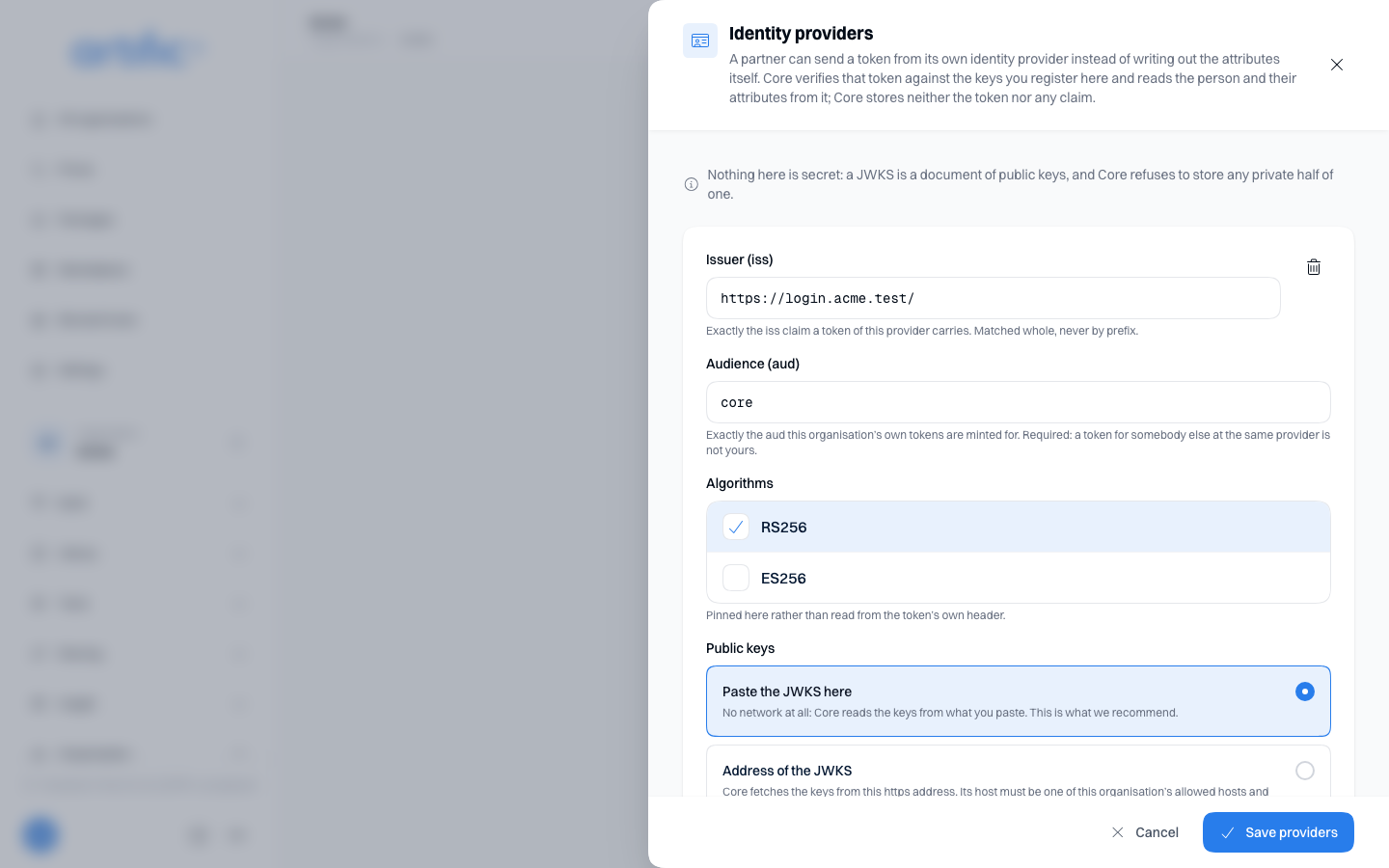
Select Add -- or Edit when there are providers already, and then Add provider in the drawer -- and fill in:
| Field | What you fill in |
|---|---|
| Issuer (iss) | exactly the iss a token from this provider carries; matched whole, never by prefix |
| Audience (aud) | exactly the aud this organisation has its tokens minted for; required |
| Algorithms | RS256, ES256 or both; pinned here rather than read from the token |
| Public keys | Paste the JWKS here or Address of the JWKS |
| Claim holding the id | the claim holding the person's own identifier; sub unless you agree on something else |
| Attributes from claims | per attribute, the claim it is read from; a dotted path reads a nested claim |
When the organisation has a label vocabulary, the attribute field here becomes a select over the names declared as an attribute -- the claim beside it stays plain text.
Prefer pasting the keys in: No network at all: Core reads the keys from what you paste. This is what we recommend. If you choose an address instead, its host must be one of the organisation's allowed hosts and the deployment must not block it. Allow the host before you save. Nothing here is secret: a JWKS is a document of public keys, and Core refuses to store any private half of one.
Save providers replaces the whole list, with at most eight providers. Removing a provider means a token from it is refused from that moment on. The registration belongs to the organisation and holds for all of its keys; whoever may manage the keys may change it. Under reserved key management the card says who changes it, and when providers are registered, View opens them read-only in the drawer.
What a partner then does with it — sending the token in X-Core-Subject, or minting a subject token
for a browser from it — is on Building for
people.
Sign-in providers and email domains
Two more cards on the Access & policy tab are about how this organisation's administrators sign in to the console, not about keys. Email domains holds the domains the organisation claims and proves it owns with a DNS record; Sign in with your own provider holds the identity providers its administrators may sign in through, at most ten. Both are explained step by step in Sign in with your own provider.
Default fallback routing
The Defaults for every key card names the routing configuration every key of this organisation follows unless it names one of its own, or None when there is no such default. Select Change on that line: the Edit details drawer opens on Fallback routing, offering None plus the organisation's own configurations by name.
A default is a convenience and not a ceiling, so whoever may rename the organisation may set it — its own administrators included. The one exception is an organisation whose key management the one above it reserved (below): the line stays, the control goes, and the field in the drawer is read-only.
Configurations themselves are made on Routing, where a configuration this card names also cannot be deleted until the default is cleared. A key can name another configuration, or fall over to nothing at all, on Keys. A child organisation does not inherit this default.
Timezone
The Timezone line on the Defaults for every key card names the timezone a prompt of this organisation reads its built-in date and time values in: Today's date, The current time, The current date and time and The day of the week (Defaults for variables). That timezone applies only when neither the call nor the schedule firing the turn names its own. A schedule always has a timezone of its own, so this setting does not count for a fired turn.
A new organisation is set to UTC. Select Change on that line to choose another: the drawer
offers the timezones by region, with UTC as the first group. They are IANA names, such
as Europe/Amsterdam; choose the city or region closest to the zone you want and select Save.
Such a name follows daylight saving time by itself.
Whoever may rename the organisation may also set its timezone, and an API key with management can
set it with PATCH /organisation (Manage organisations through the API). A child organisation does not inherit
this timezone.
Helper model
The Helper model line on the Defaults for every key card names the model that writes when you use Describe what you need anywhere in the console, for instance while building a JSON Schema for a datastore or an API connector (A datastore). Choose no model of your own and the row reads The deployment's default.
The same model also answers every turn of a helper you build yourself
on POST /responses that names no model.
Select Change on that line to choose one of this organisation's own catalogue chat models, or leave it empty for the deployment's own default -- the drawer names which model that currently is, or none when the deployment has no default either. With no model in force, every Make a draft button under Describe what you need is disabled; hover over it for the reason.
The analysis model of improvement analyses is a separate choice, on the Improvements tab; it never falls back to the helper model (Improvements).
Improvements
On the Improvements tab you switch improvement analyses on and choose their clock, checks,
analysis model and pseudonymisation. Switching on is consent to let the organisation's
conversations be read in pseudonymised form, and it costs model calls. How to set it up and what to
do with the proposals is in Improvements in the console. The
tab needs the improvements capability in the organisation's ceiling.
What the organisation above reserves
If you administer an organisation above this one, the Access & policy tab carries the card Reserved by the organisation above. Its three switches keep one surface with you; choose Save in the bar at the bottom afterwards:
| Switch | What this organisation's own administrators lose |
|---|---|
| Usage figures | Usage — the screen says the organisation above reads it |
| Audit trail | the Calls and product events tab of Audit; Management stays theirs |
| Key management | registering, editing, rotating and deleting on Keys; reading stays |
You keep all three yourself, on an organisation with every switch on as well. Administering the organisation itself, you do not see the card; the Details card then carries one line under Reserved per surface the organisation above keeps. Nothing there means nothing is reserved.
A reservation is a decision about an organisation, never an organisation's about itself: the
console hides what Core would refuse, and Core refuses it regardless. A reservation does not
affect a key reading its own data: GET /usage, GET /audit/events and GET /key give the same
answer with or without one. A key holding management administers this organisation from the API
and does meet the key-management reservation there, with the same refusal (Manage organisations through the API).
Administer over MCP
The General tab also carries the Administer over MCP card: the management endpoint
/api/v1/management/mcp, with a copy button. An administrator signs in through the
identity provider from the MCP client and sees every organisation they administer, rather than
carrying a key. See Use Core from an MCP client for how to connect a client
this way.
Recent events
Recent events include organisation creation, renaming and suspension, and key registration and rotation. Each event shows what happened and to what, the actor and the time; the newest is on top. Select All in Audit to open Audit.
Events identify keys by id and do not include any part of the secret.