MCP servers in the console
The concept behind MCP is explained in MCP.
Under Tools > MCP servers you register an MCP server and choose which of its tools you offer. An MCP server is a server of yours or somebody else's that publishes its own tools. Core reads its tool list in the background; what it finds appears in the Overview, and every registered server is a toolset of its own tools straight away.
You need an administrator account of the organisation, and the tooling capability has to be on in
the organisation's ceiling. The host of the server has to be one of the organisation's
allowed hosts.
Organisation keys can offer these tools in a turn, subject to their policy. See Tools through the API for API examples.
Register a server
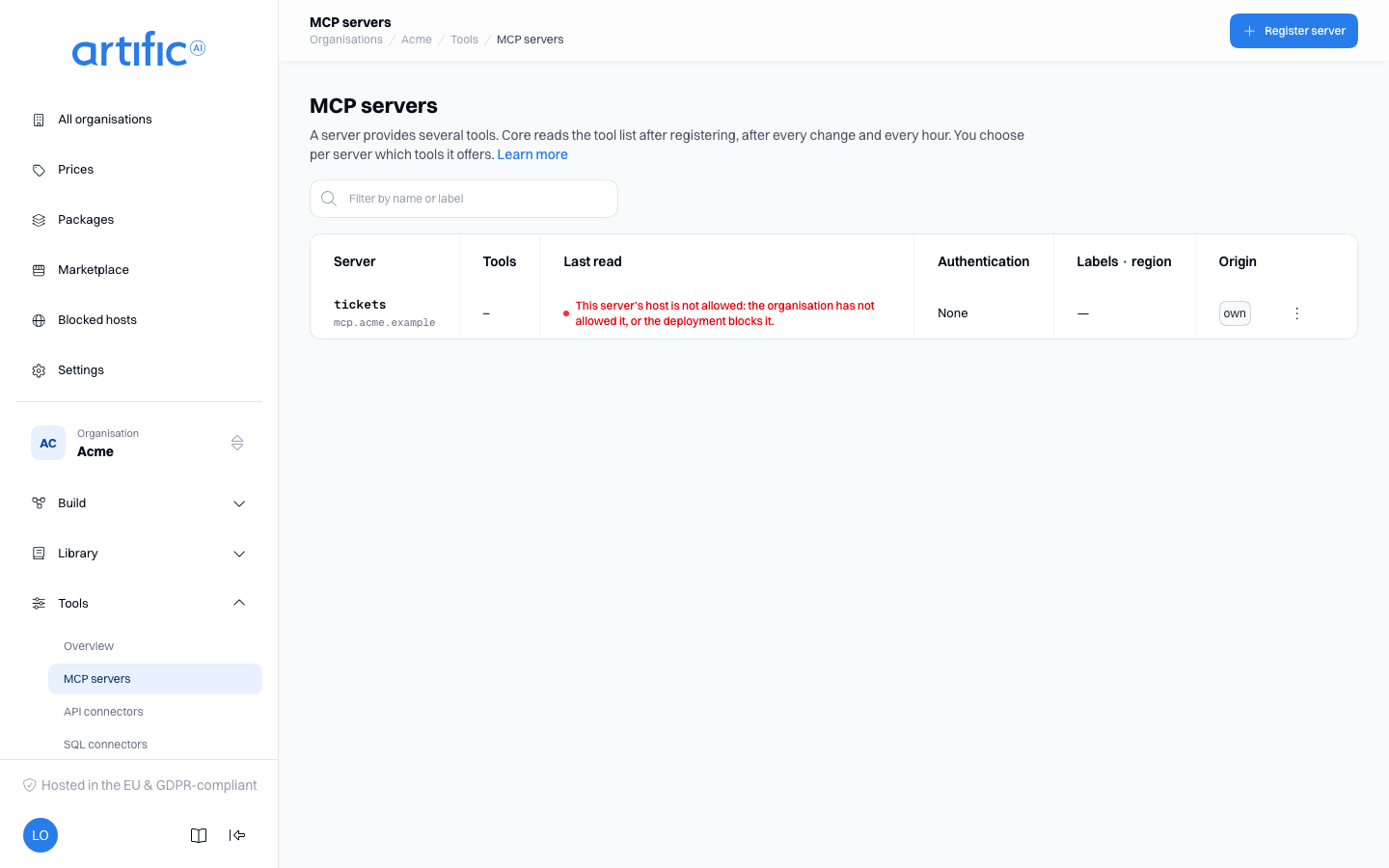
The list shows each server's name and host, what it offers (All · 12 when you have not restricted it, 8 of 12 when you have chosen), where its read stands, the kind of credential, its labels and region, and where the server comes from. Type in Filter by name or label to narrow the list. Select a row to open the server's page.
Select Register server in the bar. A page opens; complete these fields and select Register in the bar at the bottom:
| Field | What you fill in |
|---|---|
| Identifier | what a request calls this server by; cannot change later. The field shapes what you type into lowercase letters, digits, - and _, at most 32 characters |
| URL | the server's http(s) address |
| Region | where the server is served, see Where the host is served; may stay empty |
| Authentication | None, Token in a header, OAuth (client credentials) or OAuth (the person's own login), see Store a credential |
Core does not test the server beforehand. After registering you land on the server's page, not read
yet; Core reads the tool list shortly afterwards in the background, and that is where you choose the
tools. They then appear in the Overview as mcp__<server>__<tool>.
The server name cannot be edited. It forms part of the tool names offered to the model. Change the rest with Edit in the bar of the server's page; after saving, Core reads the tool list again, and until that is done it offers the tools of the previous read.
The credential works exactly as it does on an API connector, and the same Store a credential section describes it. Core sends it both when it reads the server's tool list in the background and on every call a turn makes.
A server can also carry headers of your own. In the Headers block of the form, add a header
with Add a header: a name and a value. The value may hold install values ({$name}) and call
variables ({@name}) that your application sends per request, such as your customer's own token.
A row appears for each of them, as on an API
connector: a Secret install value is a password field that
says Set afterwards and stays empty to keep the stored value, and a call variable has a type,
Required, a default and a Secret switch (Values your
application sends).
The form refuses what Core would refuse before it asks: Cookie, Proxy-Authorization and a header
Core or the MCP transport sets, Authorization unless Authentication is None, the header
the server's own credential is sent in, a call variable in the URL (Core reads the tool list without a
request to take the value from), and a secret in the URL. Core leaves a header that holds a call
variable off when it reads the tool list, so your server must list its tools without it; see Pass a
customer's value to a tool.
The Asynchronous tool section of the form decides whether the model may start this server's tools as tasks that keep running after the turn has ended; it holds for every tool of the server. The fields are described under Asynchronous tool; servers that run tasks of their own are on Run a tool in the background.
The host has to be allowed. Core calls the server only when the host is one of the organisation's allowed hosts, and the same holds for the token endpoint of an OAuth credential. When a host is not, or the environment blocks it, the read fails and the server's page says Core offers no tools of this server until that changes, with To allowed hosts; that link opens the Allowed hosts card.
On a phone you read the list and the pages; registering and editing happen on a larger screen.
Delete a server in the danger zone on its page, or with Delete in the row menu. The confirmation names the toolsets and aliases that lose tools of the server; the server's automatic toolset goes with it. When the latest version of an agent names a tool of the server, Core refuses the delete and the dialog names those agents.
Where the host is served
Region says where this server's host is served: eu, us, global, in-cluster, or a
two-letter country code such as nl, in lower case. It matters only to a key whose policy limits
its regions (policy.settings.regions_allow): such a key reaches this server only when its list
names this region or one containing it (nl lies inside eu, and everything inside global), and
needs no declaration of its own for the host — though a host_regions entry in the key's or the
organisation's policy that places the host more widely still wins. Each server says it
for itself, so one may be served in the EU and another in the US. Leave the field empty and each
key places the host with its own policy.settings.host_regions instead; emptying it on an existing
server clears the stored region. The list shows the region in the Labels · region column. See Allowed
destinations.
A server's page
A server's page has three cards. Server shows the URL, the authentication, the region, when Core last read the tool list and that it reads it every hour, and the server's automatic toolset, with a link. Tools is where you choose what the server offers. Versions lists what the server has dialled over time, see Versions and drafts.
Allowed tools is picked, not typed — once Core has read the server. Choose Everything, also what comes later to offer every tool, including one the server adds later, or Choose to switch a box on or off per tool. A name Core still restricts to that the last read no longer found is kept as its own row, marked Not found by the last read, and unchecking it is how you drop it. At the top the card says how many tools the server offers now. Select Save to keep your choice. When a tool disappears in a read, Core no longer offers it: toolsets whose pattern covered it come out at fewer by themselves, and an alias aimed at it becomes unavailable.
Check what Core read
The list and the page show where the read stands. Not read yet means Core has not managed a first read; it runs in the background shortly after you register a server, usually within a minute. Being read means you just asked for a read; your choice of tools stays and new tools appear once it is done. Read shows how many tools the last read stored. Reading failed is shown in red, and the page says what went wrong; while reading fails, Core offers no tool of the server.
Select Read tools now in the bar of the page, or in the row menu, to ask for a new read. Core queues it and the worker runs it; the page and the list update once it has happened.
Versions and drafts
What a server dials -- its URL, its headers, its install values and call variables, the tools it offers and whether they may run in the background -- is a numbered version. Saving a change to any of them records a new version; changing only the authentication, the region or the labels does not, because those belong to the registration rather than to a version. A version never changes.
To prepare a change without anyone using it yet, select Save as draft in the form. A draft gets the next number but no key sees it, and Core never reads a draft's tool list: the server keeps offering what its published version offers. A draft holds what the server dials only, so the form refuses a draft when you changed the authentication, the region or the labels; save those without a draft. The page head says Draft v3 ready while a draft waits, and draft for a server you registered as a draft and never published.
The Versions card lists every version, newest first, a draft marked draft. Open a draft to
Publish it -- the server then dials it and Core reads its tool list again -- or Discard
draft; a discarded number is never used again. A key reads the published versions with
GET /api/v1/mcp_servers/{id}/versions and GET /api/v1/mcp_servers/{id}/versions/{version}.
Labels
Set Labels on the server to control access to its tools per person. All tools from that server inherit the labels; you do not set them separately for each tool.
Rules about Tools in a key's policy compare the labels with the person's attributes (Rules about a person). See Build for people.
The same rules decide the server itself for a key's request that names a person: GET /mcp_servers
lists it when the rules let her see at least one of its tools, and a forbid hides it only when it
covers all of them. Reading, changing or deleting it is decided the same way, and listing its tools
(GET /mcp_servers/{id}/tools) or syncing it (POST /mcp_servers/{id}/sync) needs see
(Registrations). The console lists every server.
Empty lists and access restrictions
“No MCP servers yet” indicates an empty list. When the list could not load, the page says so with Core's status and a Try again button.
If you see tooling is off for this organisation, Call tools and MCP servers is off in the organisation's ceiling. The administrator of the organisation above turns it on under Permitted capabilities on Settings; for an organisation with none above it, your operator does. That holds for every part under Tools.