Manage organisations in the console
The concept behind organisations is explained in Organisations and customers.
On the Organisations screen you create an organisation for a customer, find an organisation, check its status and open its settings. You use it when you set up a new customer, and when you want to delete an existing organisation. Suspending is done on the organisation's settings.
You need an administrator account. You can create an organisation under any organisation you administer; a root organisation is created by your operator. You do the same with a key in Manage organisations through the API.
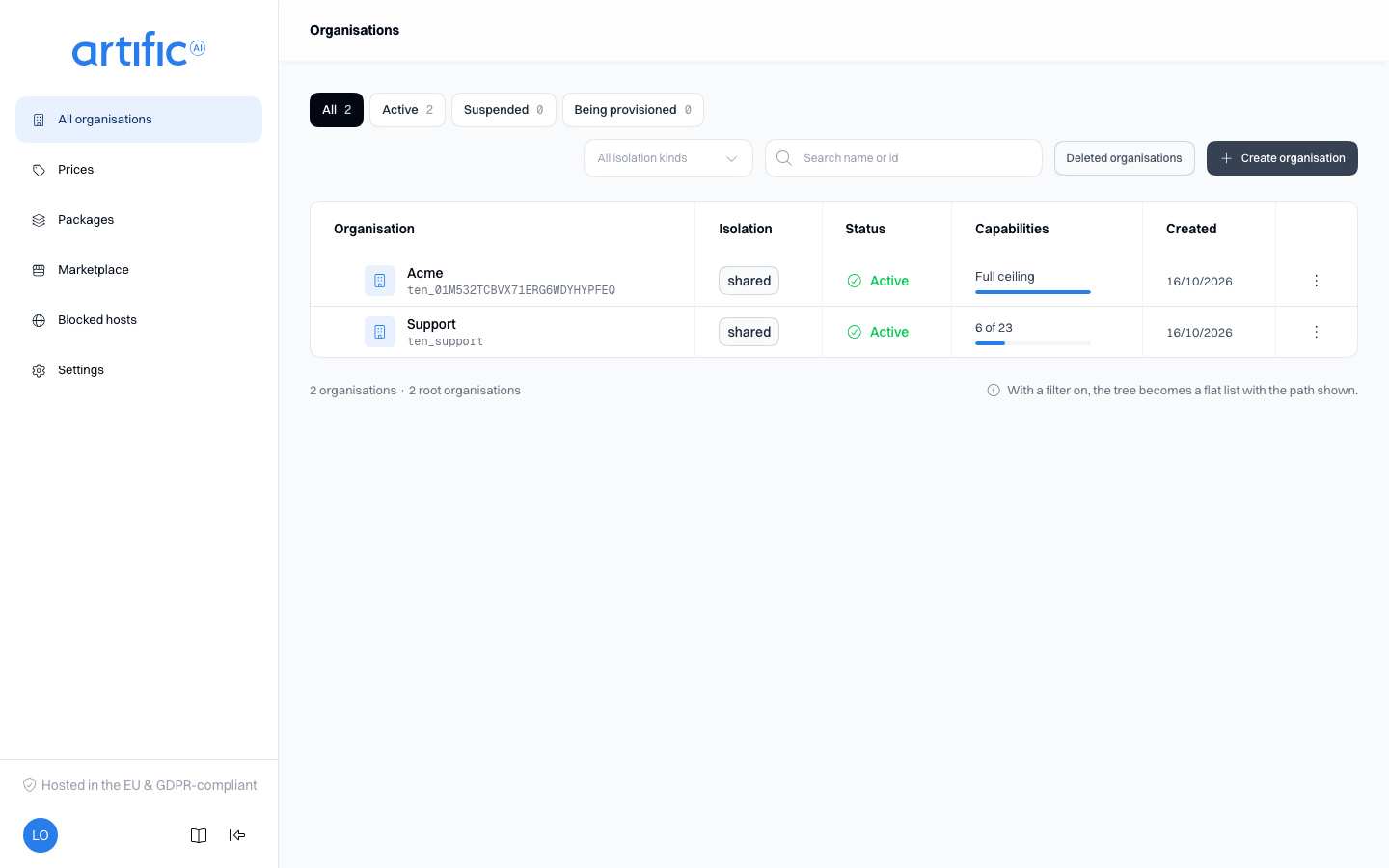
You see the organisations you administer and everything below them. Select a name to open the organisation. The sidebar then becomes that organisation's navigation; the switcher above the organisation's sections changes organisation. Its panel has a search field that looks by name across every organisation you can reach, not only the ones already shown, and All organisations returns to this screen.
If you are an operator, one row carries Operator organisation: the platform's own support organisation, whose agents read every organisation's logs. Only operators see it or can open it; to every other administrator it does not exist.
The tree
An organisation can sit under another one. The table shows that: child organisations are indented under their parent, and a row with organisations below it gets a chevron to fold them away and says how many sit directly under it. Child rows are tinted and carry a branch icon in place of the building. As soon as you search or filter, the list goes flat — each row then names the organisations above it, because a tree of only the rows that matched is no longer a tree. An organisation's Child organisations count opens this same list narrowed to that branch.
Organisation details
| Column | What it tells you |
|---|---|
| Organisation | its name, how many organisations sit directly under it, and the id its keys belong to |
| Isolation | how its rows are kept apart, Shared or Schema. Chosen when it is created and never changed |
| Status | Active, Suspended, Being provisioned, or Being deleted |
| Capabilities | the ceiling for every key it has: Full ceiling when it may grant every capability, otherwise how many of the total, with a bar. Hover over the cell for the capability ids, as Core names them |
| Created | the date it was created |
In a narrower window the list shows fewer columns (Isolation and Created go first, then Capabilities); an organisation's own page always shows them.
An organisation's own page also says which database it lives on — Core's own, or a dedicated one — a separate fact from isolation: an organisation may choose either isolation on its own database or on a dedicated one, and a child defaults to the same database as its parent unless an operator gave it a different one of its own.
Search by name or id, press a status chip, or filter by isolation. Each chip shows how many organisations have that status. Every organisation is loaded at once; the line below the table says how many organisations the list holds, folded branches included, and how many of them are root organisations.
On a phone the table becomes a list of cards, each with the name, status and isolation, and the status chips scroll sideways.
Organisation status
| Status | A key of this organisation gets |
|---|---|
| Active | normal answers |
| Suspended | refused, until the organisation is reactivated |
| Active, under a suspended organisation | refused, until the organisation above is reactivated |
| Being provisioned | "not ready" — retry in a moment |
| Being deleted | "not ready"; it will not become ready |
"Refused" is 403. "Not ready" is 409 with the detail The tenant is not ready. and no
Retry-After header, so the caller decides how long to wait. Once a deleted organisation is gone,
its keys are gone too and answer 401, like any key Core does not know.
A new organisation needs time to become ready. You can register keys during provisioning, but they work only once the status is Active.
Create an organisation
Select Create organisation, or Create a child organisation in an organisation's row menu, which fills the parent in for you. Then fill in:
| Field | What to put |
|---|---|
| Name | what it is called here |
| Parent organisation | the organisation it comes to sit under, chosen from the ones you administer. A root organisation -- one that sits under nothing -- is Artific's to create |
| Isolation | Shared or Schema. Chosen once, at creation — it cannot change later. Either organisation's own decision, whatever its parent chose |
| Database | not yours to choose: an organisation defaults to the same database as its parent, shown here read-only once a parent is chosen. Only your operator can give an organisation a different one of its own -- a root or a child alike -- and everything created under it then defaults to that in turn. Connection details never enter these screens |
| Permitted capabilities | the ceiling for every key this organisation will have. Changeable afterwards |
Use Shared unless your organisation requires a different isolation.
Permitted capabilities is folded shut at the bottom of the form, and everything the new organisation may have is already switched on. Open it only to take something away; leave it alone and the organisation starts able to enable every capability the one above it may enable.
You create organisations yourself, under an organisation you administer, and choose either isolation freely. Every organisation you create is a child, so it lives on its parent's database by default; a root organisation, and naming a database of its own instead -- for a root or for a child -- are your operator's. You cannot permit more capabilities than the parent organisation is itself permitted.
Delete an organisation
Select Delete in the row menu and enter the organisation’s name to confirm. Core blocks its keys and removes its data in the background. The management audit history is retained.
While a child organisation still exists, deletion is refused: the dialog stays open and says why. Delete or move what sits below it first. An organisation is deleted by the administrator of the organisation above it, never by its own administrators; for an organisation with none above it, ask your operator.
For an organisation on a dedicated database, deletion removes its contents but leaves the database itself in place.
Deletion is permanent.
Deleted organisations
Operators only. Next to Create organisation, the Deleted organisations button opens an overview of every organisation that has been erased and whose usage is still kept. A row shows the organisation's name and id, the organisation it sat under, its isolation and database, when it was created and deleted, its lifetime tokens and cost in euro, how many usage rows no price covered, and the date its usage is kept until. A legal hold at the time of deletion is marked, because it keeps the usage past that date.
Open a row to see its usage as the ledger holds it. The period picker, the tiles and the breakdown by kind, model and tool work as on an organisation's Usage section. There is no storage, trace, thread or message figure, no per-person table and no key filter: those belonged to data that was erased, and the ledger holds no person.
The page is titled by the organisation's name, with its id beneath. A Legal hold section shows whether the organisation's usage is under a hold, and Set legal hold or Lift legal hold changes it after a confirmation. A hold keeps the usage past its retention date until someone lifts it; lifting it lets the next retention pass delete what is past the date. The overview marks a held organisation.