An organisation's administrators
The concept behind organisations is explained in Organisations and customers.
Use the Admins section to view an organisation's administrators. Inviting an administrator,
resending an invitation and removing access are the job of an administrator of the organisation
above this one — or of your operator, where there is none above it. A key that holds management
does the same through the API
(Manage organisations through the API).
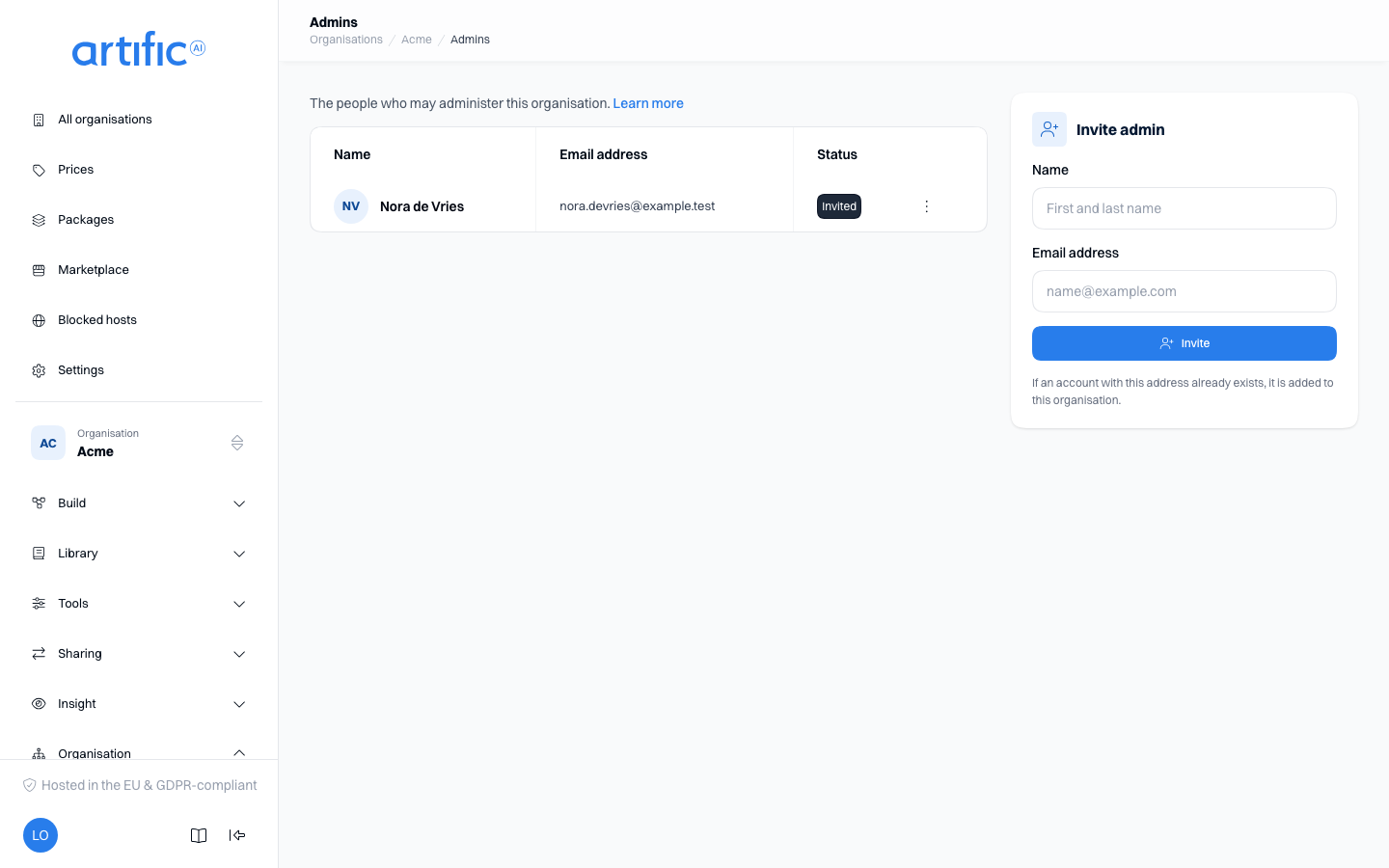
Organisation administrators see the organisations they manage and everything below them. They can rename those organisations, manage keys and view usage and audit records. On their own organisation they can read this section but get no invitation or removal controls: an organisation's administrators do not decide who else administers it. On an organisation below theirs they do get them.
Rights add up. Someone who administers an organisation and is also invited into one below it keeps everything they could already do there from above: the invitation and removal controls, the danger zone, the monthly cost cap and what the organisation above reserved. Being named administrator of more never takes anything away.
Invite an admin
- Find the Invite admin card beside the list. On a phone, select the Invite admin icon in the page's top bar instead.
- Enter, optionally, a name to identify the person in the console, and an email address.
- Select Invite and check the confirmation message.
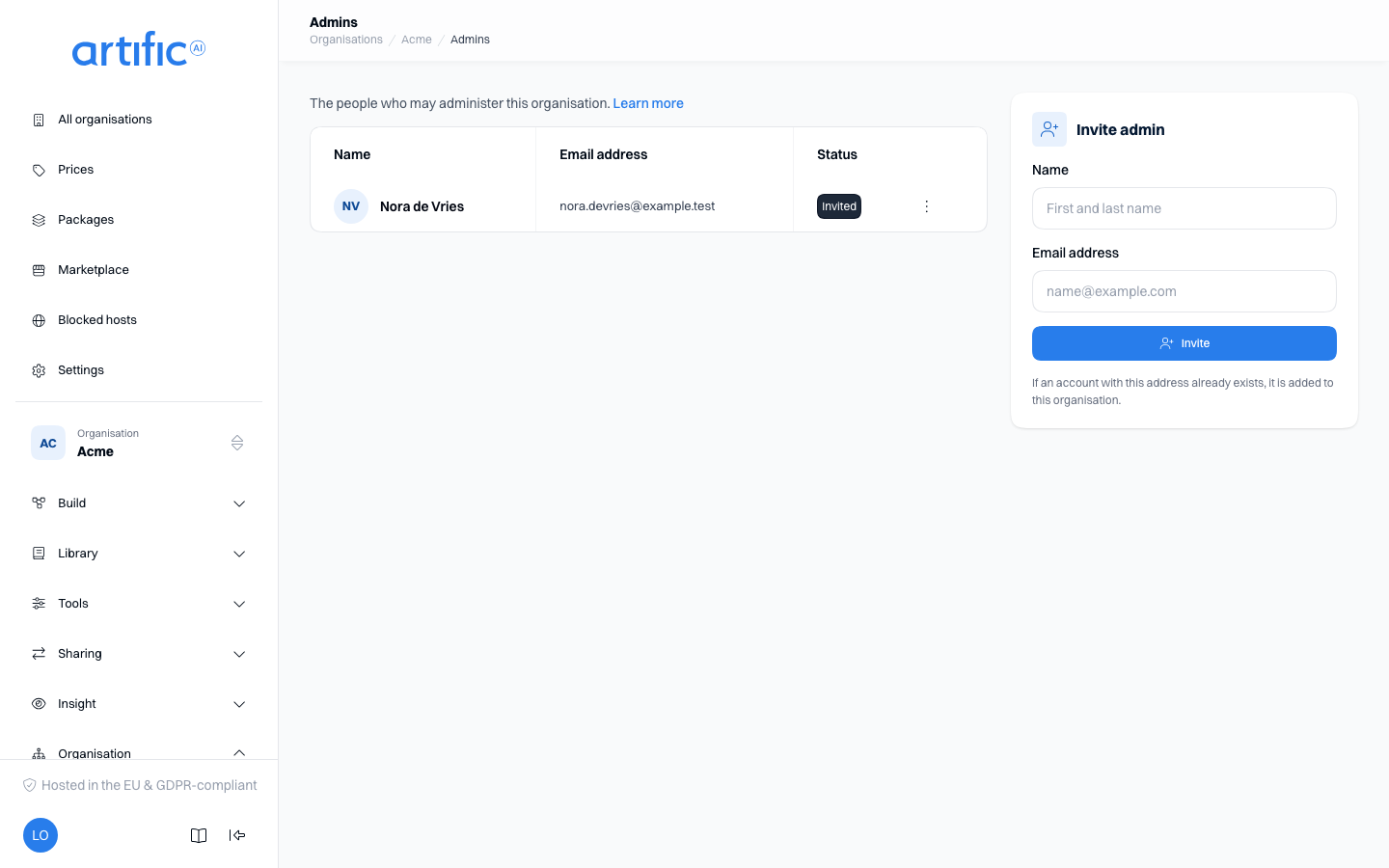
A new user receives a link to set their password and confirm their email address. After signing in, they can open the organisation. You do not set or receive their password. If the organisation has its own sign-in provider, give them its sign-in link as well: signing in through it straight away completes the invitation without a password.
| Message | Meaning |
|---|---|
| Invitation sent | The account is ready and the email was sent. |
| Admin created, but the invitation email could not be sent; send it again | Access was created, but email delivery failed. Select Resend invitation. |
| An account with this email address already existed; it was added to this organisation | Core reused the existing account. This notice appears below the result message. |
Each email address identifies one account. An existing user with a completed account setup gains access to the organisation without creating another account or receiving a setup email.
Admin status
| Status | Meaning | Action |
|---|---|---|
| Invited | Account setup is unfinished. | Wait or resend the invitation. |
| Active | The person can sign in and administer the organisation. | No action needed. |
| Incomplete | The person can sign in, but organisation access was not fully configured. | Select Resend invitation to repair access. |
| Disabled | The account cannot sign in. | Ask the account administrator to review it; this section cannot re-enable it. |
Resend invitation is available only for Invited and Incomplete accounts. If an invitation remains open, check the email address. The status does not distinguish an unread invitation from one that did not arrive.
Remove an admin
Select Remove in the row menu to revoke access to this organisation. The person's account and access to other organisations remain intact.
You can remove the last administrator. The confirmation dialog warns you that the organisation will have no administrator until another is invited. API keys continue working independently of administrator membership.
For a signed-in user, removal takes effect when their session refreshes, within a few minutes.
Account settings
Administrator invitations, resends and removals are not recorded in the organisation's Audit section. Use this section to check current administrator access.
Unavailable admin management
If account management is temporarily unavailable, the console shows a message in place of the list and hides the Invite admin card. The account service could not be reached. Other console features remain available. Try again later, or report the problem to your deployment administrator.