Skills in the console
The concept behind agents is explained in Agents.
In the Skills section you add reusable instruction packages for your organisation, and inspect, replace and delete them. A skill describes how to perform a task, such as writing release notes or triaging tickets.
You need an administrator account of the organisation, and the skills capability has to be on in
the organisation's ceiling. You do the same with a key in
Skills through the API.
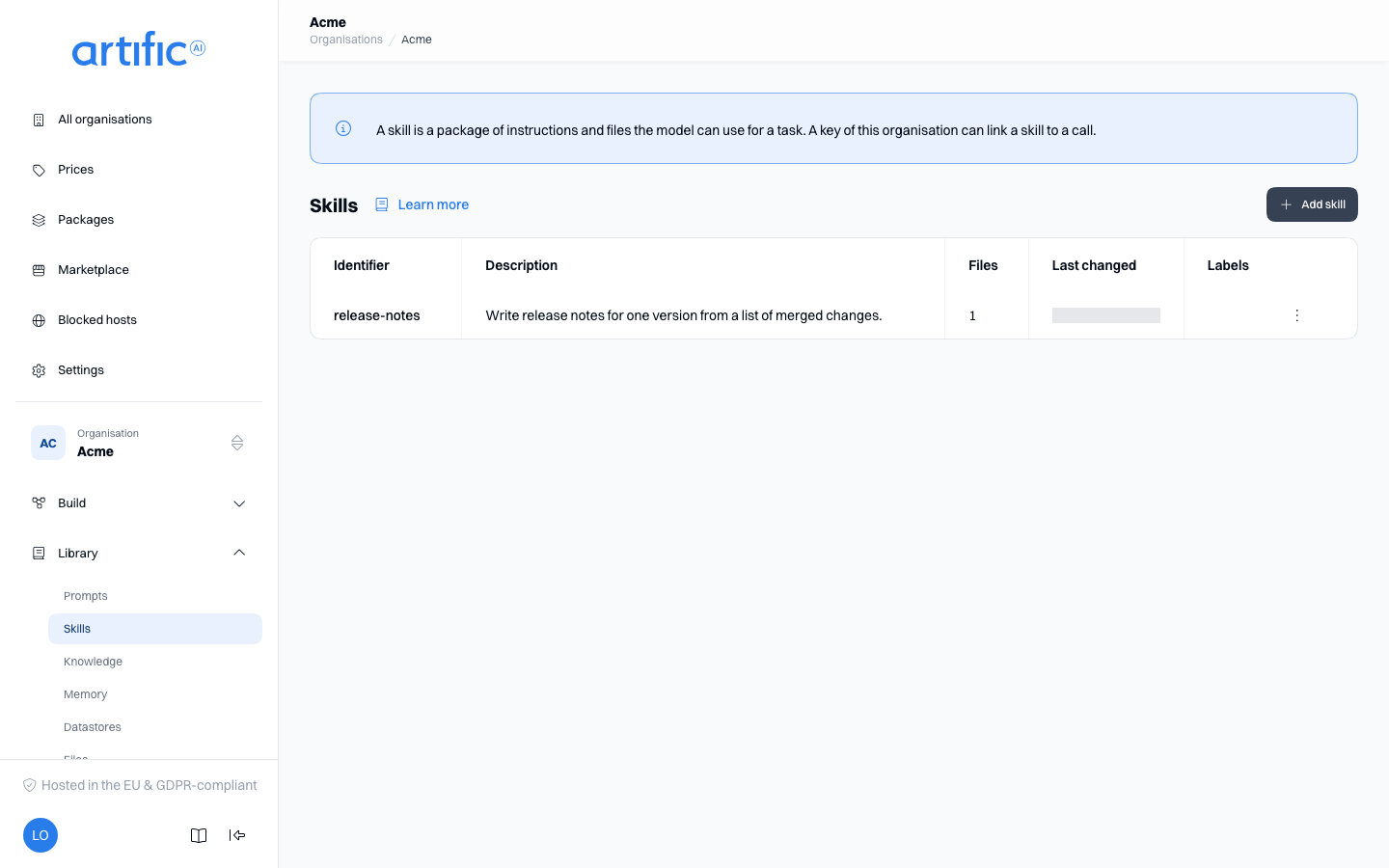
Add a skill
Select Add skill. The form opens as a page of its own and offers two ways to enter the same package, switched with the Fields and SKILL.md tabs.
Fields is the default: Identifier, Description and Instructions. The identifier is what a call and the model choose this skill by; the field shapes what you type into lowercase letters and digits, words joined with a hyphen, at most 64 characters. Write the description for the model; it decides from it whether it needs the skill.
SKILL.md is the raw file: a metadata block between --- lines with name and description,
followed by the instructions.
---
name: release-notes
description: Write release notes for one version from a list of merged changes.
---

Group the changes under Added, Changed, Fixed. One line each, in the past tense, naming what a
reader can do now. Never mention an internal ticket number.
Switching from Fields to SKILL.md composes the fields into the file; switching back parses it. A
file that does not parse keeps you on the SKILL.md tab with the reason. Front matter keys without
a field (license, compatibility, allowed-tools) are kept as written.
Editing an existing skill opens in Fields with the stored values. The name cannot change: Core refuses a replacement under another name, so add a new skill instead.
Under Files, use Add file to supply each supporting text file’s path and content, or
Upload folder to add a folder at once: a SKILL.md at its root becomes the skill and every
other text file becomes a row at its relative path. Binary files and files that exceed the
combined size limit are skipped and named. Paths must be relative and unique.
View a skill
Select a row to open the skill. Its own page shows the instructions, the creator and the file list. Select Show next to a file to load its content, which is fetched only then.
Created by shows the creating key id or the console user with an operator: prefix.
Edit a skill
Select Edit on the skill's own page. Saving replaces the complete skill, including all files, so the form loads every file before opening, which may take a moment for large packages.
The skill’s name cannot be changed. To rename it, create a new skill, update callers to use that name, and remove the old skill when it is no longer needed.
Drafts
Every save writes the skill's next version. Save as v… publishes it at once; Save as draft v… keeps it from every key until you publish it (each button names the number the version takes). A new skill saved as a draft is marked draft in the list and on its page, and does not exist for any key yet.
The skill's page lists its Versions under the instructions, newest first, each draft marked draft. When a draft newer than the published version waits, Draft v… ready opens it. An opened draft says no key sees it and offers Publish and Discard draft, each behind a confirmation. Publishing makes the draft what every key loads where it names the skill without a version; an agent that pins an earlier version keeps it. A draft an agent's draft pins cannot be discarded until that agent's draft changes; the confirmation names the agent, as a link.
Delete a skill
Delete removes the skill. While the latest version of an agent still links it, Core refuses the
delete with a 409 that lists those agents; the confirmation stays open and shows the list, each
agent a link to its page. Remove the link from the agent first. Once the skill is deleted, requests
that name it directly return 404.
Labels
Use Labels to classify skills, for example department: payroll. Edit them in the form;
saving replaces all labels on the skill.
Rules about Skills in a key's policy compare these labels with a person's attributes (Rules about a person). Under the default rules every person reaches everything the key reaches. See Build for people.
Empty lists and access restrictions
“No skills yet” means no skills have been created for this organisation.
If you see skills is off for this organisation, Register and use skills is off in the organisation's ceiling. The administrator of the organisation above turns it on under Permitted capabilities on Settings; for an organisation with none above it, your operator does. The button opens Settings.