Indexes in the console
The concept behind knowledge is explained in Knowledge.
In the Indexes segment of Knowledge you create an index, choose its collections and pipeline, and follow what has been processed. An index processes sources from one or more collections into searchable chunks and embeddings. Multiple indexes can use the same collection with different processing settings.
You need an administrator account of the organisation, and the knowledge capability has to be on
in the organisation's ceiling. You do the same with a key in
Knowledge through the API.
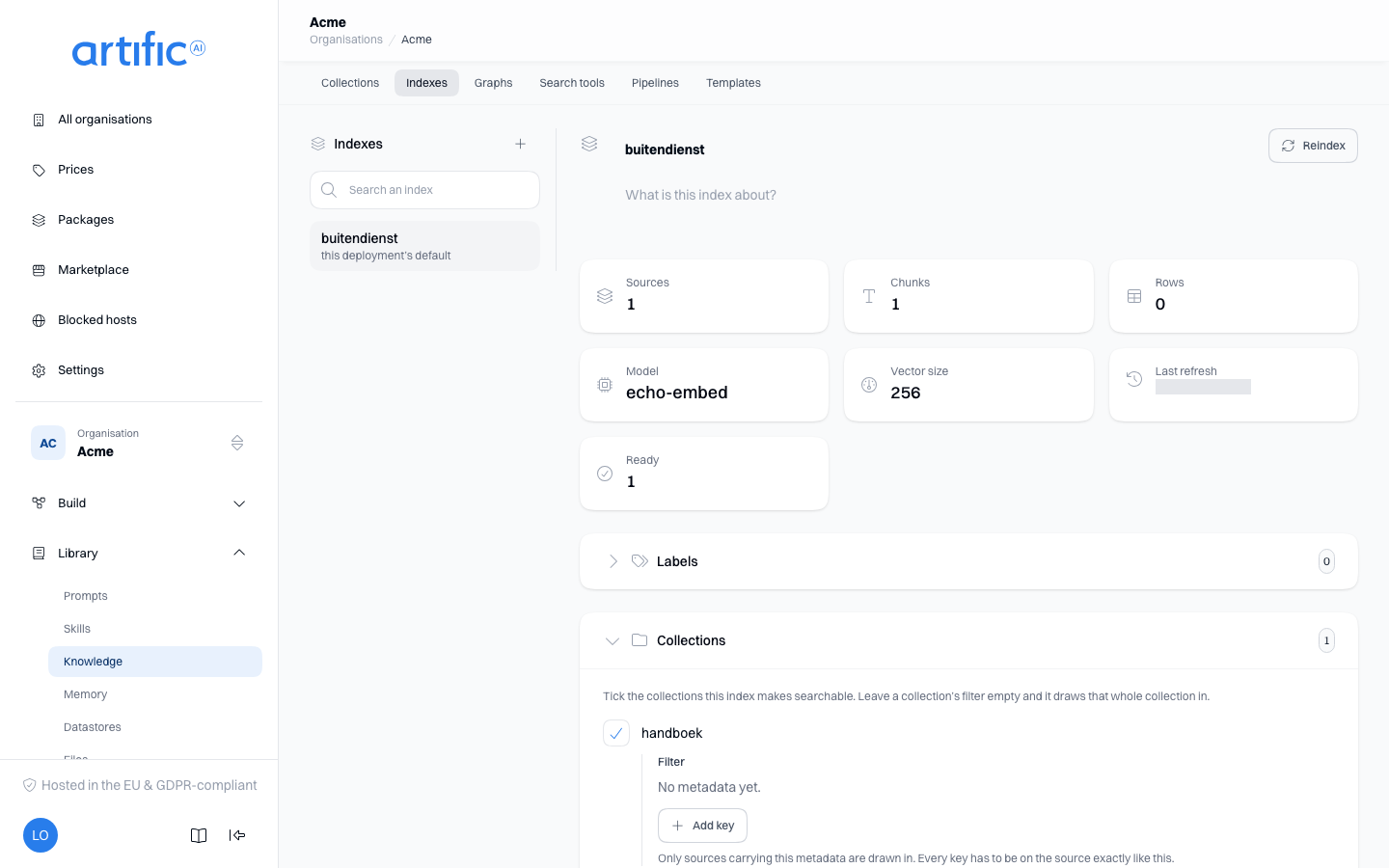
The list of indexes sits on the left and the one you picked on the right. Search above the list to narrow it, and use the plus to create one. Until you pick an index, the right-hand side says what you can do; the address does not change on its own.
Create an index
Select the plus above the list, enter a unique Name and a Description, then configure the following settings. Only the collection selection is required.
| Field | What you pick |
|---|---|
| Collections | the collections this index makes searchable; tick several |
| Embedding model | left empty means this deployment's default model |
| Ingest pipeline | left empty means the default for this shape; otherwise a built-in template or a pipeline of your own |
For a custom pipeline, select its Version. The index keeps that version until you explicitly select another one.
Saving opens the index. Source processing runs separately after the configuration is saved.
Change the name and description
The name and the description are edited where they are shown: click into either and type. As soon as something changes, a bar appears with Cancel and Save. One Save writes everything you changed on this screen, the collections and their filters included.
What this index holds
The cards at the top come from a single read and say what the index holds right now.
| Card | What the figure is |
|---|---|
| Sources | every source this index drew in, whatever its status |
| Chunks | the chunks of the sources that are Ready |
| Rows | the rows in the structured sources this index draws in |
| Model and Vector size | the embedding model in force, and the width of its vectors |
| Last refresh | when something was last processed |
Below them, Ready is always drawn. In progress and Needs attention appear only when they are not zero; hover In progress to see how many are queued and how many are being processed. While a reindex is running, a bar above the sections says how many sources it has processed; it counts up on its own and goes when the run settles.
Collections and their filter
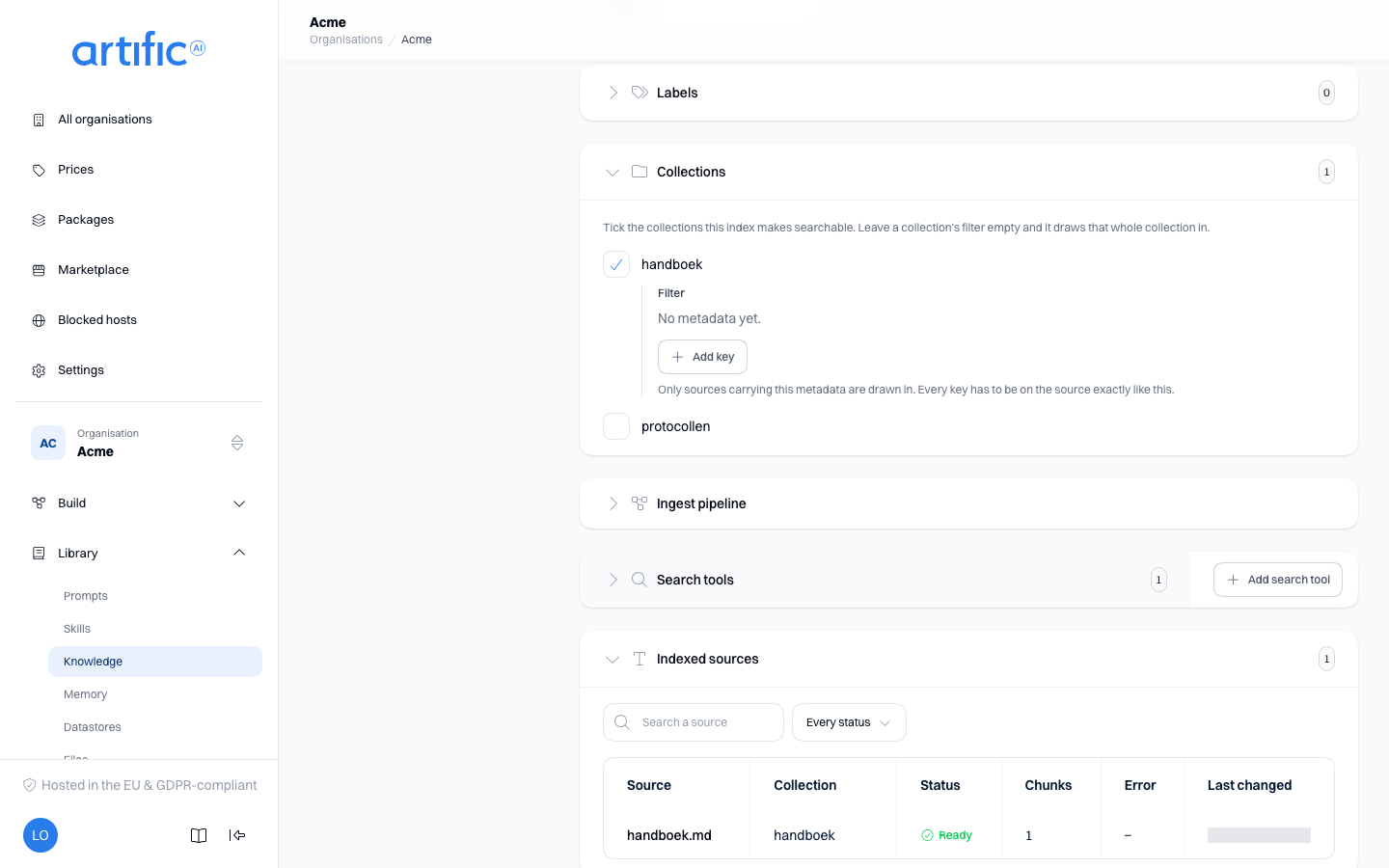
Collections is the first section. Tick the collections this index makes searchable. Under a ticked collection sits Filter: keys and values that have to be on a source's metadata before this index draws it in. Leave the filter empty and the index draws the whole collection in.
A filter is an exact match: department with value care draws in only sources carrying that key
with that value. A source's metadata is edited in its
collection; change it and Core decides again which indexes the
source belongs to.
Ingest pipeline and the model
Ingest pipeline holds the Embedding model and, under Steps, the drawing of what this index does to a source. The two belong together: changing either one calls for a reindex. If the Tabular extract step is missing, a warning sits with it: tables in files are then not stored as rows. Edit ingest steps opens the editor; see Pipelines.
Search tools on this index
Search tools lists the search tools whose pipeline names this index in a source block; each name opens the search tool. An empty section means no search tool searches this index. You create a search tool in the Search tools segment, where you choose this index as a source.
Indexed sources and the history
Indexed sources lists each source's status and chunk count, by name. Search above it by title or narrow the list to one status. A row takes you to the collection the source lives in. This index has processed nothing yet means no content has been processed or processing is still underway.
Index history lists reindex runs. Progress shows completed and failed source counts. Trigger is Full rebuild or Retry of failed, after what you chose. Automatic processing of new sources appears under Indexed sources, without a separate run.
Reindex after changes
Reindexing processes every source the index draws in again, and removes the processed content of sources it no longer draws in. Use it in these cases:
| What you did | What happens until you reindex |
|---|---|
| changed the Embedding model or the Ingest pipeline | A warning at the top of the screen, with a Reindex button in it. Searches keep using the previously processed content. |
| ticked a collection that already had sources in it, or widened a collection's filter | The sources that now belong are missing from Indexed sources and from searches. |
| unticked a collection, or narrowed a collection's filter | Nothing waits: from the next search on, the sources that no longer belong are not returned. Indexed sources and the cards at the top still list them until the reindex removes their processed content. |
| added a source before this index selected its collection | The source is not processed by this index. |
Select Reindex at the top right to start processing. New sources added to an already connected collection are processed automatically and do not require this action. One reindex runs at a time. A reindex that is only waiting for sources held at the monthly cost cap does not block a full rebuild: starting one ends the waiting run, which then reads Cancelled in Index history. A retry of failed sources does not replace it, and a reindex you started a moment ago refuses a second one until it has picked up its sources.
A reindex is billed. It runs the embedding model, and any model steps of the pipeline, over every source again, also when nothing changed since the last run, and that usage counts towards your monthly cap. Retry of failed processes, and bills, only the sources that failed. Work Core repeats on its own account is not billed twice: when the processing of a source is interrupted on Core's side and started again, the repeated calls cost you nothing.
Saving a change to the model, the pipeline or the collections while a reindex is running overtakes that run. Core ends it, and Index history shows it as Cancelled. Start a new reindex for the index as it is now; if it is refused because the old run has not been ended yet, try again a little later.
Delete an index
Use the delete button at the bottom and type the index name to confirm. Deletion removes the index and its processed content. Collections and sources remain available for another index.
The memory records stored in the index go with it. They are deleted in the same step as the index, not later by a background job, and there is no trash to restore them from: once the delete has succeeded, a read or search of those records finds nothing.
Core refuses the delete with a 409 that lists the cause while an API key injects memory from the
index, or while memory extraction is switched on for it: remove the index from the key, or switch
extraction off, first. The confirmation stays open and shows what is in the way, the keys as links.
A search tool that references the index does not stop the delete. Update it before deleting the index; otherwise it remains configured but finds nothing.
Labels
Use Labels on the index page or creation form to classify indexes.
Access is checked at two levels:
- Rules about Knowledge indexes determine whether a person may use the index.
- Rules about Knowledge sources determine which documents that person may retrieve from it.
Write these rules in a key's policy (Rules about a person). See also Build for people.
Empty lists and access restrictions
An empty column on the left means this organisation has no indexes.
If knowledge is disabled, Index and search knowledge sources is off in the organisation's ceiling. The administrator of the organisation above turns it on under Permitted capabilities on Settings; for an organisation with none above it, your operator does.