Agents in the console
The concept behind agents is explained in Agents.
In the Agents section you write a request down once: a model, an instruction, a prompt pinned to a version, skills and tools. You publish versions of it and remove definitions you no longer use. A call names the agent and supplies whatever it leaves open, so the combination changes without anyone deploying an application.
You need an administrator account of the organisation, and the agents capability has to be on in
the organisation's ceiling. You do the same with a key in
Agents through the API.
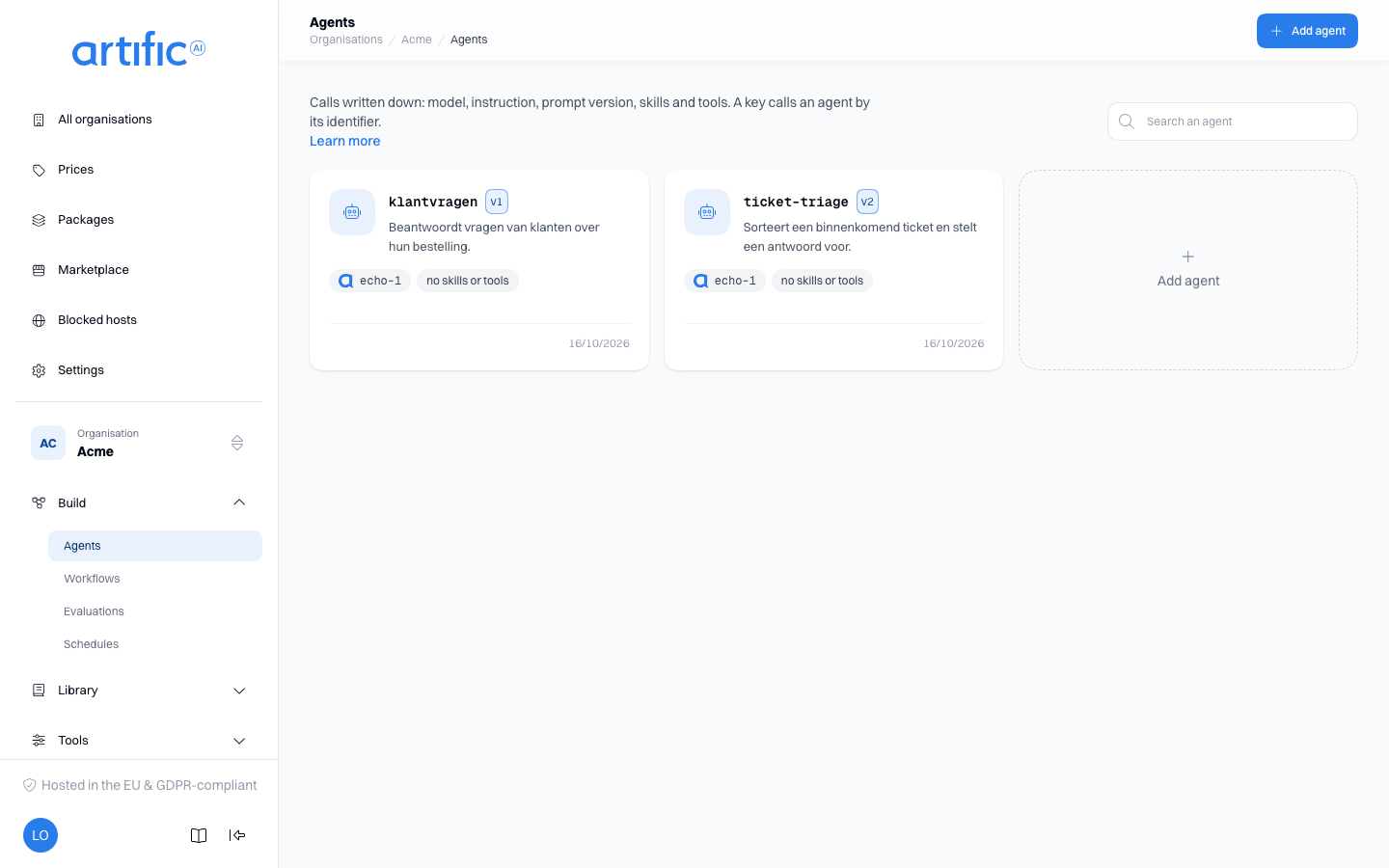
The agents are cards, the most recently changed first. A card shows the model, or the call’s model when the agent fixes none, and how many skills and tools it brings. The search filters the loaded cards by name and description.
An agent's own page also carries the Evaluations card: the evaluations measuring this agent, with the last concluded verdict per evaluation and a button to run one. See Evaluations in the console for writing one.
Add an agent
Select Add agent. The form opens as a page of its own: first who the agent is, then under What it does the model and the instructions. Prompt, Skills and tools, Model settings, Live checks and Labels are folded, each with one line saying what it holds; select one to open it. Complete these fields:
| Field | What you fill in |
|---|---|
| Identifier | what a call uses to choose this agent; cannot change later. The field shapes what you type into lowercase letters, digits, - and _, starting with a letter or digit, at most 64 characters — type "My Agent" and it becomes my-agent |
| Description | what this agent is for. For readers only; it reaches no model. The cover is set once the agent exists |
| Model | the model a turn runs on when the call names none itself. Leave it empty and every call has to name one |
| Instructions | a standing instruction this agent contributes, with the same weight as a developer prompt |
| Prompt | a prompt of this organisation, and then one of its versions. Choosing a prompt pins the version it runs now; the variables that version declares are listed underneath |
| Skills | the skills this agent offers. A call's own skills are added to them, never replaced |
| Tools | the tools and toolsets this agent offers, one row each with its source or the word toolset, and a bin to remove it. Add tools opens the tools in groups — one per MCP server, one per other source, whole toolsets first — with a search that opens the groups it finds something in; a group's own checkbox takes every tool in it. A tool a chosen toolset already contains is marked in toolset …. A call's own tools are added to these |
| Model settings | tool choice, maximum tool rounds, temperature and maximum output tokens, compaction, Asynchronous tool and Offering tools (The key’s default, Direct or Through search, see The tool router), folded because most agents fix none of them. Whatever you leave empty, the call decides |
| Live checks | rules every turn of this agent is held to, on the question or on the answer, and the standard reply a refused question gets; see Live checks in the console |
| Labels | the agent's labels, see Labels |
Everything but the name is optional. An agent that fixes only a model and an instruction is as valid as one that brings a whole toolset.
Under Tools, Variables the tools need lists, read-only, the call variables the named tools
read: each name once, whether it is required or secret, what it holds and which tools read it. It
tells a developer what to send in tool_variables when calling the agent (Pass a customer's value
to a tool). A toolset's members and a workflow's variables are not listed.
The Asynchronous tool section decides whether a turn that offers this agent as a tool may start it as a task that keeps running after the turn has ended. It sits under Model settings, on this form and on the next version, and the agent's page shows there what it holds. The fields are described under Asynchronous tool; an agent has no Safe to send again.
The Instructions may hold an install value, {{ $name }}: a value you set once, such as your
company name. As soon as they hold one, Install values appears under the field with a row for
that name: its Type (Text, Number or Choice), your own value, the Allowed values
of a choice and a Description, exactly as on a prompt.
Your agent uses the value you fill in. Whoever installs the agent through
a publication fills in their own (see Text the installer fills
in). The agent's page shows the install values of the
version you are reading.
A tool or toolset this agent's latest version names cannot be removed while it is named: the delete answers with the agents that still name it.
A prompt is always pinned to a version: a stored definition that followed the latest version would change what the agent does without a new version of the agent. To move an agent onto a newer prompt, publish a new agent version.
Below the prompt, Variables of this version lists what it declares. A variable with a default carries the same label there as on the prompt's page, such as automatic: Today's date: a call of this agent need not send a value for it. The agent's name becomes this agent's identifier. A call fills in the other variables per turn, as always (Agents through the API).
Select Add in the bar at the bottom to create the agent and version 1. You land on the agent's own page, version 1 already in its history.
The output format
text, the required output format, is set through the API only (Agents through the API). A version that carries one shows its kind and name under
Model settings on the agent's page, and the next version's form shows it as JSON. A new version
published from the console keeps it unchanged.
Add a version
Select a card to open the agent. Its own page is for reading first: at the top the cover, the name with its version and what the latest version uses, below that one row per part (model, instructions, prompt, skills, tools, model settings, live checks, labels) with a short explanation beside it. At the side are Versions, newest first with the active one marked and each draft marked draft, Calls, Live checks in use when the latest version has live checks (pass rates), and Evaluations. Select a version to read it.
Select New version in the bar at the top. The same page then becomes the form for the next version, pre-filled from the latest version, since a new version usually changes one thing. A notice says you are editing a copy and that saving creates the next version; the old one stays as it is. The bar at the bottom counts the unsaved changes. Save as v… and Save as draft v… (each with the number the version takes) work only once something differs, because a version equal to the previous one adds nothing. Cancel discards the copy.
Versions are numbered from 1 and cannot be edited after publication. Save as v… makes the version at once: calls without a version number use the latest version immediately after publication. Save as draft keeps it from every key first; see Drafts. Calls that specify a version keep using it, and a background run already queued keeps the combination it started with.
Each version shows when and by whom it was made: the key that created it, or the console user with
an operator: prefix.
An agent installed through a publication and still linked is read only; it has no New version.
Drafts
A draft is a numbered version that only you see in the console. No key lists it, reads it or runs
it, and a call that names its number gets the same 404 as a number never written. It takes the
next number, cannot be edited (a change is a new draft) and is published in its own step.
- Save as draft on New version, and on Add agent, writes the version as a draft. An agent that has only a draft is marked draft in the list and on its page, and does not exist for any key until you publish it.
- When a draft newer than the published version waits, the agent's page and its card in the list say Draft v8 ready. On the page, select it to read that draft.
- Reading a draft, a line says no key sees or runs it, with Publish and Discard draft. Both ask for a confirmation. Publishing makes it the latest version: calls without a version number run it from then on. If publishing re-checks the draft and a field no longer holds (a tool that is gone, say), the confirmation lists the fields Core refuses.
- Publish is off, with the reason written under it, for a draft older than the published latest: publishing it would move every call without a version number backwards. Write a new version from it instead. Discard draft is off for the only version of an agent with nothing published; delete the agent instead. A discarded draft's number is not handed out again.
- If Core refuses anyway, the confirmation shows its sentence. A draft that pins a prompt draft or an agent draft cannot be published until those are; the confirmation lists them, each a link.
- The Evaluations card has a Version to measure select with every version, a draft marked draft, and Latest published by default. Run on the card measures that version. A run of a draft is marked draft in the evaluation's runs, and only the console shows it: no key lists or reads it, nor the conversations, traces and threads it left.
- A link may open the page on a version:
…/agents/{id}?version=8.
Try an agent
Select Try it in the bar at the top of an agent's page. A panel slides open in which you hold a short conversation with the agent, exactly as a key of your organisation would call it.
- Under On behalf of key, choose the key the turn runs as. As an administrator you have no key
of your own; the turn follows the capabilities and policy of the key you choose. A key that lacks
agents, orpromptswhen the version pins a prompt, is listed with what it lacks, and Send stays off. - Optionally fill in Try as person: an id your application names a person by (letters, digits and
. _ : @ -, at most 128), a pasted JSON object with attributes, or a pasted token an issuer of your organisation signed. The console wraps a plain id in the JSON objectX-Core-Subjecttakes, and the field refuses an id Core would refuse before anything is sent. The turn then follows the rules for that person, as a call withX-Core-Subjectdoes (Build for people). - Choose the Version; the latest published one is already chosen. A draft is offered too, marked draft: a try runs it, though no key can.
- When that version pins a prompt, fill in that prompt's Variables. They go with every turn. While a required variable is empty, Send stays off and says which ones are still missing.
- Type your message and select Send.
The answer appears while the model writes it. When the agent calls tools, you see each tool's arguments and what it returned, or why not. Once the turn is done, the model that answered, the tokens, how long it took and what the turn cost are listed under it. Under the conversation is what the conversation cost in all. A next question sends the conversation so far along, text only: the tool calls are not sent again.
When Core refuses the turn before it starts, for example because the key may not use the model or has reached its cap, that message stands in place of an answer. When the turn fails on the way, you see Core's code and sentence.
Every turn is real: the model is called and the usage counts on the chosen key. Stop only stops reading in your browser; Core finishes the turn and counts its usage. Nothing is kept: close the panel and the conversation is gone. The key the turn ran as cannot read it back either: the turn and its trace are yours, in the console.
Try a version before you save it
While you write a New version, Try it in the bar tries the version as the form holds it, without saving it. The Version field then says v… · not saved, with the number saving would give it, and offers nothing else. Core holds the unsaved version to the same checks as saving it as a draft: a field it would refuse is named in the panel, and the agent keeps exactly the versions it had.
Two tries side by side
Turn on Compare at the top of the panel and it splits into column A and column B. Each column has its own Version, On behalf of key, optional Try as person and variables, and keeps its own conversation, with the cost per turn and in all. There is one message box: what you send there goes to both columns, which answer at the same time. That lets you set two versions, or one version on two keys, side by side on the same question.
A column that cannot send yet, because no key is chosen or a required variable is empty, says so itself and is skipped; the other column answers anyway. When Core refuses the turn in one column or it fails on the way, the message is in that column and the other carries on. When you try a version you have not saved, column A is that version and column B picks a saved version to set it against. On a narrow screen the columns stack. Turn Compare off again and column A stays while column B goes.
Save a conversation as a scenario
After at least one message, Save as scenario sits under the conversation. In the dialog choose an Evaluation this agent is linked to, or a new evaluation that you name and that is linked to this agent, and adjust the Title if you like. Each message you sent becomes a step of the scenario, in the same order, with the variables you sent the last message with. A message Core refused before the turn began does not count, and a scenario has at most 32 steps.
The scenario goes into a draft of the evaluation: no key runs it until you publish the draft. A new evaluation you pick in the dialog is itself created as a draft: no key sees it and no schedule runs it until it is published. After saving, a notice says which draft holds the scenario, with Publish and Open evaluation. On the evaluation's Scenarios tab the draft is also listed under Versions, to measure (Measure draft), publish or discard.
No check is added, on purpose: a judge holds an answer to a rule, never to the answer the model happened to give. Once saved, the scenario opens in the ordinary scenario panel, where you add the checks; each save there writes a new draft. A linked copy of a shared evaluation and an evaluation that already holds 32 scenarios are listed but cannot be chosen; if Core refuses anyway, its sentence is shown in the dialog and nothing was written.
Duplicate an agent
Duplicate, in the bar of the agent's own page, makes a new agent from this one. Give it a name
(the dialog suggests the original's name with -copy) and choose which published version to start
from; drafts are not offered. The copy starts at version 1, with the same instructions, settings,
pinned prompt version, skills and tools, labels and metadata, and opens on its own page. Changing
the copy never changes the original.
The button is not shown for a copy a publication installed sealed, nor for one whose publication does not allow forking it or keeps it to its own agents.
Delete an agent
Delete, under Danger zone at the foot of the agent's own page, permanently removes the agent
and all its versions. Later calls naming it return 404. The confirmation asks you to type
the agent's name. While another agent's latest version names this one as a tool, Core refuses
with a 409; the confirmation stays open and lists those agents, each a link to its page. Take
this agent out of their tools first.
A prompt a version pins cannot be deleted while that version exists: deleting the prompt returns
409. Delete the agent first, and the prompt is free.
Labels
Use Labels to classify agents. Labels belong to the agent, not to a particular version. Publishing a version changes the labels only if you edit them.
Rules about Agents in a key's policy compare these labels with a person's attributes (Rules about a person). Under the default rules every person reaches everything the key reaches. See Build for people.
Empty lists and access restrictions
“No agents yet” means no agents have been created for this organisation.
If you see agents is off for this organisation, Store agents a call names by name is off in the organisation's ceiling. The administrator of the organisation above turns it on under Permitted capabilities on Settings; for an organisation with none above it, your operator does. The button opens Settings.
A key can be narrowed further to the agents it may name, under Agents in the resource rules on
that key's page. A call naming an agent outside them gets the same 404 a missing agent
gets.