Sign in to the console
Open the console address supplied by your operator. Access is by invitation; there is no public registration form.
Accept an invitation
- An operator creates your organisation and invites you.
- You receive an email with a link.
- The link opens a welcome page listing what is still to do; select Continue to set a password, and your name if it is not known yet.
- A page confirms that your account is updated. Select Go to Artific, or wait a few seconds: the page takes you there by itself.
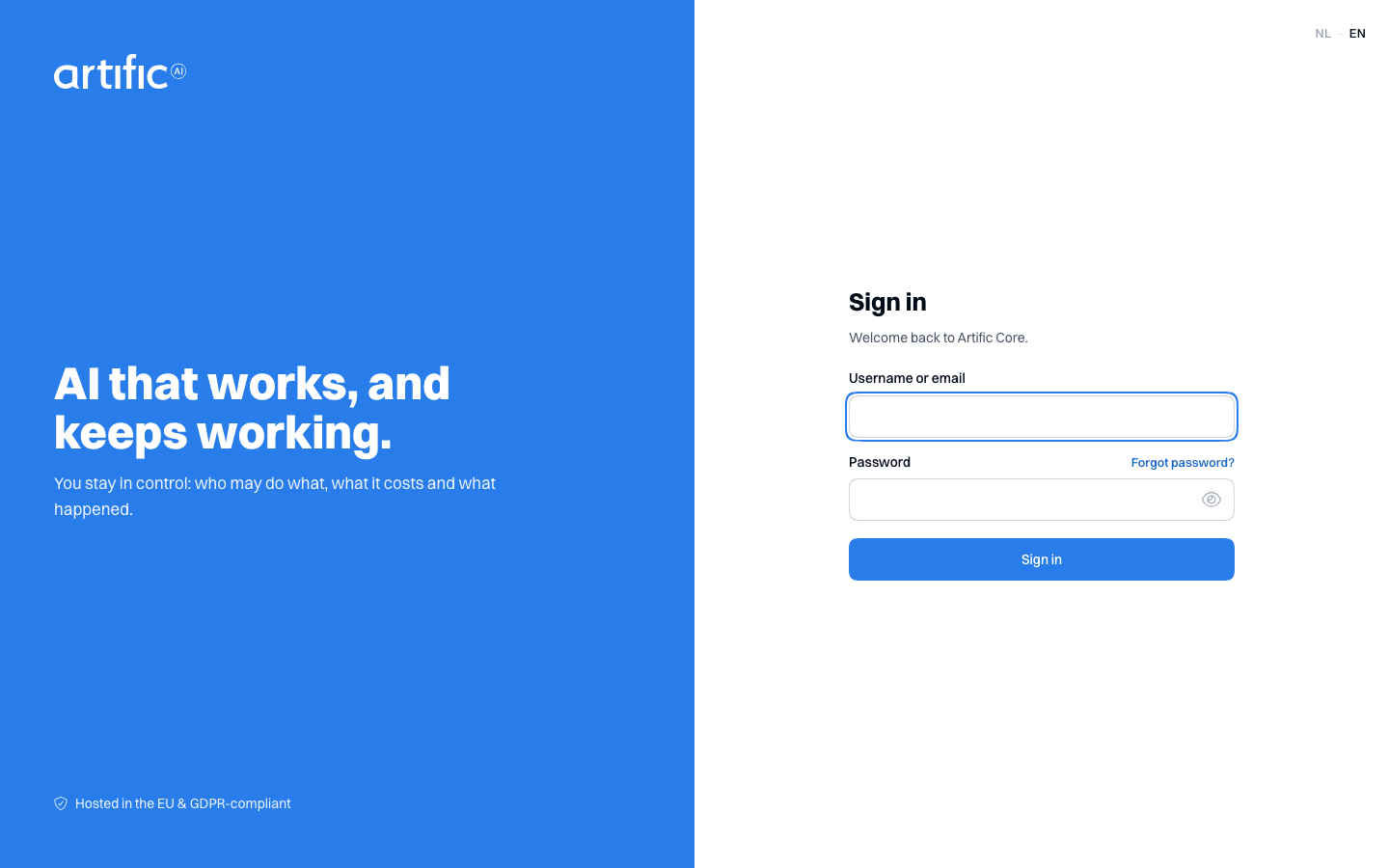
- You arrive on the console's Sign in page. Sign in with your email address and the password you just chose.
- On the Set up two-step verification page, scan the QR code with your authenticator app and enter the code the app shows.
- You land on Organisations.
If the invitation link has expired, ask your operator to send a new one.
Sign in to your account
Enter your username or email address and password. If a one-time code is required, enter it on the next page. During initial setup, scan the displayed QR code with your authenticator app.
Core's sign-in service handles sign-in and creates the console session. The console does not receive your password.
Sign in through your organisation's provider
If your organisation lets its administrators sign in with its own identity provider -- OpenID Connect, Google Workspace or Microsoft Entra ID -- an administrator gives you a sign-in link. Open it and you go straight to your organisation's provider; sign in there the way you sign in to your other work applications, and you land in the console. The ordinary sign-in page does not offer the provider, so keep the link.
Your provider's own second factor counts: the console asks for no code of its own. If you were invited and sign in through the link straight away, you never choose a password here.
Signing in this way is refused when:
- you have not been invited as an administrator of that organisation, or the address your provider verified is not the address you were invited at;
- your address is in an email domain the organisation has not proved it owns;
- you administer more than one organisation; then you sign in with your password instead;
- your account holds the operator role.
A refused sign-in ends on an error page. Sign in with your password, or ask the administrator who sent you the link.
Setting a provider up is described in Sign in with your own provider and, with a key, in Set up your own sign-in provider with a key.
Reset your password
Select Forgot password? on the sign-in page to receive a reset link by email. Password changes are handled by the identity provider.
Sign out
Open your account panel using the avatar at the bottom of the sidebar, then select Sign out. You land straight back on the sign-in page; sign in there and you are on Organisations again. The session also ends when the browser closes and expires after twelve hours at most.
If the identity provider cannot be reached, you see a page instead saying you are signed out here and that your session with the provider may still be open, with a link to sign in again.
Sign-in errors
If the identity provider cannot be reached for a moment, answers with an error of its own, or does not answer at all, the console tries again by itself a few times, waiting longer between attempts. You never wait more than twenty seconds: that is the limit for the whole attempt, however many times the console has to talk to the identity provider. If it does not work within that time, or the identity provider refuses your sign-in, you see the error page.
Select Try again there. If it keeps failing, report the time of the attempt to your operator.